














10 best SCORM authoring tools in 2026




Keep course videos up to date with Kinescope
There are plenty of learning management systems to choose from, and finding the right fit can take time. SCORM makes it easier to reuse your courses if you change platforms, provided the new LMS supports the package’s version of the standard.
Creating those courses brings another set of choices. You might be turning a presentation into an onboarding lesson, recording a software demonstration or building an exercise that lets employees practise the task themselves. Each calls for a different kind of authoring work, even when the finished course uses the same standard.
In this guide, we’ll compare ten SCORM authoring tools by the courses they help you create, the way your team works and the license you need to publish.
What is SCORM, and when do you need it?
SCORM stands for Sharable Content Object Reference Model. It defines how a course is packaged for a learning management system (LMS), so the system can launch it and receive information about the learner’s progress.
In practice, the authoring tool exports a ZIP file containing the lesson and a manifest, which tells the LMS what the package contains and what to open. Once the lesson is running, it can send back a score, a completion status or a saved location, depending on how the author has configured it. For example, an employee who leaves before the quiz can return to the saved point, finish the attempt and have the result recorded in the LMS.
This shared format is particularly useful when the organisation creating a course is different from the one delivering it. An instructional designer can hand over a package to a client’s training team, which imports it into its LMS. A training provider can supply courses to several customers in the same way, while corporate L&D teams can commission material without asking every author to work inside their own system.
That flexibility still depends on compatibility: the receiving LMS must support the package’s SCORM version, and the course’s reporting settings need to work with it. If your LMS’s built-in editor already handles the lesson, assessment and reporting, a separate package may add little. Likewise, a video that people only need to watch may not need SCORM at all.
What does a SCORM authoring tool do?
A SCORM authoring tool gives you a place to build the lesson before it reaches the LMS. You can start with existing material, add activities and decide what the learner must do to complete the course. The editor then turns those choices into a ZIP package with the code needed to report progress.
For a policy course, that might mean adding narration to a presentation and asking learners how they would handle a customer request. Their answer can lead to a different response or page, creating a branching scenario in which they see the consequences of a decision.
For software training, a recording can show someone how to complete a procedure. To let them practise within the lesson, an author can add a software simulation, which recreates the application so the learner can click controls or enter values. Depending on the lesson, completion might mean watching the explanation, passing a quiz or finishing that exercise.
When the course is ready, its export format needs to match the system receiving it. The main options are:
- SCORM 1.2, which reports scores and a lesson status, such as completed or passed.
- SCORM 2004, which reports completion and success separately. This lets the LMS record that someone finished a course but failed its assessment. There are several editions, so support needs to match at that level too.
- xAPI, also known as the Experience API or Tin Can API, which sends learning activity statements to a learning record store (LRS). The LRS can be part of an LMS or a separate service. Some editors export xAPI packages, while others offer it through a tracking mode or an additional cloud service.
SCORM authoring tools compared
The prices below refer to paid editions with SCORM publishing; annual fees are per author unless stated otherwise.
| Tool | Price and license | SCORM 1.2 | SCORM 2004 | xAPI | Simulations and scenarios | Screen recording |
|---|---|---|---|---|---|---|
| ActivePresenter | ≈€434 once; Pro plan; perpetual license | Yes | Yes | Export | Software simulations; custom interactions | Built-in |
| Articulate 360 AI | ≈€1,261/year Personal plan; ≈€1,522/year Teams plan | Yes | Yes | Export | Software simulations and branching in the Storyline editor | Built into the Storyline editor |
| iSpring Suite | €970/year; annual subscription | Yes | Yes | Export | Dialogue roleplays | Built-in |
| Adobe Captivate | €47.99/month incl. VAT; annual individual subscription, billed monthly | Yes | Yes | Export | Software simulations | Built-in |
| Lectora | From ≈€1,348/year; Gold Suite plan; annual subscription | Yes | Yes, 3rd edition listed | Export | Custom branching scenarios | Built-in; confirm current availability |
| Camtasia | €182.49/year; Essentials plan; annual subscription | Yes | Listed in 2021 manual; current support unconfirmed | Not documented* | Video quizzes and hotspots | Built-in |
| Gomo | Quote; annual subscription | Yes | Yes, 3rd/4th editions | Export | Branching scenarios | Imported video workflow* |
| Kotobee Author | ≈€261 once; Premium plan; lifetime license | Yes | Yes | Cloud ebooks/libraries; separate service | Interactive ebooks and questions | Imported/embedded video workflow* |
| Elucidat, now Create by Confirm | Quote; subscription | Yes | Author: 2nd–4th; Create: 4th edition | Author: tracking mode; Create: export | Branching in Author | Imported video workflow* |
| dominKnow ONE | Quote; subscription priced per author | Yes | Yes | Export | Software simulations through Capture | Capture desktop app |
Prices checked on September 21, 2026. iSpring uses its French euro price; Adobe and TechSmith use their German euro prices. Amounts marked ≈ are converted from published US-dollar prices at the ECB reference rate for September 21, 2026: 1 EUR = 1.1490 USD, rounded to the nearest euro. VAT inclusion is stated where confirmed; tax treatment, local quotes and promotions can differ.
* An imported-video workflow describes how recordings can be used in the course. It does not confirm a built-in recorder. “Not documented” means the checked vendor material does not establish native xAPI export; it is not a claim that custom integration is impossible.
Free vs paid SCORM authoring tools
Free access can be useful while you’re finding out whether an editor fits your course. What matters is how far that access extends: some editions let you build and publish within limits, while others are intended only for evaluation.
ActivePresenter’s Free plan, for example, supports noncommercial recording and authoring, although output using paid features carries a watermark. Atomi’s edition comparison places SCORM publishing in the Pro plan. Kotobee Author’s Free plan lets you create an ebook of up to 10 chapters and 20 MB, but publishing it as SCORM requires the Premium plan or the Institutional plan. In both cases, being able to create the material does not establish the right to use every export option.
Trials give you temporary access to paid software, which can help you test a representative lesson before committing. iSpring and dominKnow normally offer 14 days. For iSpring, the trial terms restrict the watermarked output to demonstration and internal evaluation, so a course created during that trial needs the appropriate publishing license before it is used for employee or client training.
There are also lower-priced paid plans with restrictions. Camtasia’s Starter plan allows quiz and SCORM output with a watermark; moving to the Essentials plan removes it. For a training team, that makes the license decision about the version learners will actually receive, as well as the features available while building it.
The 10 paid SCORM authoring tools
1. ActivePresenter: software training with a perpetual license
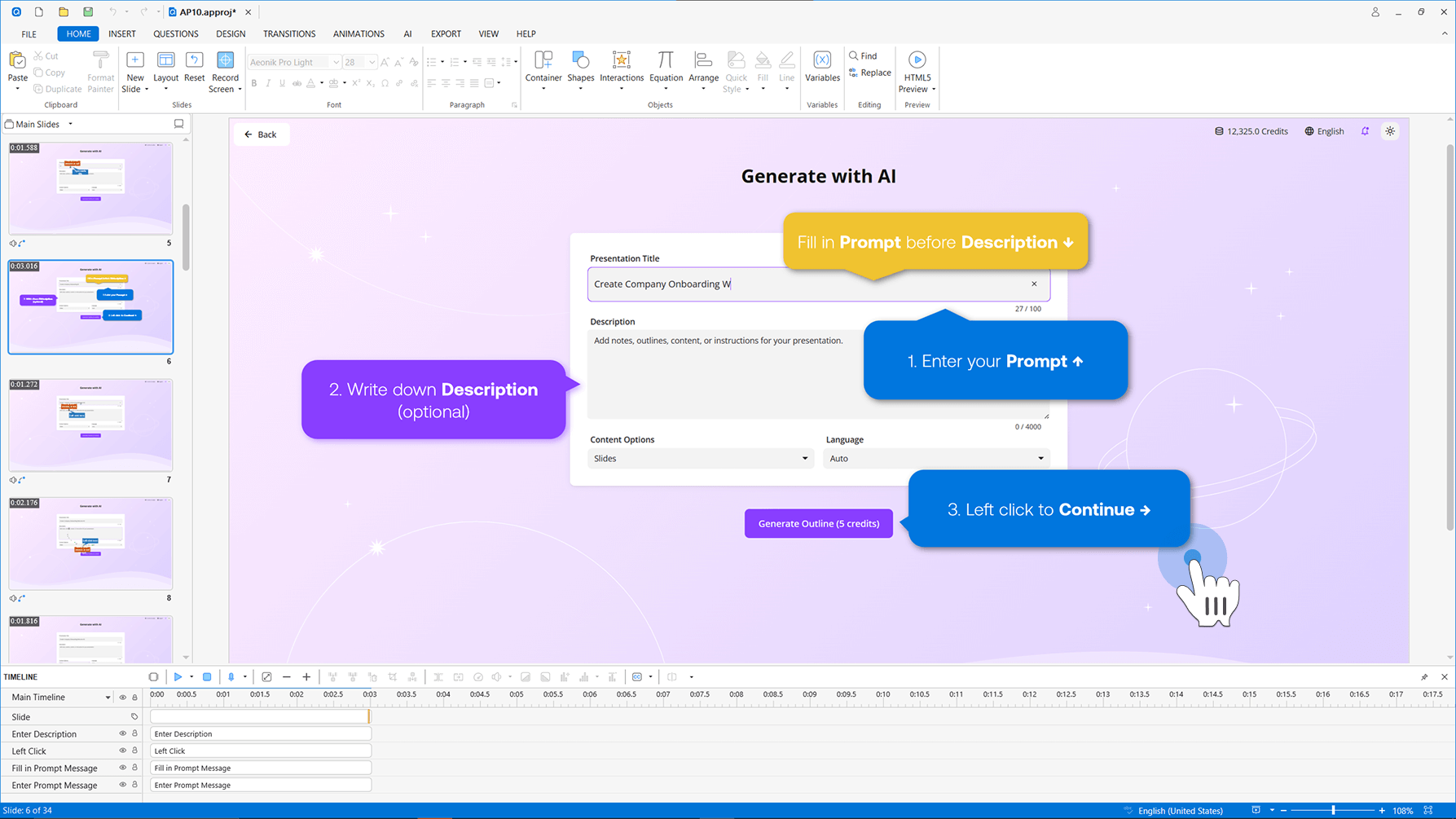
ActivePresenter brings recording, video editing and interactive authoring into one application. That combination is useful when a software lesson needs to move from showing a procedure to letting the learner perform it.
For example, an author teaching people to create a CRM contact could record how to fill in the form, then build a simulation where learners enter the details themselves. Questions and feedback can support the exercise, which reports results through SCORM or xAPI. The same material can also be exported as a noninteractive video for people who only need the demonstration.
The license gives individual authors another reason to consider it. The Pro plan is a perpetual purchase that includes updates to the purchased major version and one year of upgrades to new major versions. After that year, you can keep maintaining courses in the version you own. Each license can be active on only one machine at a time.
SCORM export is confirmed for the Pro plan. Atomi’s published information conflicts on whether the cheaper Standard plan includes it, so SCORM support on the Standard plan needs confirmation before purchase for a SCORM project.
2. Articulate 360: different course formats in one subscription
Articulate 360 includes two course editors: Rise, which works in the browser, and Storyline, a desktop application for Windows. Rise assembles responsive lessons from content blocks, while Storyline provides a slide-based environment for custom branching and software exercises. Having both in one subscription lets a team explain a policy in Rise and build a more involved activity in Storyline. Both editors are included in the Personal plan and the Teams plan.
Storyline can also turn a screen recording into a demonstration, practice activity or assessment. Because those activities start from the recorded sequence, the author can reuse it and add feedback around the steps instead of building each exercise from scratch. For several authors, the Teams plan extends that reuse across the team. Colleagues can share Storyline slides or edit different lessons within the same Rise course, which helps divide production without giving everyone a separate copy to maintain.
Keep in mind that Storyline requires Windows. A team working on Macs can use Rise in the browser, but anyone who needs Storyline’s custom simulations also needs access to the required Windows environment.
3. iSpring Suite: turning PowerPoint material into a course
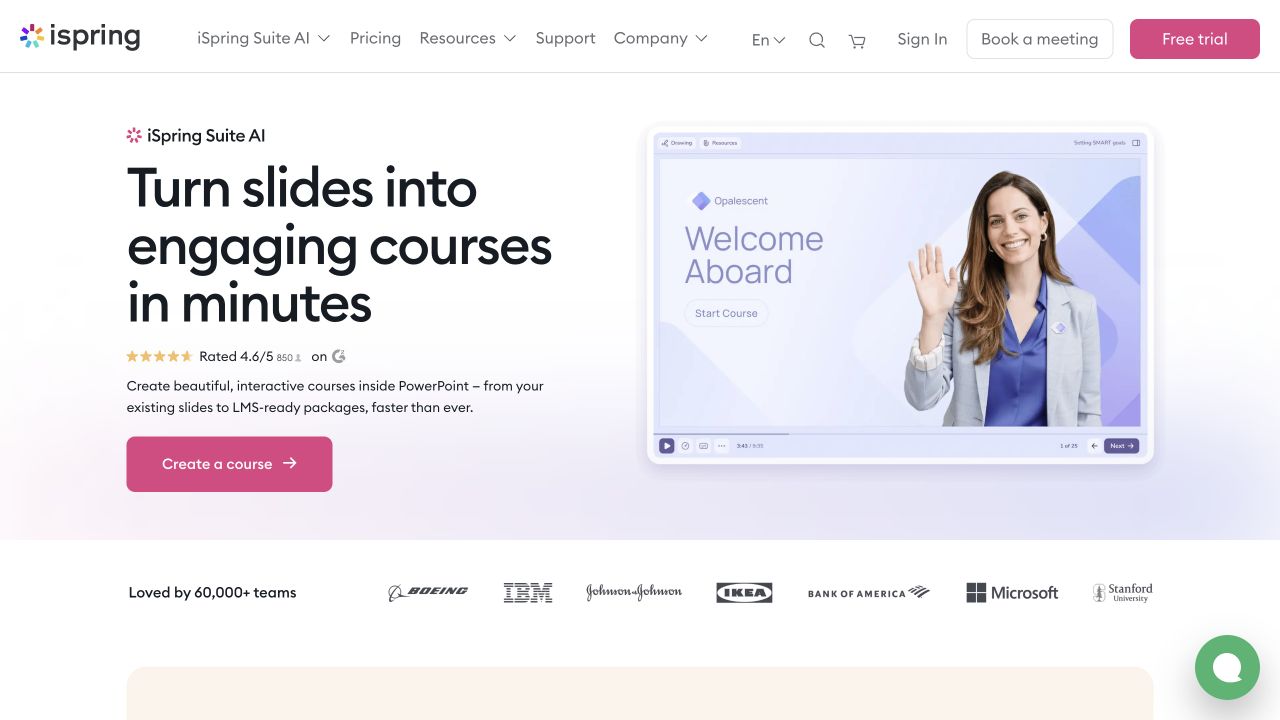
iSpring Suite works inside desktop PowerPoint, making it a practical starting point when trainers already maintain their material as presentations. The approved wording and illustrations stay at the centre of the lesson as the author adds narration, questions and interactions.
A customer-service presentation, for example, could explain a returns policy before moving into a dialogue roleplay. The learner chooses how to respond to a refund request and receives feedback on that response. Once the conversation reaches an agreed refund, a screen recording could show how to record it in the company’s software, connecting the policy to the work an employee will do.
Working from the presentation also shapes later updates. When the policy changes, the author returns to the PowerPoint and associated project files, then publishes a new package for the LMS. Those source files therefore remain part of maintaining the course after launch.
Because Suite works inside desktop PowerPoint, authors need a compatible version of that application as well as Windows. A team planning to author entirely in the browser would need another option.
4. Adobe Captivate: guided software practice
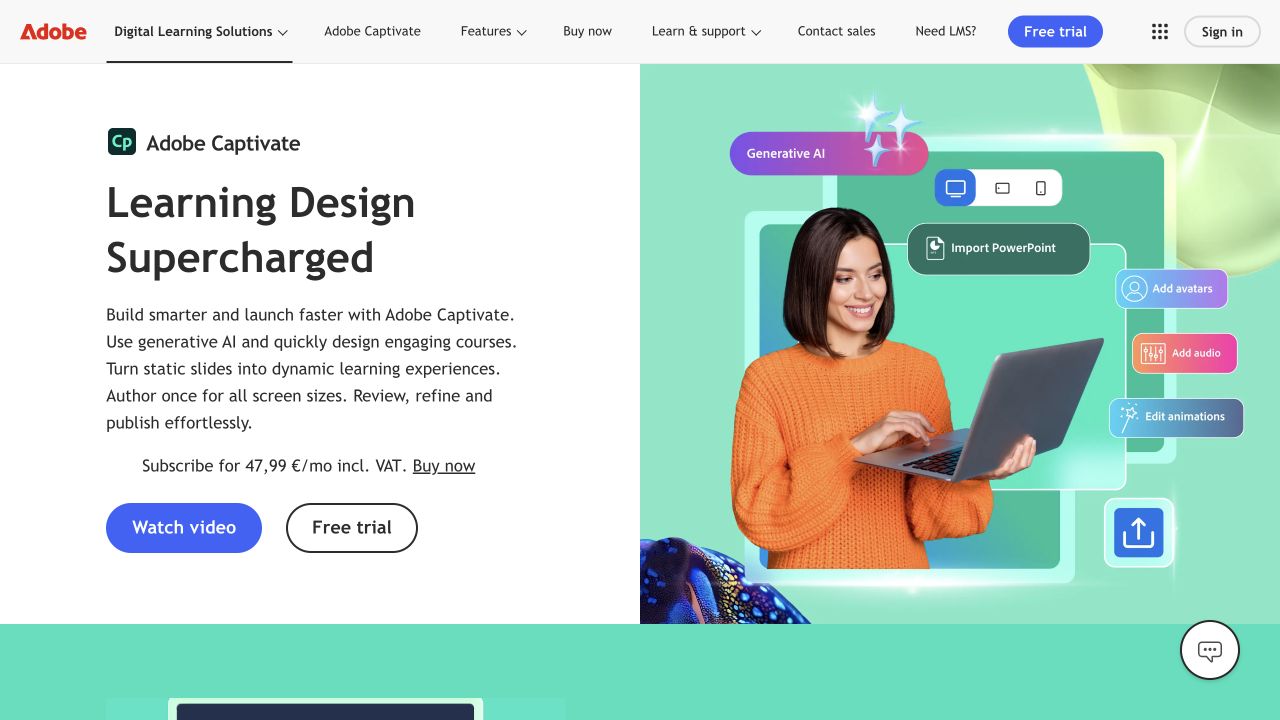
Adobe Captivate records mouse clicks and keyboard input as an author carries out a procedure. From that recording session, its simulation modes can produce a demonstration, guided training and an assessment.
This gives the author a way to change how much help the learner receives. Training mode guides them through the actions, while an assessment removes the hints and asks them to complete the procedure with less support. A simulation can also be added to an existing project, allowing the explanation and practice to become part of the same lesson.
For teams maintaining older courses, the decision also involves their existing library. The subscription includes Captivate Classic alongside the newer application, but the two use different project formats. Since import from Classic is still in beta, a representative migration test is useful before moving that library. Classic remains available for maintaining projects during the transition.
The individual plan is an annual commitment even when paid monthly. Team and enterprise purchasing have separate arrangements.
5. Lectora: desktop and online authoring with shared review
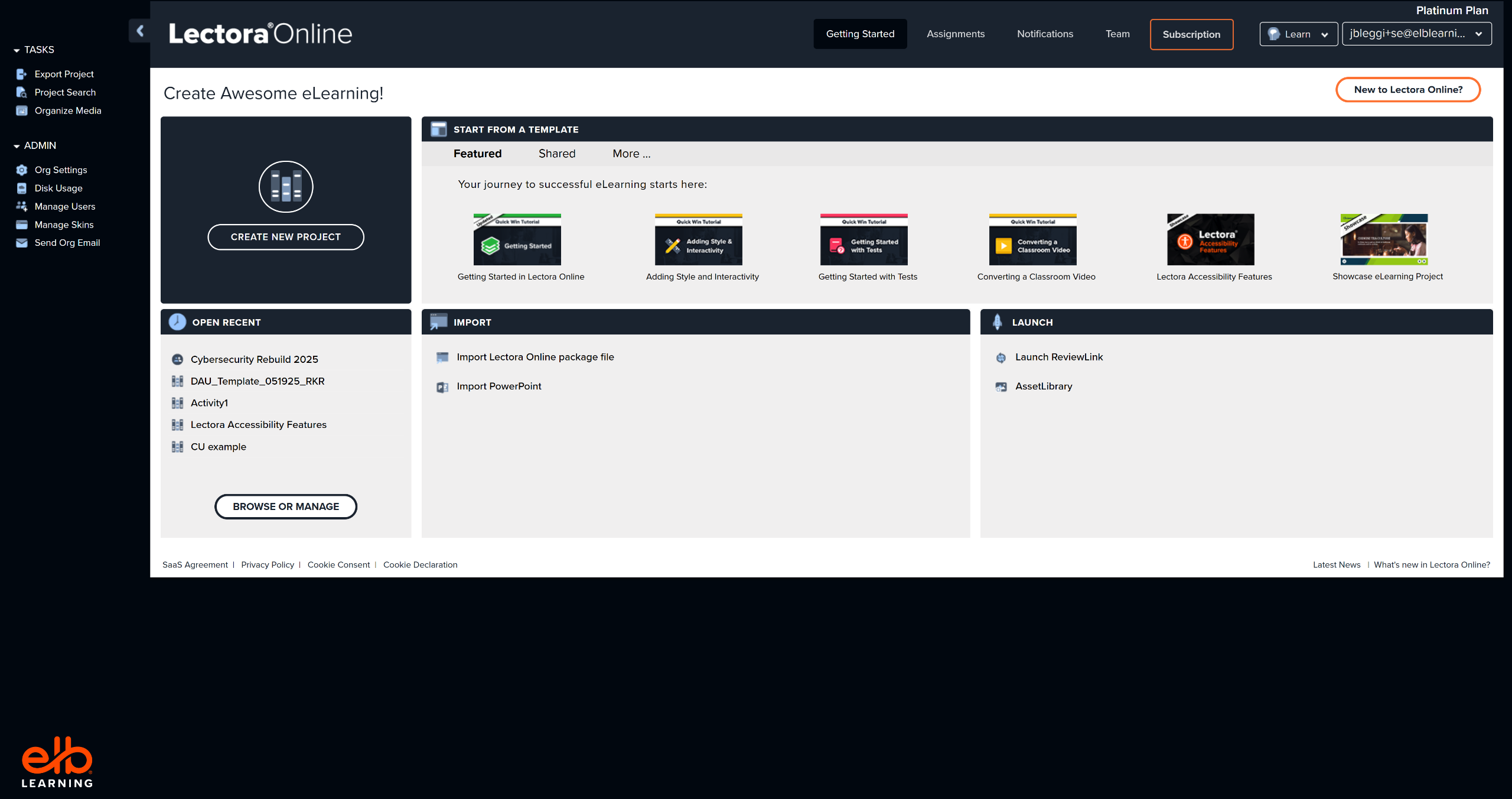
Lectora’s Gold Suite plan combines a Windows desktop editor with Lectora Online in the browser. For a team using different operating systems, the online editor provides a way to author within the same subscription.
Inside the lesson, authors can use question variables and conditions to control feedback based on a learner’s answer. In a matching exercise, for instance, a correct pair can display a check mark while an incorrect pair shows an X, giving feedback on individual matches.
Once the draft is ready for review, either editor can publish directly to ReviewLink. Colleagues can then comment without an authoring subscription. This lets subject experts assess the content while the designers retain responsibility for changing the course.
6. Camtasia: recorded lessons with questions
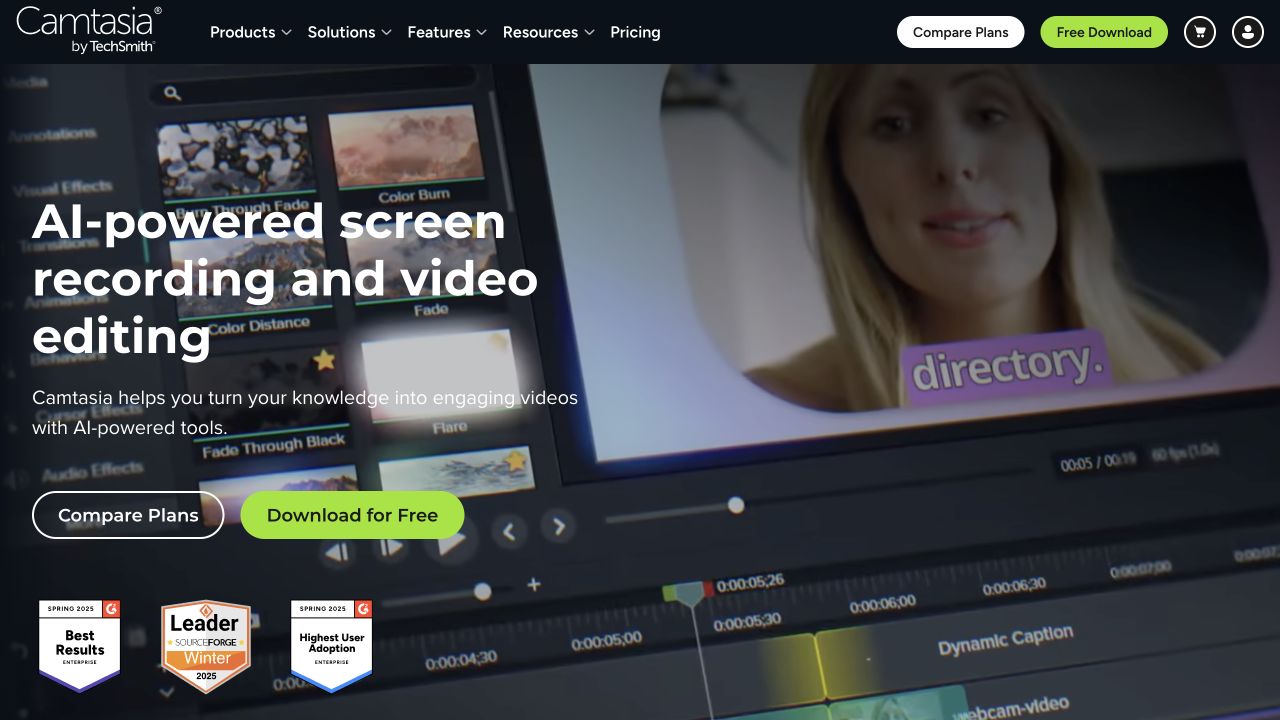
Camtasia builds the lesson around a recording. Authors can capture a process, edit the footage and draw attention to the relevant part of the screen before adding questions to check understanding.
In a CRM lesson, the recording could pause before saving a contact and ask which contact type to choose. That question checks a decision within the procedure the learner has watched. If the course also needs them to practise entering the details, a simulation in a tool such as ActivePresenter or Captivate provides a way to perform those actions.
For a video lesson with questions, Camtasia’s TechSmith Smart Player handles the interactive elements. Its interactive export includes the supporting player files or uses hosted ones, so those dependencies need to remain available when the course is delivered. Moving only the MP4 to another player loses the quizzes and clickable hotspots.
With the player and reporting files kept together, the course can send quiz results to an LMS. The Essentials plan supports that publishing workflow without the watermark applied on the Starter plan.
7. Gomo: shared authoring and course updates
Gomo focuses on shared course production in the browser. Its topic locks let authors work across a course while protecting the topic someone is currently editing from simultaneous changes.
That shared approach also extends to resources. When several courses use the same policy document or video, a team can replace it once in the resource library. Each course picks up the change when it is next opened or edited, reducing the work of maintaining the same material across a larger collection.
How that update reaches learners depends on the publishing arrangement. A downloaded SCORM package is hosted in the destination LMS, whereas Gomo’s additional Delivery service uses a small wrapper to load a centrally hosted course. With that service, updates can reach several LMSs without replacing the full package in each one.
For a provider supplying courses to multiple customers, central delivery can simplify updates, but it also creates an ongoing dependency on the hosting service. The annual quote therefore needs to cover both author access and the delivery arrangement, including whether customers want to host their own copies.
8. Kotobee Author: interactive books for an LMS
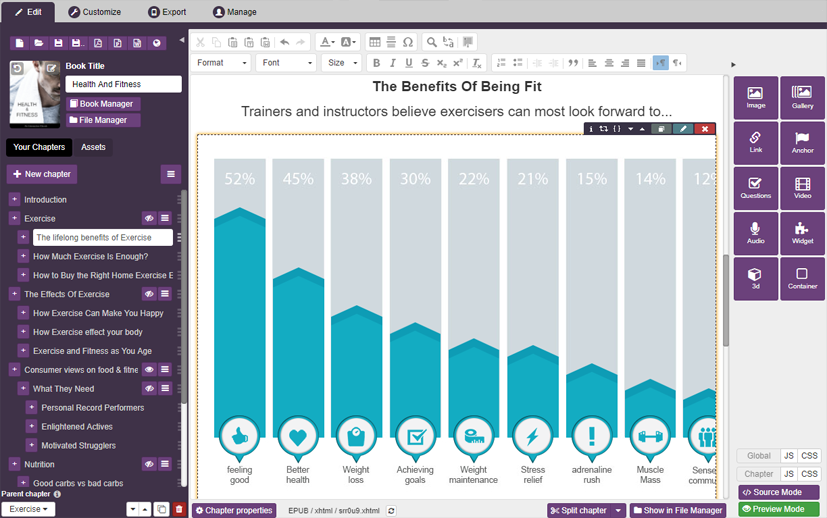
Kotobee Author is built around the structure of a book. An induction handbook or reference manual can retain its chapters while the author adds videos and questions alongside the explanation. Learners can work through the material and return to a particular chapter later, with SCORM reporting tracked interactions to the LMS.
This approach is useful when the written material remains the main part of the course. A lesson centred on practising clicks and text entry inside simulated software needs a different kind of authoring environment.
For SCORM publishing, Kotobee requires the Premium plan or the Institutional plan. The Premium plan’s lifetime license covers one user and includes a year of updates, after which an author can keep using the purchased version. Continued access to updates is available through an optional renewal.
xAPI tracking uses a different delivery arrangement. It is available through cloud ebooks and libraries, which identify learners and send their activity to an LRS. As the LMS integration documentation explains, this needs the separate cloud service and an LRS connection; the desktop license does not include standalone xAPI export.
9. Elucidat, now Create by Confirm: shared course production
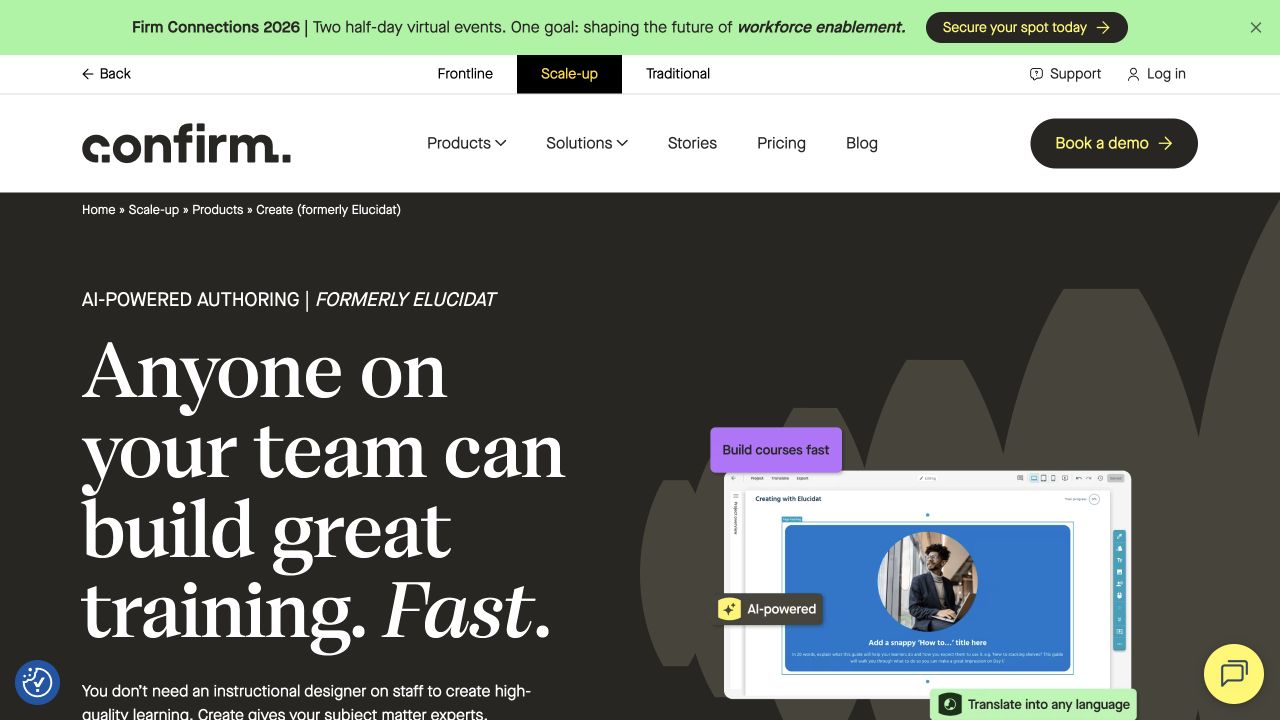
Elucidat is now marketed as Create by Confirm, with two authoring environments for different production needs. Author offers finer control over layouts and branching, while the Create editor takes a modular approach to building courses. Both run in the browser.
For teams working across several projects, templates and brand controls provide a shared starting point. A Brand Style in Create can be applied across projects, which saves contributors from formatting every element separately. Reviewers can then comment on individual content blocks, and authors can reply or resolve the feedback. Because the review view is read-only, a subject expert can assess the draft without changing its design.
The choice between editors also affects delivery. Author offers xAPI tracking within SCORM or online-link releases, while Create added standalone xAPI export in August 2026. Those export requirements need to be specified when requesting a quote.
Create’s SCORM packages load remotely hosted content. As a result, a customer can launch the course from its own LMS while still depending on that remote service to supply the lesson.
10. dominKnow ONE: software practice with shared content
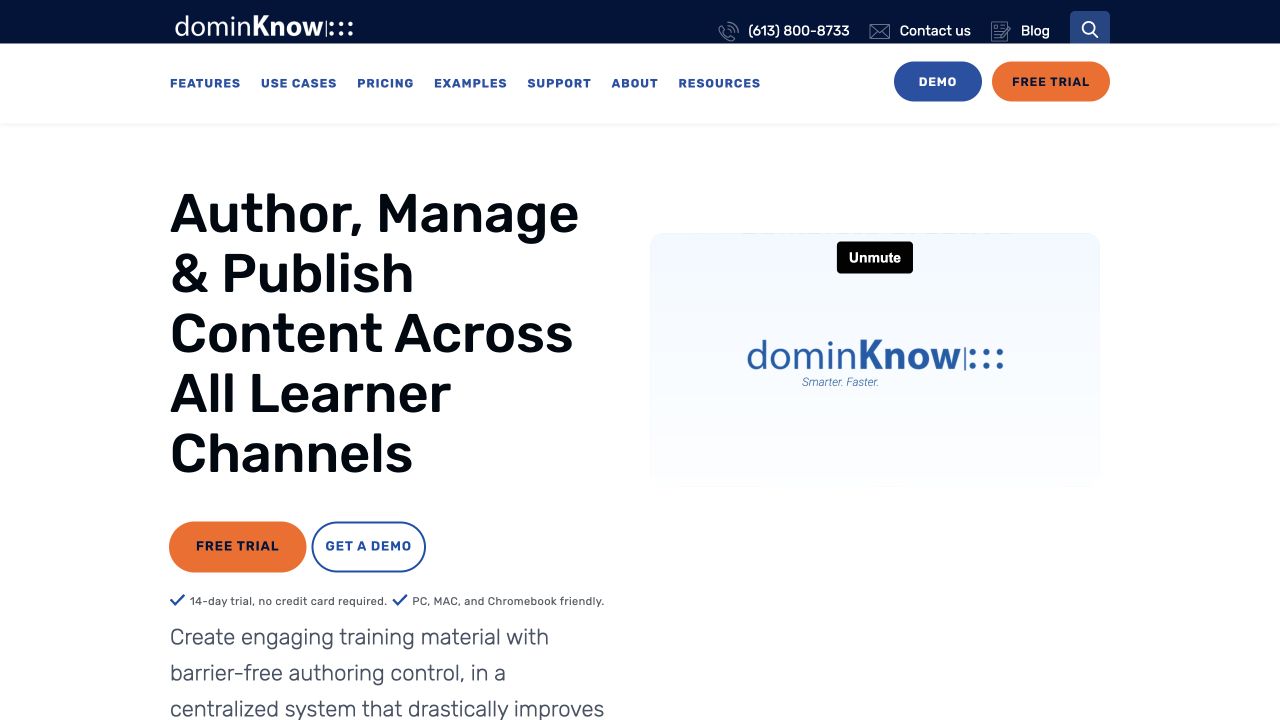
dominKnow ONE combines cloud authoring with Capture, a desktop application for recording software procedures. A captured process can become a demonstration, practice activity or test, and that material can then be reused across projects.
During an application rollout, for example, several employee roles may need the same instructions within otherwise different courses. Reusing the captured procedure lets the team maintain those shared instructions together as it builds training for each group.
Although the authoring environment runs in the cloud, Capture itself needs to be installed on Windows or Mac. On a managed corporate computer, that may require IT involvement, so the recording workflow depends on more than browser access.
The subscription is priced per author, with no learner charge in the authoring license. For a team evaluating the cost, the number of people producing and maintaining courses therefore matters more directly than the number who will take them.
How to choose a SCORM authoring tool
The most useful starting point is a course your team actually needs to produce. The material you already have and the activity you want learners to complete will narrow the choice before you compare licenses.
If that material is a PowerPoint presentation, iSpring lets the author build the lesson around it. For a handbook, Kotobee preserves the chapter structure while adding media and questions. Both approaches keep the existing material at the centre of the course, which matters if your team will continue updating it in that form.
For recorded explanations with quizzes, Camtasia brings capture, editing and questions together. If learners also need software practice, ActivePresenter, Storyline, Captivate and dominKnow offer simulation workflows. The differences then become more specific: a perpetual license, access to Rise alongside Storyline, the available training modes or reuse across several courses.
A decision-making scenario may call for another kind of interaction. iSpring provides dialogue roleplays within a PowerPoint-based course, while Storyline, Lectora and Elucidat Author offer ways to build branching paths. The relevant question is how much control the author needs over what happens after each answer.
Match the course to your systems and team
Once you have a shortlist, the LMS and the authors’ working environment can narrow it further. The LMS needs to support the chosen SCORM version and edition, along with the course’s upload and embedding requirements. Authors need the required applications and operating system: Windows for Storyline and Lectora Desktop, Windows with PowerPoint for iSpring, and permission to install Capture for dominKnow recording. If you plan to use xAPI, the receiving LRS and the events you want to collect also need to be defined.
Team requirements apply alongside the lesson format. A group producing software exercises may still need shared editing and review, so these capabilities belong in the same decision. Gomo coordinates editing through topic locks, Create supports comments on content blocks, and Lectora’s ReviewLink lets subject experts review without authoring licenses. The Articulate Teams plan adds shared slides and collaboration on different Rise lessons.
A small revision is a useful way to test that process. Have an author change a paragraph, a reviewer comment on it and the person responsible for publication produce the update. Following the change through those steps shows whether the handover works, including for the person who will maintain the course later.
Compare the cost of maintaining the course
The license price is part of that longer-term commitment. Author seats, required applications, updates and separate hosting all contribute to the cost of keeping courses in use.
ActivePresenter’s Pro plan and Kotobee’s Premium plan let you continue using the purchased version after the included upgrade or update period. With a subscription, continued access requires ongoing payments, and a monthly payment can still come with an annual commitment, as it does for Captivate. Comparing the same team and period of use makes these arrangements easier to assess.
Decide where the course and its videos will live
The delivery arrangement affects maintenance, too. In a typical SCORM workflow, the LMS launches the course package and records results. Including videos in that package suits a client who needs to host the complete lesson on their own infrastructure. If recordings change frequently or appear in several courses, external video hosting can make updates easier, provided the editor and LMS support an embedded player.
With Kinescope, you can replace a recording without changing its link or embed code, so the updated video appears wherever you have embedded it. If you already use another host, our team can help move your video library — you typically only need to replace the old embeds when making the switch.
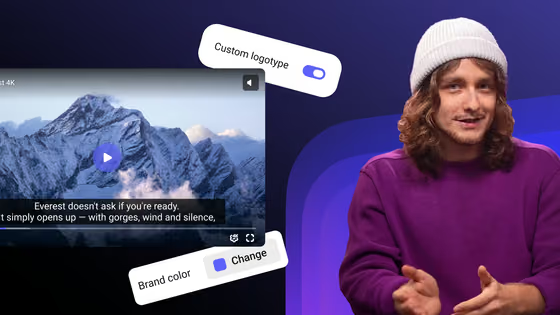
You can also match the player to your course’s visual style and generate automatic subtitles for your team to review. For paid courses or internal training, you may also want to limit unauthorised downloading. DRM encryption on the Super plan helps protect those recordings. Kinescope handles video delivery, while the course and LMS continue to manage assessments and completion reporting.
Test a complete lesson in your LMS
With those choices made, a small representative module can show how the course behaves in the system learners will use. Include any externally hosted video, then test a successful attempt, a failed quiz and an unfinished attempt that you return to later. The LMS should record the expected score, completion status and resumed location, and the video should remain accessible.
Combined with the editing and review trial, this gives you evidence for the final choice: whether your team can build the activity, deliver it with the reporting you need and keep it up to date.
If your next course includes video, try Kinescope for free. You can start with one lesson, customise the player and check playback inside your LMS before moving the rest of your library.
FAQ
The best fit depends on the course and the team creating it. iSpring works well with existing PowerPoint material, while Camtasia focuses on recorded lessons with quizzes. For software practice, ActivePresenter, Storyline, Captivate and dominKnow offer simulation workflows with different licensing and collaboration arrangements. Once the format is clear, LMS compatibility, author access and maintenance costs help narrow the choice.
Build the lesson in an authoring tool, add any assessment and define how completion and results will be reported. You can then export it using the SCORM version your LMS supports and upload the resulting ZIP as a SCORM activity. A test from a learner account will show whether the score, completion status and saved progress are recorded as intended.
Yes, some open-source authoring software allows free SCORM publishing, subject to its license and the rights to your course materials. Free access to the products compared here has narrower limits: Kotobee's Free plan excludes SCORM export, for example, while iSpring's trial output is watermarked and restricted to evaluation. These options can help you try an editor before paying, but they do not provide a free production license for those workflows.
An LMS manages learners, assigns training and records results. SCORM defines how a compatible course is packaged and communicates with that system, allowing an authoring tool to create a lesson that the LMS can import. If the LMS's own editor already handles the lesson and reporting you need, a separate SCORM package may be unnecessary.
Yes. An authoring tool such as iSpring Suite can publish a PowerPoint-based course as SCORM after you add any questions and choose the reporting settings. PowerPoint's ordinary presentation or video export does not add that LMS communication. Testing the published lesson helps confirm that its slides, completion rules and assessment results work as intended.
Yes. An authoring tool can place the video in a lesson, add a completion rule or quiz and export a SCORM package. The tool supplies the LMS communication, so renaming or zipping an MP4 alone will not do this. Any existing interactive features also need their supporting software: Camtasia quizzes, for example, depend on Smart Player and are not stored in the MP4 itself.
xAPI and cmi5 provide additional ways to deliver and track learning, but using them depends on support in your systems. xAPI sends activity statements to an LRS, and the cmi5 specification adds rules for launching and managing LMS-based learning through xAPI. A working SCORM course can remain in use; migration becomes useful when new learning or reporting requirements justify it and the receiving systems support them.