











Live streaming a course launch: the setup, the hidden limits, and what it really costs



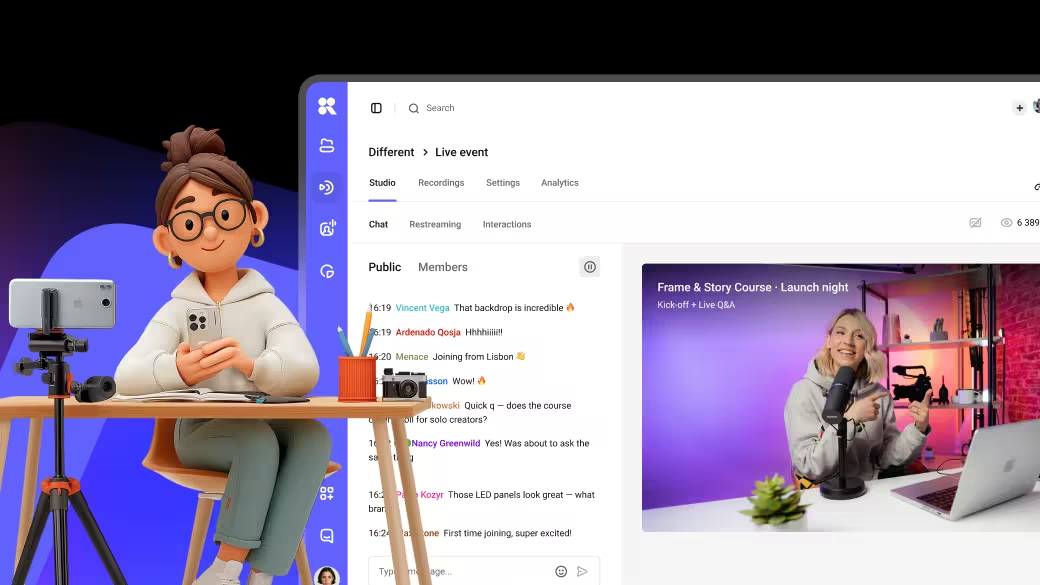

A course launch is closer to a TV broadcast than a webinar — high stakes, no second take — and usually handled by one or two people who aren't broadcast engineers.
Attention in the planning phase usually goes to the visible side: camera, lighting, microphone, internet speed. The part that decides whether the launch holds together is one layer underneath: the configuration choices in the encoder, the platform-level limits that aren't on the pricing page, the encoder defaults that quietly break low-latency streaming, and the backup paths most teams never set up.
This article walks through both layers. We start with what's actually in a live broadcast stack, then go through the platform-level choices that decide whether a 1,000-viewer launch holds together, and finish with what an event actually costs across the major options.
Key takeaways
- The streaming platform you pick decides whether interaction with the audience feels live or delayed. The protocol the platform uses underneath matters more here than the camera does.
- Most platforms have a hard ceiling that isn't on the pricing page: on viewers, monthly bandwidth, event duration, or simultaneous live streams. Confirm yours in writing before signing.
- A backup stream path keeps your launch alive when your internet drops or your encoder software crashes. Most platforms support it; the setup takes about half an hour, and the steps are in the section below.
- Platform recordings can fail silently. A parallel local recording is the practical default when the replay is part of what you're selling.
The pieces of a live broadcast
A live broadcast is four moving parts strung together. Understanding how they connect makes the rest of this article easier to follow, especially if it's your first time setting one up.
- Input. What your camera and microphone capture, plus the internet connection that carries it. Your laptop, webcam or DSLR (digital single-lens reflex camera, a step up from a webcam), microphone, lighting, and ISP (internet service provider). This is the part most equipment guides cover.
- Encoder. Software or hardware that takes the input signal, compresses it for streaming, and pushes it to the platform (most often OBS Studio, free software you install on the same laptop). The protocol it uses to send is almost always RTMP — a streaming protocol you don't have to think about much, just paste the URL the platform gives you.
- Platform. The service that receives the stream from your encoder, processes it for different connection speeds, and delivers it to viewers' browsers. The platform also hosts what the audience sees and interacts with: the player, the chat, the Q&A, the registration page. Examples: Mux, Cloudflare Stream, Kinescope, Kaltura, Vimeo, Zoom Events, YouTube Live. Some platforms can also restream, taking your incoming feed and relaying it simultaneously to YouTube Live, Twitch, or other destinations from a single source.
- Viewer's device. The browser or app where the audience watches. The platform delivers the stream to this layer using a streaming protocol (more on this in the protocols section below).
On the way to the viewer, modern platforms apply what's called adaptive bitrate, or ABR. The platform encodes the live stream into several quality levels at once (1,080p, 720p, 480p) and the viewer's browser automatically picks the right one for the connection it sees. A viewer on 4G gets a lower-resolution version, while one on home fibre gets the highest available.
Most of what can go wrong on a course launch happens across three layers: the encoder (wrong settings), the platform (limits and behaviour you didn't expect), and the internet between them (drops, latency, capacity surprises that show up only under load). The rest of the article walks through each.
Essential equipment: 3 scales
Equipment requirements shift sharply as the audience grows. A 200-person launch runs cleanly on a webcam and a USB microphone; a 5,000-person broadcast event looks closer to a TV studio than a home office. Baselines below, by event size.
Launches up to about 1,000 viewers
A solo host, a single camera, chat-based interaction. This covers everything from a 20-person mini-course running weekly to a 1,000-viewer first paid launch.
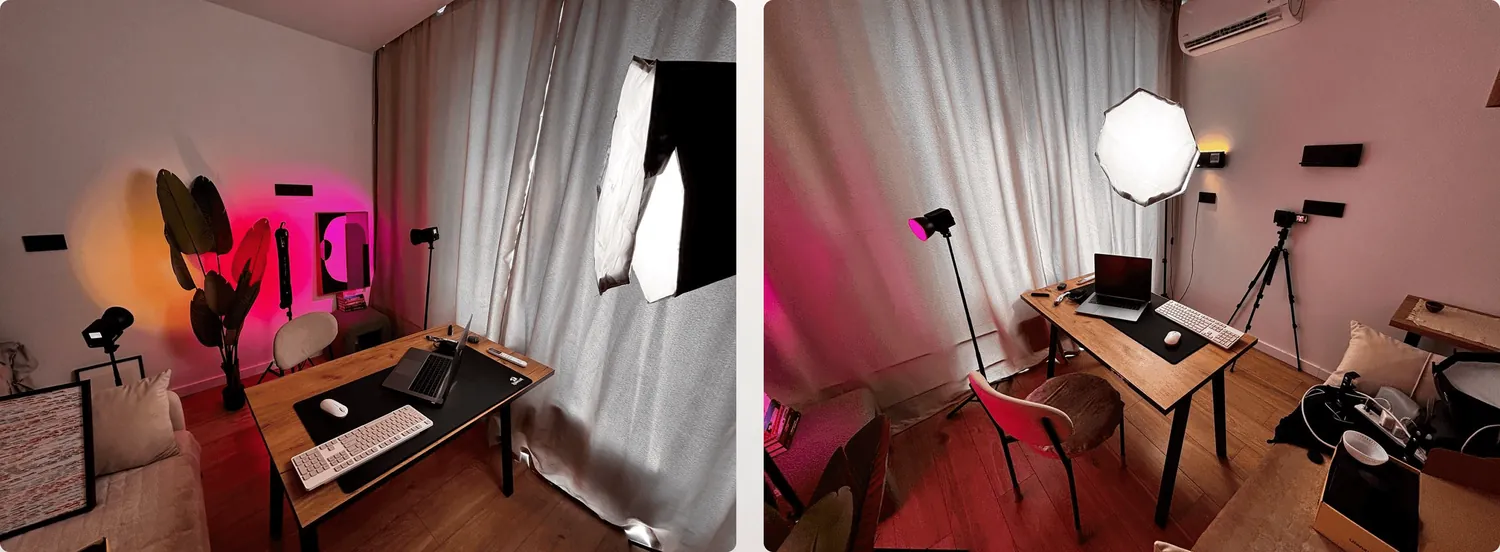
- Camera. A 1,080p webcam handles the picture (Logitech Brio, Insta360 Link, or any equivalent). Above a baseline, audience perception of video quality plateaus. The gap between webcam and DSLR is smaller than the gap between bad audio and good audio.
- Microphone. Audio is what the audience notices first, and what they remember if it's bad. A USB condenser mic does the job (Blue Yeti, Shure MV7, Rode NT-USB, or similar). Phone earbuds with a built-in mic don't clear the bar for a paid event.
- Lighting. Front-facing window light during daytime; a ring light or two soft LED panels after sunset. Lighting is the highest-impact upgrade per dollar at this scale, more visible to the audience than any camera upgrade under €1,000.
- Connection. 10+ Mbps upload, wired. WiFi at the same speed works most of the time and fails the day it shouldn't.
- Encoder. OBS Studio (free, what most teams use), Restream Studio, or StreamYard (both browser-based, simpler to set up). The platform handles the rest.
Launches from 1,000 to 5,000 viewers
A webcam runs into limits at this scale. Visible noise creeps into the picture in anything other than studio lighting, the dynamic range falls short on bright backgrounds, and audio quality drops the moment the host steps away from the desk. The hardware shifts up:
- Camera. A mirrorless camera (Sony A6700, Canon R8, Panasonic GH7, or similar) clean-HDMI'd to a capture device gives a visibly different picture. PTZ cameras (PTZOptics, OBSBOT Tail Air) can effectively replace a camera operator. They pan, tilt, and zoom automatically or via remote control, so a solo host doesn't need someone else behind a camera.
- Audio. A lavalier or shotgun mic into an audio interface (Focusrite Scarlett, RodeCaster Pro, or similar). USB condensers start to feel under-spec at this scale, especially in rooms without studio acoustics.
- Lighting. Two to three LED panels (Aputure Amaran, Godox SL-series, or equivalents): key, fill, and a backlight to separate the host from the background.
- Connection. Wired primary plus a second ISP or bonded LTE as failover. At this scale, a launch is more likely to be killed by an unstable internet connection than by anything camera-related.
- Team. One person can handle webcam, OBS, and chat moderation at small scale. At 1,000+ attendees, the bottleneck stops being equipment and starts being attention. Most events bring in a second person: either a dedicated chat moderator handling Q&A and audience interaction, a technical operator running the encoder and stream, or one person juggling both roles. The host should be free to host.
Launches at 5,000+ viewers
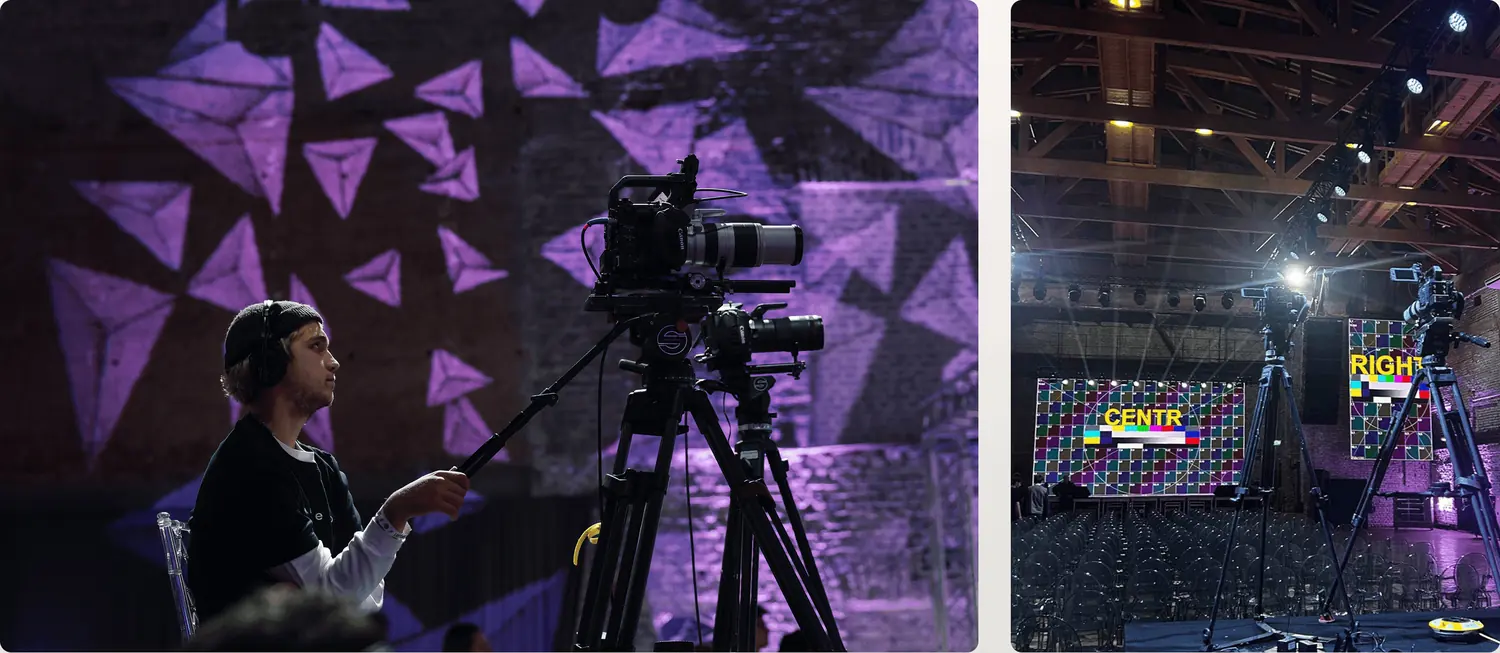
At this scale, the question stops being which webcam to buy. The two viable paths are building your own studio (with the team and ongoing cost it implies: cameras, audio chain, lighting grid, and at minimum two-to-three production staff per event) or hiring an external production team for each broadcast.
Owning broadcast-grade equipment and keeping production staff in-house makes sense if you're running weekly events at this scale; for one or two flagship events a year, an external production team is almost always cheaper than carrying the kit and headcount. The "When to bring in an external team" section below covers what an external team should look like.
Evaluating a platform: four questions worth asking
The platform you pick is the layer most likely to surprise you on launch day. Underneath the marketing pages, a streaming platform receives the stream from your encoder, transcodes it into multiple quality levels (so a viewer on 4G gets a lower-quality version than someone on fibre), and delivers those quality levels to viewers' browsers through a CDN.
For a course launch, a handful of questions matter more than the rest. Each gets a section below.
- How fast does video reach viewers? This is set by the streaming protocol the platform uses, and decides how live the interaction with your audience feels.
- How many viewers, how much bandwidth, how long an event will it support? This is the platform's ceiling, usually called the concurrent-viewer cap, sometimes also a bandwidth or duration limit.
- What happens if the stream drops mid-event? This is the backup path. Most platforms offer one but you have to configure it; otherwise an internet hiccup ends the broadcast.
- What happens to the recording? The replay is often half the revenue of a paid course launch, and platform recordings can fail silently. Worth knowing the format you get, where it lives, and whether you can run a parallel local recording as backup.
Other things to evaluate (player customisation, analytics dashboards, integrations with your LMS or CRM) matter, but rarely break a launch. The four above do.
One more thing worth checking: the platform's CDN (the content delivery network it uses to push the stream to viewers' browsers). The CDN's edge nodes, or the servers that deliver the stream regionally, determine how quickly and smoothly the broadcast reaches an audience in different countries. If you sell to a globally distributed audience, ask the platform for their PoP (point-of-presence) map and confirm coverage in the regions you care about. If you sell in one country, almost any modern CDN handles it.
What is a streaming protocol, and why does it matter?
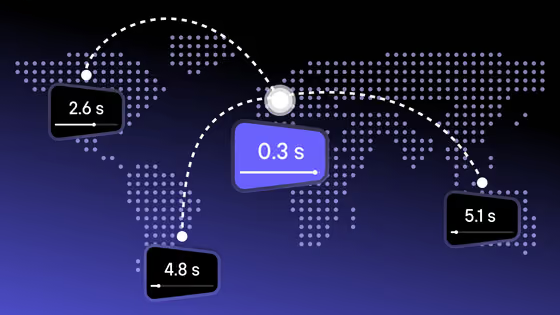
A streaming protocol is the technical method the platform uses to deliver your live video to viewers' browsers. Different protocols make different trade-offs between latency (delay between you and the audience), scale (how many viewers can be served at once), and CDN cost.
The protocols you'll mostly come across in course-launch decisions are these ones:
- Standard HLS is the protocol behind most "live" video on the open web. Runs at ten to thirty seconds of latency. Reliable, scales smoothly, optimised for one-way broadcast. Most major news streams and YouTube Live for non-gaming content rely on it.
- Low-latency HLS (LL-HLS). Apple's 2019 extension to the standard that runs at two to five seconds. Close enough for interaction to feel responsive. Trade-off: higher CDN load, and not every player supports it cleanly.
- WebRTC is the real-time protocol behind Zoom and Google Meet. Runs at under one second of latency. Trade-off: designed for small groups, and most providers struggle to scale it past a few hundred concurrent peers.
For a sense of what those numbers feel like: when you're on a Zoom call and the other person feels a half-beat behind, that's about 1.5 to 2 seconds. Standard HLS feels five to fifteen times slower than that; fine if the audience is reading chat while you talk, awful if they're trying to interrupt or react in real time.
For a course launch, protocol choice maps to the format more than to audience size. A keynote-style broadcast with chat-only feedback works on standard HLS, with the lowest CDN bill and broadest device support of the three.
A Q&A-heavy session, with polls and hot-seat coaching, needs LL-HLS, because anything over five seconds of delay feels broken when the format depends on interaction.
A small workshop under 100 people fits WebRTC, where the latency floor matters and the scale limit doesn't bite.
How fast video reaches viewers
Glass-to-glass latency by streaming protocol, with the format each one fits best
Real-time · <100 people
Live interaction · Q&A, polls, hot-seat coaching
Broadcast-grade · keynote, one-way, chat-only feedback
If the platform's documentation isn't explicit about latency, ask support for a target glass-to-glass number in seconds. The answer should be a number rather than a marketing phrase ("real-time," "ultra-low latency").
Concurrent-viewer caps and where they hide
A concurrent-viewer cap is the maximum number of people a platform lets watch at the same time. Most platforms have one, often alongside related ceilings on monthly bandwidth or per-event duration. Hitting any of them mid-launch is unfixable in the moment: new viewers can't connect, video quality cuts, or an overage charge arrives at the end of the month.
The specific caps worth knowing as of May 2026 (worth verifying on the vendor's pricing page before committing):
- Zoom Webinars has separate tiers by attendee count: 300 attendees at ~€75/mo, 500 at ~€90/mo, 1,000 at ~€465/mo on the Business Event plan, and 10,000+ on Enterprise (priced on request). Single-use licences scale to a million attendees at enterprise quote. Pricing verified May 2026; Zoom restructures tiers and pricing periodically.
- Vimeo Advanced has two overlapping limits that surprise course teams: 2 simultaneous live streams and a 2 TB/month bandwidth ceiling. A single 1,000-viewer 90-minute 1080p event delivers between 2.5 and 3 TB depending on how viewers distribute across the video quality ladder. This is already past Vimeo's 2 TB monthly ceiling.
- Wistia rolled out native webinar and live-streaming functionality (Wistia Webinars) in 2025. The product supports up to nine panelists on stage, auto-records every event, and integrates with Wistia's lead capture and analytics. Specific concurrent-viewer caps depend on the Wistia plan tier, worth checking against your launch size.
- Crowdcast Pro stops at 1,000 attendees. Higher tiers go further; the specific cap depends on the plan, and it's worth confirming at signup rather than reading off the marketing page.
- YouTube Live is uncapped on viewers but limits each channel to 25 concurrent broadcasts. The trade-off: ads play during the stream, and an unresolved copyright claim can pull a broadcast mid-event without warning.
- PAYG platforms (Kinescope, Mux Live, Cloudflare Stream Live) have no hard concurrent-viewer ceiling. Scale is bounded by usage cost: your bill grows with audience size, but you don't hit a "you can't broadcast to more people" wall. Enterprise platforms (Kaltura, Brightcove) likewise serve unlimited concurrent viewers, but pricing is by negotiated contract rather than per-minute usage.
If your registration count is above the cap on your chosen platform, you've outgrown that tier before the event starts. (Peak attendance is usually 60–80% of registrations for paid live events, but having a cap that absorbs your full registration count is the safer plan.) The fix is confirming the cap in writing. Help centre pages lag behind plan changes, and a dated email reply is the version that holds up if there's ever a dispute.
What is a backup RTMP ingest, and how do you set it up?
A quick note before this section: for a regular weekly webinar to a small cohort (say under 100 viewers) most of the backup configuration here is overkill. The cost of one failed broadcast at that scale is rarely worth the time of setting up a dual-encoder workflow, and the rest of this section can be skimmed or skipped. The setup below pays off when the launch has real revenue tied to it.
A backup ingest is a second, parallel path your video takes to the platform. If your primary internet provider hiccups, your encoder software crashes, or your router gets confused, the platform's load balancer falls over to the backup stream and the broadcast keeps running. It doesn't cover a dead camera or a failed microphone (for those you'd need redundant capture hardware), but it does cover the failures that historically take down the most course-launch broadcasts.
Setting it up takes about thirty minutes the first time. The setup pattern is the same across encoders; only the specific menu paths differ. If you're using OBS Studio, Kinescope's stream setup guide walks through the configuration with screenshots.
- Step 1. Create the live event in your platform's dashboard. Platforms that natively support backup ingest as of mid-2026 (YouTube Live, Vimeo Enterprise, Kaltura, Brightcove) hand you two URLs, or a single URL with two stream keys, for primary and backup. Save both. Naming varies; look for "backup ingest URL," "secondary ingest," "backup stream key," or "redundant ingest" in the live event configuration. If it isn't surfaced in the dashboard UI, it's usually in the API documentation under the live stream section.
If your platform issues only one ingest URL per stream (Kinescope, Mux, Cloudflare Stream Live, Vimeo Advanced, and several others currently work this way), see the workaround at the end of this section.
- Step 2. On the machine that'll run your primary encoder, open the streaming/RTMP settings. Paste the primary RTMP URL into the server field and the primary stream key into the key field. Save. (In OBS: Settings → Stream → Service: Custom.)
- Step 3. On a second machine (laptop, desktop, or even a virtual machine on a different physical box), set up your encoder and repeat. Same configuration, but with the backup URL and backup stream key.
- Step 4. Connect the backup machine to a different internet connection from the primary. The easiest second connection is a mobile hotspot (any modern phone tethered over USB or WiFi works), though we recommend a more durable choice: a second wired line from a different ISP, alongside the primary
Zoom handles redundancy internally but doesn't expose an RTMP backup URL, so a Zoom-based launch can't add backup at the encoder layer at all. Vimeo's backup-stream feature is only available on Enterprise; Advanced runs with a single ingest. Mux and Cloudflare Stream Live issue a single ingest URL per stream and rely on encoder-side reconnect logic; if you need true backup on those, use the workaround below.
Workaround for platforms that issue one ingest key per stream
Instead of one event with two ingests, create two parallel live events in the dashboard, each with its own key. Run primary and backup encoders pointed at the two keys, on separate machines and separate internet connections. The audience watches the embed for the primary stream; if it fails, you swap the embed source (or share the backup link) to the second stream.
Cutover is a manual action of a few seconds rather than the automatic 1–2-second failover native dual-ingest provides, but it removes the single point of failure on the encoder and internet side, which is what matters most.
Whichever path you take, the day-before dry-run (covered in the checklist below) is where the setup actually proves itself under load.
Recording: why you want it twice
The recorded replay is often half the revenue from a paid course launch, that is why the reliability of the recording matters as much as the reliability of the live stream.
There are two layers of recording, and the practical move is to run both:
- Platform recording. Most platforms offer it natively. It captures the same stream the live audience sees, saves it to cloud storage you can download or pull via API. Works most of the time, but fails occasionally (usually silently, sometimes catastrophically), and there isn't much you can do about it after the fact.
- Local recording. Runs in parallel on the same machine as your encoder, writing to local disk. Adds maybe 10% CPU load. The fallback if the platform recording corrupts, gets stuck mid-event, or doesn't show up in your dashboard the next morning. In OBS this is Settings → Output → Recording (Format: MP4, Recording Path: a folder with plenty of free space).
Confirm both are enabled before the event starts. Confirm the file format the local recording outputs is what your VOD host accepts (MP4 is the universal answer; FLV or MKV may need re-encoding). For an event over 90 minutes, split the local recording into two files. Long single recordings are more likely to corrupt during writeout.
The technical checklist
Here's what to configure for a paid course launch, with specific settings and timing for each step. Some items below are overkill for a regular weekly webinar to a small cohort, especially backup RTMP and dual-encoder. For a one-time paid launch with revenue tied to it, all of them are cheap insurance.
Phase 1
Setup & planning · 2–4 weeks out
Phase 2
The day before
Phase 3
Thirty minutes before
Platform comparison and cost
| YouTube Live | ZoomWebinar / Events | VimeoAdvanced | Kinescope | Mux Live | CloudflareStream Live | Kaltura | Crowdcast | Dacast | Brightcove | |
|---|---|---|---|---|---|---|---|---|---|---|
| Type | free / discovery | turnkey | general-purpose | ecosystem | API-first | API-first | enterprise education | events-focused | general-purpose | enterprise ecosystem |
| Viewer ceiling | uncapped25 streams/channel | 1k–10kby tier | no cap2 streams · 2 TB/mo · 12h/event | no capPAYG | no capPAYG | no capPAYG | no hard cap | 1,000Pro tier | tier-dependent | contract |
| Latency mode | LL-HLS, HLS | WebRTC | HLS | LL-HLS, HLS | LL-HLS, HLS | LL-HLS, HLS | LL-HLS, HLS | WebRTC, HLS | LL-HLS, HLS | LL-HLS, HLS |
| Native backup ingest | yesa/b ingest | nohandled internally | Enterprise only | nouse workaround | nouse workaround | nouse workaround | yesprimary + backup | no | yes | yes |
| Recording | yes | yes | yes | yes | yes | yes | yes | yes | yes | yes |
| Pricing | freead-supported | €60–€1000+/motiered flat-rate | ~€75/mo | from €10/moPAYG | PAYGper-minute | PAYG~€1 / 1k min delivered | customenterprise contract | ~€85/mo flat | €36–€155/mocustom higher | €20k+/yearannual contract |
Pricing sources: Zoom, Vimeo, Kinescope, Mux, Cloudflare Stream, Kaltura, Crowdcast, Dacast, Brightcove (Vendr estimate). Checked May 2026.
A real benchmark
Cost for a 1,000-viewer 90-minute 1080p event
~2.7 TB delivery · ~90,000 viewer-minutes
Kinescope PAYG, from €10/mo
~€75–95
Cloudflare Stream Live
~€85
Mux Live
~€130–185
Zoom Events 1k-attendee tier, flat /mo
~€320/mo
Vimeo Advanced
~€75/mo flat. A single 1,000-viewer 90-min event consumes most of the 2 TB monthly bandwidth cap. The next tier up is Vimeo Enterprise, in the four-to-five-figure-per-month range.
Kaltura, Brightcove
Custom annual contracts starting at €20k+/year — out of band of the PAYG comparison.
PAYG numbers are post-free-tier estimates; Mux Live includes free first 100,000 delivered minutes per month. Verify against vendor pricing pages — prices reflect May 2026.
The cost shapes split cleanly. Flat-licence platforms (Zoom, Vimeo, Crowdcast) bill for headroom whether you use it or not: predictable and often expensive at low utilisation. PAYG platforms bill for actual delivery, so costs scale with the audience size rather than the tier size. The crossover comes down to launch frequency: one or two big launches a quarter pushes PAYG ahead; recurring webinars at lower attendance push flat-tier ahead.
When to bring in an external team instead
Most course teams handle live broadcasts in-house. Team configurations vary with the format: a solo host on a laptop with OBS for a smaller webinar; two or three people for a more interactive launch with chat moderation and a dedicated technical operator; sometimes a small in-house production crew for recurring events. Each shape works for a different launch scenario.
The break point where in-house stops being enough depends on format and complexity more than on audience size. The same audience can be handled by a solo host or by a small crew, depending on how interactive the event is, how heavy the brand polish needs to be, and what failure would cost.
Situations where an external production team usually makes more sense, with rough production-budget ranges:
- You're running a hybrid event. An on-site audience plus an online one, two cameras, a stage, decorations that need to read on both. The online and on-site experiences have to be of equal weight, and that takes a director who's worked with both surfaces.
Realistic production budget: €5,000–€20,000 for a single-day event.
- The brand needs broadcast-grade production. Keynotes, anniversary events, conferences where the visible production quality is part of the proposition. Cinematic-quality live (Canon C400-class cameras, multi-camera shoots, full audio chain) doesn't come out of a webcam.
Realistic production budget: €15,000–€50,000.
- The event is high-stakes enough that one outage costs more than the production team. A launch with six- or seven-figure revenue tied to it, an annual flagship, a shareholder meeting where the executive layer is presenting. The marginal cost of a production team is small relative to the cost of a failure at that ceiling.Realistic production budget: €30,000–€100,000+.
In our production experience (corporate conferences, medical events, hybrid product launches) failures we keep watching repeat are mostly (and sadly) on the people side. The venue's technical lead going quiet at 9 pm the night before; the recording that "should have" been on but wasn't; the time the technical director blocked the client on WhatsApp three days before the event and we ended up relaying every message between them for the next seventy-two hours.
Not all of this is preventable. But most of it is catchable in the planning phase, by what an external team does (or doesn't do) before the event. Here's what to look for, and what should make you bail.
What reliable external teams do:
- Open with a detailed brief: typically ten to twelve questions, each tied to a line in the estimate, and follow with a debrief call where they walk through every line and flag what you missed.
- Show portfolio of past work. If the answer is "we can't share examples for confidentiality reasons," walk away.
- Visit the venue before the event to meet the technical lead, see the existing equipment, and plan around it rather than bringing duplicate kit.
- Run a test broadcast the day before, in the actual venue with the actual equipment.
Red flags to look for:
- "We'll figure it out on site" — this phrase usually means they won't. Translation: no plan, and you'll find out what's missing on the day.
- Hearing "not our problem, that's the venue's job" when something on the venue side breaks. Good teams own the integrated event, not just their kit.
- No redundancy in the proposal. If they're not bringing a second internet line, a backup encoder, or parallel recording, you're about to make a very risky bet.
- The estimate skips rehearsal, graphics, or backup internet. Things that surface later as overage, after the contract is signed.
Wrapping up
A paid course launch is a one-shot moment. Whether it holds together is mostly decided in the setup above. Most of that setup is one-time work: once the encoder is dialled in and the backup paths are configured, every subsequent launch takes a fraction of the planning.
Test the setup on Kinescope's free tier: encoder integration, dry-run broadcasts, configuration checks all run without a card. The paid launch itself runs on PAYG with no concurrent-viewer cap.