









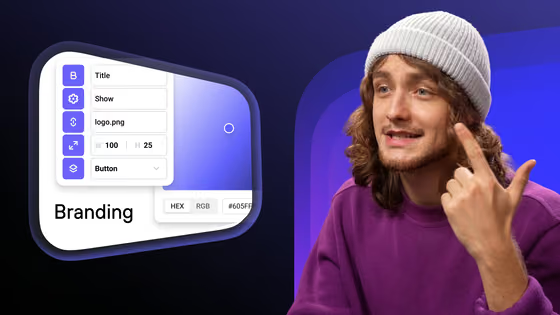


Kinescope for Open edX

Kinescope XBlock embeds protected Kinescope video right inside Open edX courses. Install it once on your server, then add it to any unit in Studio and paste the video link.
They left Vimeo, Kaltura and Mux
Every number is what they saved against the platform they left.
 16 TBmoved off Kaltura in about two weeksWith Kinescope we get a convenient API, a human touch, stable performance, and fair prices. We worked out the cost up front, and on our volumes it came out about 8× cheaper than Kaltura
 Denis Korovkin, LMS team lead
 −75%off the video hosting bill after Vimeo
 5×lower video costs than on Vimeo
 €10,000+a year saved against Vimeo’s quoteVimeo suddenly told us we had to pay 20× more. With Kinescope we save at least €10,000 a year — and get more stability for free…
 Mathijs de Ruiter, Co-founder
 −60%off the video hosting bill after MuxKinescope’s affordable, scalable, and accessible video solution has been a game-changer, empowering us to deliver world-class education…
 Eriky Kunitake, Head of Business & Operations
 9M+children reached by the films…reinvest our resources into other matters, like the direct work with children in our shelter…
 Ysrael C. Diloy, Child Protection Specialist
Add a video to an Open edX course

1. Clone the XBlock repository and install it with pip.
2. Enable it in lms.env.json under XBLOCK_SETTINGS.
3. Restart the server: Kinescope XBlock appears in Studio.
1. Open the course in Studio and create a section, a subsection and a unit.
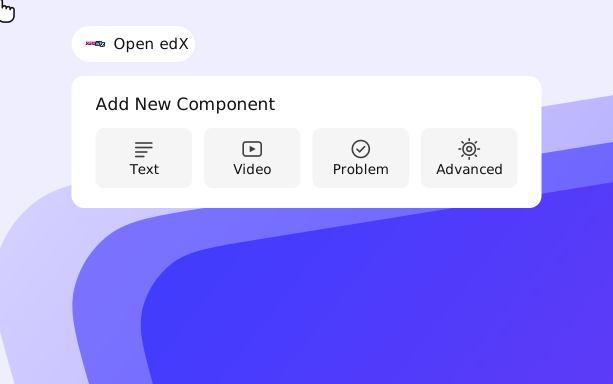
2. In the unit editor, choose Advanced and add Kinescope XBlock.
3. Click Edit, paste the video link from Kinescope and save.
4. Check it with View Live, then click Publish.
What your Open edX videos get
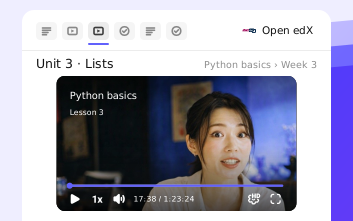
Video inside the unit
Students watch protected video right in the course unit, without external links.
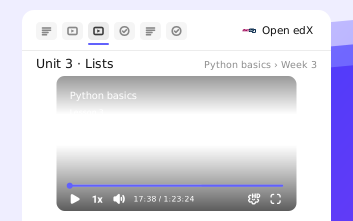
Protection travels with the video
The privacy and protection settings you set in Kinescope apply inside the course. DRM is available on paid plans. More on DRM video hosting.
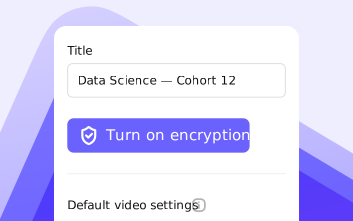
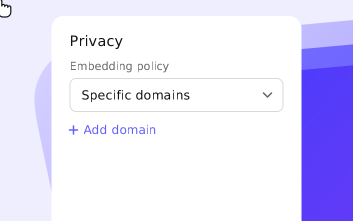
Plays only on your platform
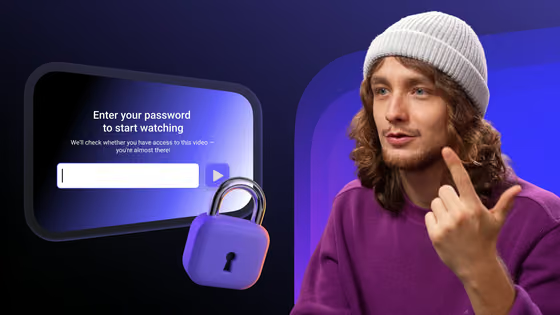
Domain restriction ties the video to your Open edX domain: a copied link or embed shows a blocked player elsewhere. More on private video hosting.
Add your first Open edX video for free
Upload a video to Kinescope, add Kinescope XBlock to a unit and paste the link. No credit card required.
FAQ
Can’t find the answer you need? Check out our Setup guide.
Bring protected video into your Open edX courses.
Free to start, then from €10/month. No credit card required.