



















Move from YouTube to Kinescope
Move videos from YouTube to Kinescope without downloading them to your computer. Paste up to 50 public links at once, or connect your channel with Google sign-in to bring over private and link-only videos.
They left Vimeo, Kaltura and Mux
Every number is what they saved against the platform they left.
 16 TBmoved off Kaltura in about two weeksWith Kinescope we get a convenient API, a human touch, stable performance, and fair prices. We worked out the cost up front, and on our volumes it came out about 8× cheaper than Kaltura
 Denis Korovkin, LMS team lead
 −75%off the video hosting bill after Vimeo
 5×lower video costs than on Vimeo
 €10,000+a year saved against Vimeo’s quoteVimeo suddenly told us we had to pay 20× more. With Kinescope we save at least €10,000 a year — and get more stability for free…
 Mathijs de Ruiter, Co-founder
 −60%off the video hosting bill after MuxKinescope’s affordable, scalable, and accessible video solution has been a game-changer, empowering us to deliver world-class education…
 Eriky Kunitake, Head of Business & Operations
 9M+children reached by the films…reinvest our resources into other matters, like the direct work with children in our shelter…
 Ysrael C. Diloy, Child Protection Specialist
Two ways to move YouTube videos
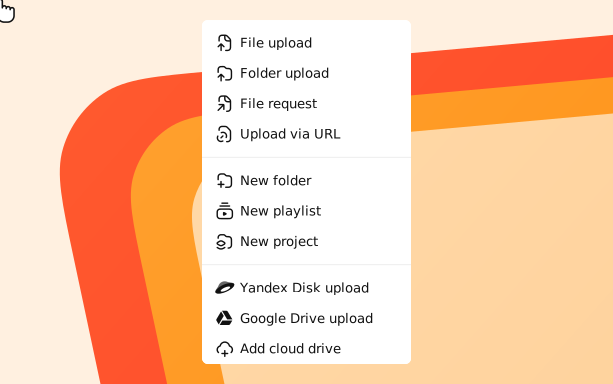
1. In the catalog, click New → Upload via URL.
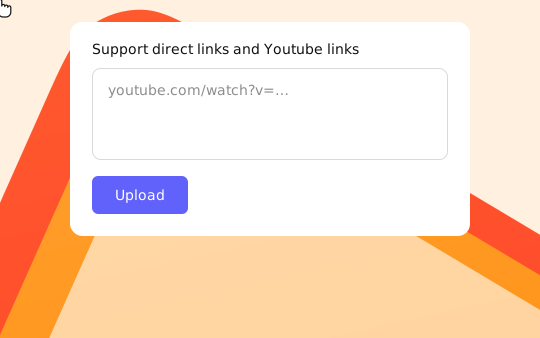
2. Paste the YouTube links: up to 50 at once, separated by a comma, a space or a new line.
3. Click Upload: each video arrives at maximum quality with sound, along with its poster and chapters.
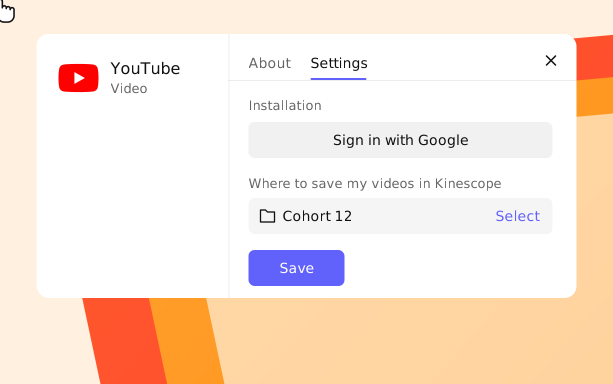
1. Go to Settings → Integrations, find the YouTube card and click Connect.
2. On the Settings tab, click Sign in with Google and choose the account the channel is linked to.
3. Under Where to save my videos in Kinescope, pick a project or folder, choose what to move and click Save.
What the move gives you
Up to 50 links at once
Paste a list of YouTube links separated by commas, spaces or new lines, and upload them in one go.
Straight into a folder
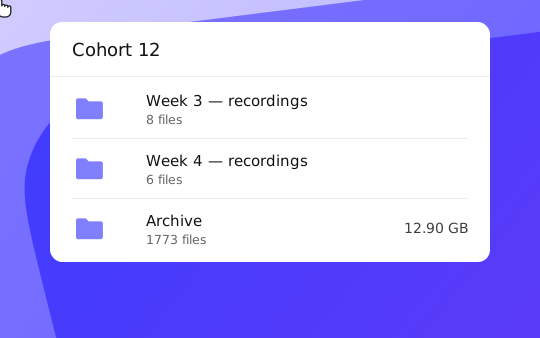
Pick the project or folder in the catalog where the videos should land.
Move your YouTube videos for free
Create a Kinescope account, paste your links or connect the channel. No credit card required.
FAQ
Can’t find the answer you need? Check out our Video guide.
Bring your YouTube library over in a few clicks.
Free to start, then from €10/month. No credit card required.