

















12 best eLearning authoring tools in 2026




Give course videos a home
A presentation, a video demonstration, and an interactive exercise can all help someone learn how to submit an expense claim, but each requires a different kind of authoring work. You might only need to add questions to existing slides, or you might need to build a simulated form that learners can complete themselves.
That difference is a useful starting point for choosing an eLearning authoring tool. These tools let you assemble explanations, media, and activities into a course, then publish it for learners. Some work inside PowerPoint, some give you detailed control over each interaction, and others help a team build courses together in a browser. If your learning management system already creates the lessons and assessments you need, its built-in editor may be enough.
In this guide, we compare 12 eLearning authoring tools across slide-based courses, software practice, shared browser editing, recorded demonstrations, and interactive ebooks.
What your authoring tool needs to handle
A useful authoring tool gives you enough control to build the lesson you have in mind, while keeping routine work manageable. The features that matter depend on what you are teaching and who will maintain the course, but a few criteria help explain the differences:
- Course creation. If your team already works in PowerPoint, an add-in lets you build courses from those slides. Browser editors offer another starting point, bringing text and media together in lessons. Video support also varies: an editor may accept finished recordings without providing the tools to record or edit them. The useful starting point is the material your team already produces.
- Interactive learning. Most editors can add questions, but more involved practice needs more control. Branching lets a learner’s answer change what happens next, while software simulations let them practise the steps themselves. These features matter when completing an activity teaches something that watching or reading alone cannot.
- Team collaboration. Collaboration can mean reviewing a colleague’s work or building the course together. A team working with subject experts may only need a straightforward review process. When those experts also write and update lessons, shared editing and author permissions become more important.
- Publishing and updates. An independently hosted course package gives your team control over delivery. Keeping the course connected to the authoring service can simplify updates, but delivery then depends on that provider. The right option depends on where the course will live and who will maintain it. Our SCORM authoring tools comparison explores these differences.
- Plans and licensing. The entry plan may cover an individual author but leave out shared editing or the export format your course needs. Compare the plan your team would actually use, including author seats and renewal costs. A perpetual license may suit a different budget from an annual subscription.
eLearning authoring tools compared
The comparison includes specialist editors as well as full authoring suites, because a team making video lessons may need a different tool from one building simulations. It draws on documented capabilities, licensing, and publishing options, without hands-on testing or a scored ranking.
The table brings together the activities you can build, how colleagues can contribute, and the formats you can publish. Prices refer to the plans discussed in the product descriptions below, so you can see where an export option or team feature requires a higher tier. “Not listed” means we could not confirm the feature in the vendor’s documentation.
| Tool | Relevant plans and licensing | SCORM / xAPI | Type | Interactivity and branching | Collaboration | Video export |
|---|---|---|---|---|---|---|
| Articulate 360 | Personal ≈€1,276/seat/year; Teams ≈€1,540/seat/year | Both | Storyline desktop + Rise cloud | Custom logic in Storyline; block-based activities in Rise | Review comments; Rise coauthoring and shared Storyline slides on Teams | Storyline MP4; interactive actions do not carry over |
| iSpring Suite | €970/author/year | Both | PowerPoint add-in for Windows; cloud microcourses on Suite AI | Quizzes, role-plays, answer-based paths | Online review and browser-based microcourse coauthoring on Suite AI | MP4 presentation output |
| Adobe Captivate | €575.88/year, billed €47.99/month; Germany price incl. VAT | Both | Desktop | Software simulations, quizzes, interactive video | Review and comments | MP4 in Classic for supported projects |
| Lectora | Studio Gold from ≈€1,364/year | Both | Desktop + cloud | Actions, variables, conditional paths | Online coauthoring; ReviewLink | Whole-course MP4 not listed |
| Create by Confirm (formerly Elucidat) | Quote-based subscription | Both | Cloud | Content blocks and questions; Rules-based branching belongs to separate Author editor | Shared projects; course reviews | Whole-course MP4 not listed |
| Gomo | Quote-based; minimum 12 months | Both | Cloud | Questions, conditional content, branching | Multi-author projects with topic locking | Whole-course MP4 not listed |
| Camtasia | Essentials individual ≈€158/year | SCORM; native xAPI export not listed | Desktop | Video quizzes and hotspots via Smart Player | Screencast comments and review for up to 25 videos; unlimited on Pro | MP4 video only; interactive publication uses Smart Player |
| Mindsmith | Free; Professional ≈€412/author/year | SCORM; experimental xAPI on Enterprise — confirm access | Cloud | Quizzes and branching Experiences; scenario generation on Professional | Live collaboration on Business, ≈€687/author/year | Whole-course MP4 not listed |
| Coursebox | Free; Creator €300/year; Pro €900/year; one admin included | Dynamic SCORM on Creator; self-hosted on Pro; xAPI not listed | Cloud | Quizzes and branching choices | Extra editor seats on Pro; live coediting unconfirmed | Whole-course MP4 not listed |
| Kotobee Author | Free; Premium ≈€264/user once for SCORM | SCORM; xAPI through cloud ebooks/libraries | Desktop | Ebook questions, multimedia, navigation | Shared ebook editing through separate Kotobee Cloud | Whole-course MP4 not listed |
| ActivePresenter | Free for noncommercial use; Pro ≈€439/machine once | Both on Pro | Desktop | Software simulations, quizzes, scenario editor | Project-file handoff; live coediting not listed | MP4 and other video formats |
| Easygenerator | Pro €1,299/year, one author | Both on paid plans | Cloud | Questions and branching scenarios | Coauthoring on Team, €6,495/year for five authors | Whole-course MP4 not listed |
Pricing snapshot: September 29, 2026. Amounts marked ≈ are converted from US prices at the September 29, 2026 rate of €1 = US$1.1355 (ECB). Taxes may apply.
12 eLearning authoring tools to consider
1. Articulate 360
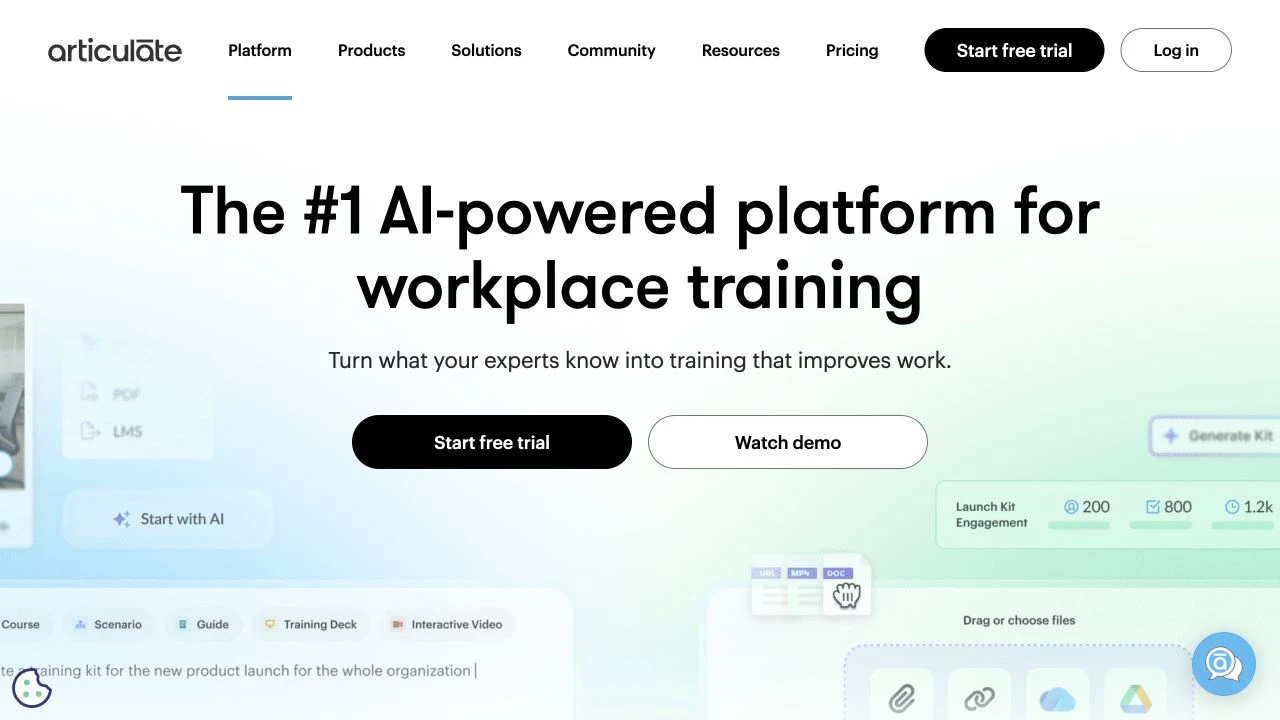
Articulate 360 combines Rise, a browser editor whose responsive lessons rearrange content to fit the learner’s screen, with Storyline, a Windows application for more detailed interaction design. A team can use Rise to explain an expense policy, then turn to Storyline for an exercise in which a missing receipt changes what the learner needs to do next. Storyline’s triggers set what happens after an action, while variables store values such as a learner’s earlier choice. Together, they let the author define those paths and the feedback along them.
Both editors are included in the Personal Articulate 360 AI plan at approximately €1,276 per author per year, along with Review 360 for stakeholder comments. When several authors contribute to the same material, the Teams plan adds coauthoring in Rise and shared Storyline slides for approximately €1,540 per author per year. That is the relevant plan when colleagues need to divide the editing work as well as comment on it.
Storyline also records screens and publishes MP4 files, so it can produce a demonstration alongside the interactive lesson. The video follows a timeline, however, and cannot preserve choices that depend on a learner clicking or entering an answer. Those activities need the course export. Authors also need Windows for Storyline, even though Rise and the review process work in a browser.
2. iSpring Suite
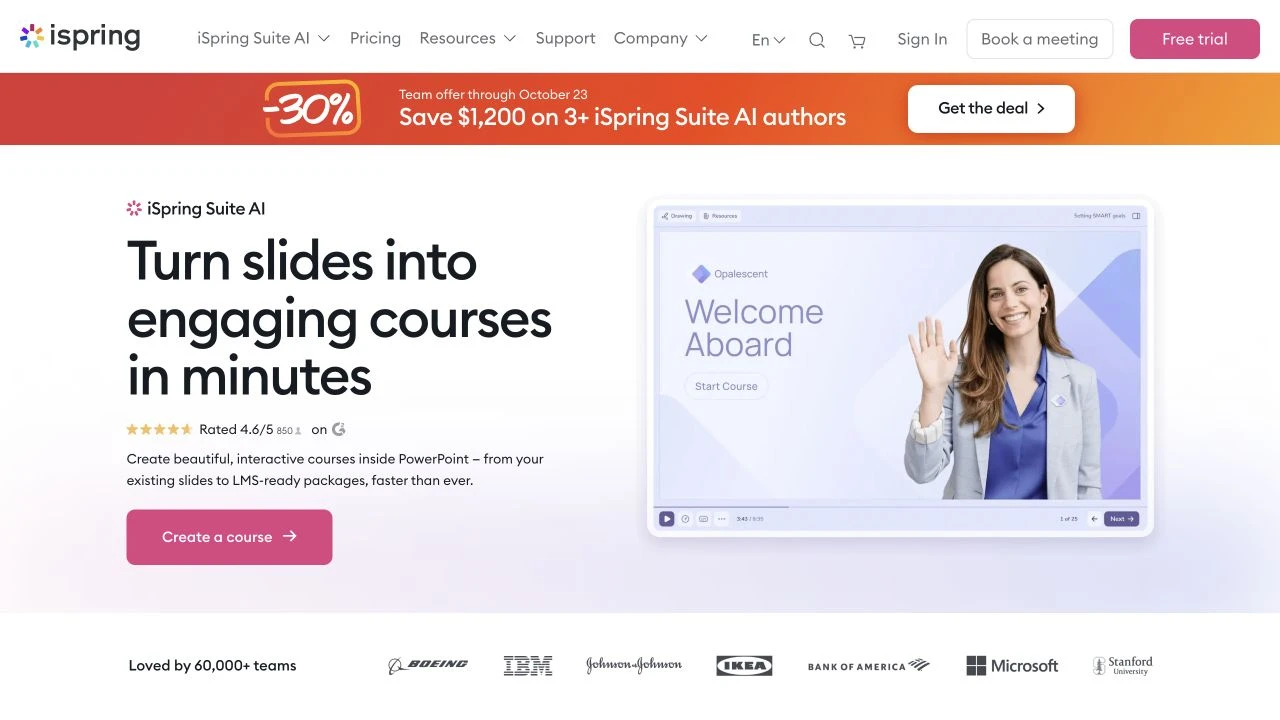
iSpring Suite extends PowerPoint, allowing trainers to keep their existing slides as the basis of a course. They can add narration, questions, and role-plays around the material, then publish it for an LMS using SCORM or xAPI. When a policy changes, the person who maintains the presentation can work in the same familiar environment.
A role-play lets learners choose a response and see what follows, while a screen recording can demonstrate how to carry out the process being discussed. Suite can also turn a presentation into an MP4, although video narrations need to be saved and reinserted into PowerPoint with automatic playback to appear in that output.
The base subscription covers this desktop authoring workflow for €970 per author per year. For €1,290 per author per year, the Suite AI plan lets you publish the course to iSpring Cloud AI and invite colleagues to leave comments in a browser. Reviewers can discuss a correction there, while the author updates the PowerPoint project. The Suite AI plan also includes a separate browser editor where authors can build microcourses together. That coauthoring applies to cloud microcourses, while changes to the original presentation stay in PowerPoint. The PowerPoint-based workflow requires Windows and desktop PowerPoint on either plan.
3. Adobe Captivate
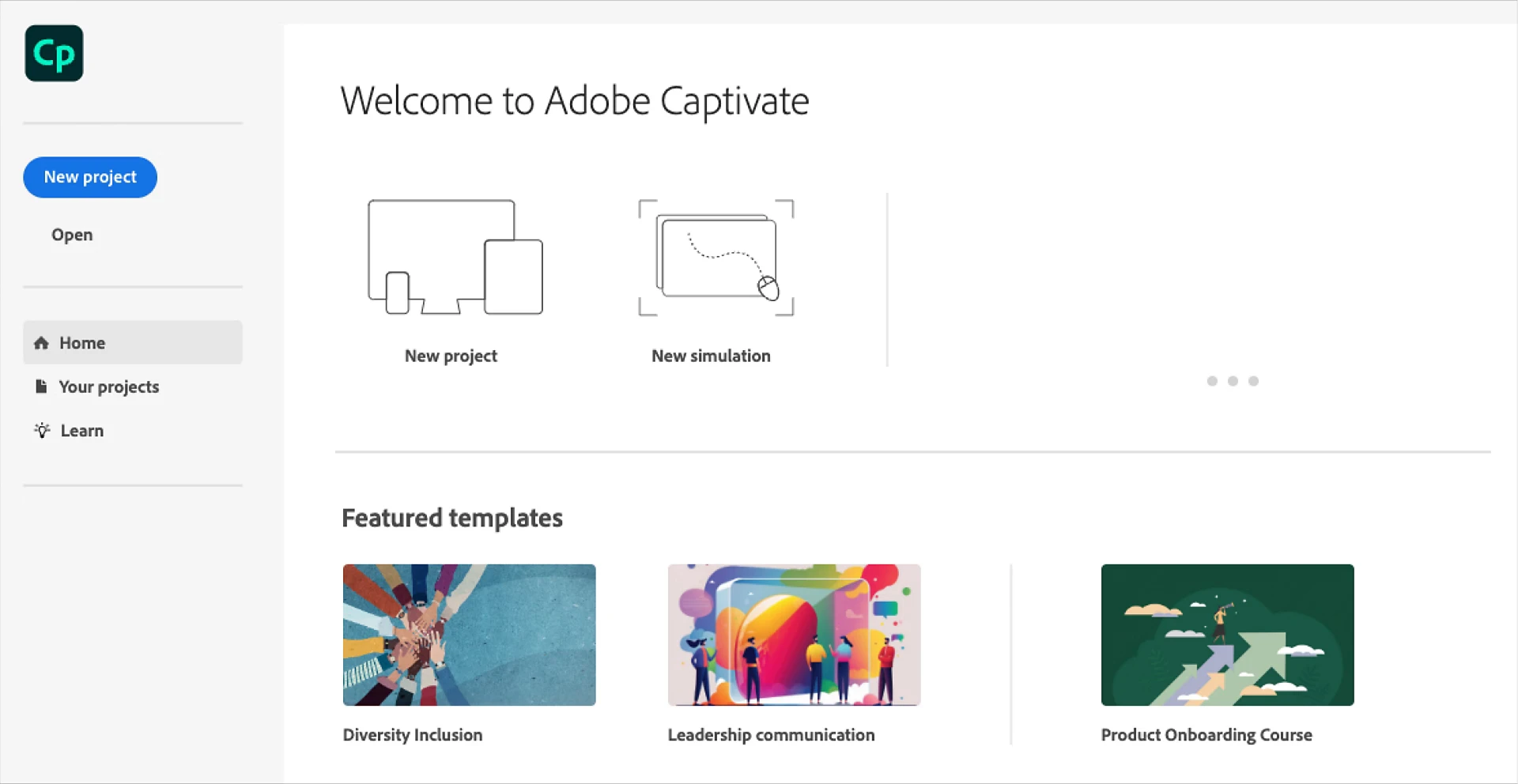
Adobe Captivate combines software simulations with responsive slide-based and scrolling lessons. Authors can build software practice alongside explanations that adapt to different screens, including interactive video. Review comments give colleagues a way to flag corrections before the course reaches learners.
An individual subscription provides both the current editor and Captivate Classic for €47.99 per month including VAT on Adobe’s German storefront. The plan is an annual subscription billed monthly. Having both editors matters for teams maintaining older projects as well as creating new lessons: Adobe directs new responsive course work to the current editor, while Classic remains the route it documents for older Captivate projects and video demos.
Classic can publish supported nonresponsive projects as MP4. That export is not listed in the current editor’s publishing guide, so a team producing both responsive courses and standalone demonstration videos may need to work across the two applications.
4. Lectora
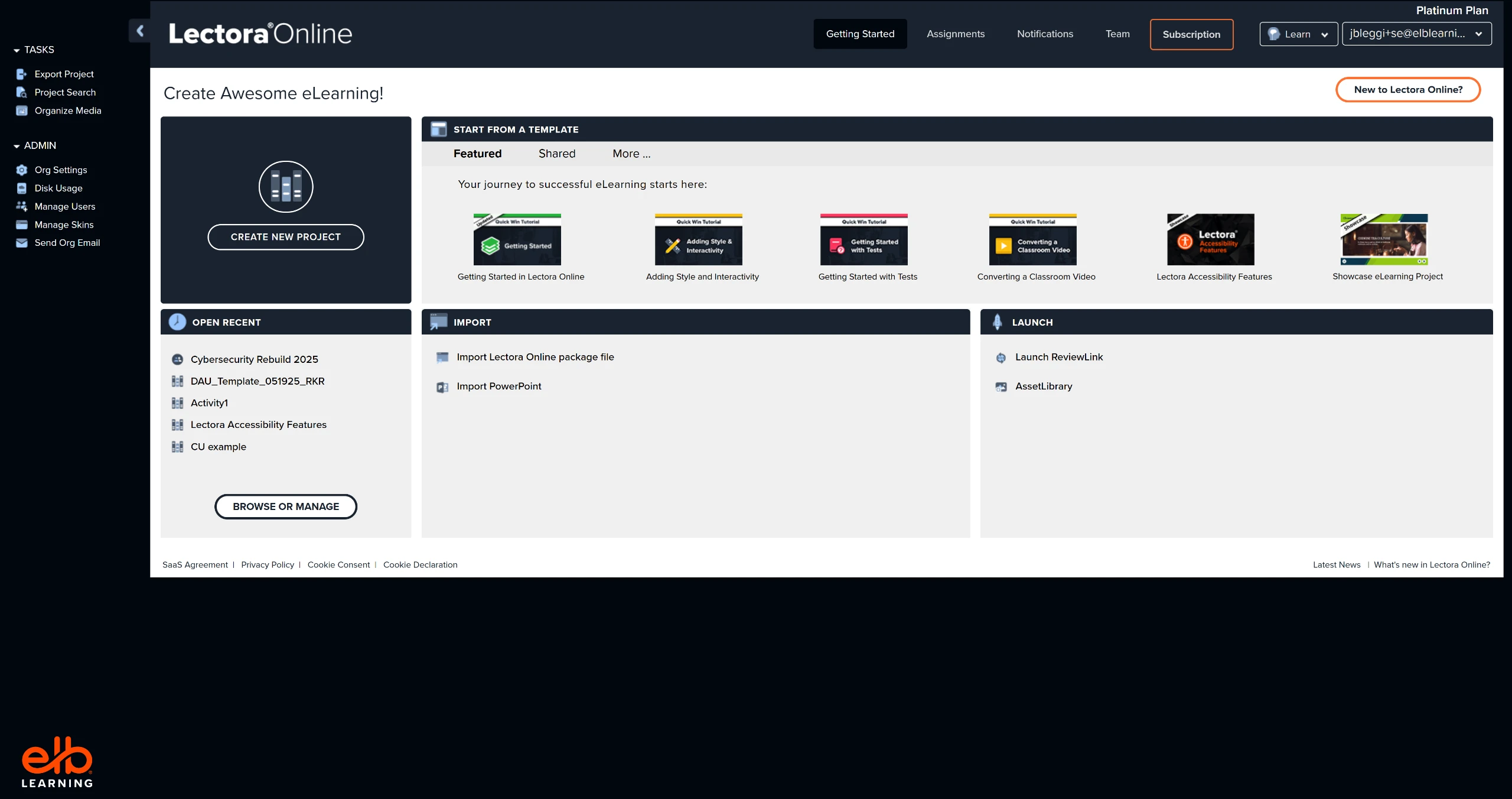
Lectora gives authors control over what happens in a course through actions, conditions, and variables. In an expense-claim exercise, a variable could retain the learner’s decision to submit without a receipt. Later in the lesson, the course could refer back to that choice when explaining why the claim was returned, even after other questions have intervened.
The Studio Gold plan includes desktop and online editors, plus ReviewLink, from approximately €1,364 a year on annual billing, converted from the US list price. Authors can work together in the online editor while subject experts leave comments through ReviewLink. HTML, SCORM, and xAPI publishing are included, although whole-course MP4 export is not listed.
5. Create by Confirm (formerly Elucidat)
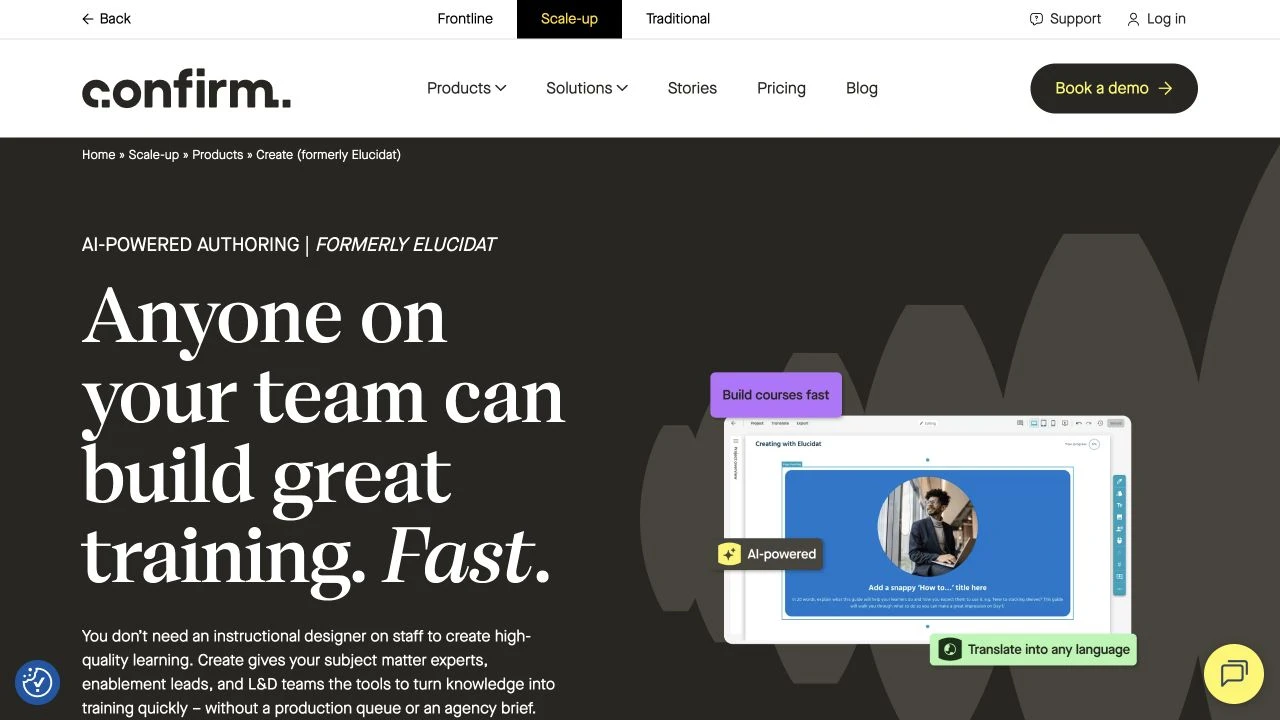
Create by Confirm, presented on the current product site as formerly Elucidat, helps teams produce courses within shared templates and design rules. An instructional designer can establish the format, leaving the person who knows the subject to develop the explanation. Reviewers can comment on individual content blocks, so feedback refers to the passage or activity the author needs to change.
Once the team has reviewed the material, Create can publish SCORM and standalone xAPI for a compatible learning system. Pricing is by quote, so the offer needs to cover the people who will write and review those courses.
Elucidat Author is a separate editor. The vendor lists Rules-based branching for Author rather than Create. Its inclusion in a new Create subscription is unconfirmed. If your course needs that branching, the quote must explicitly include Author access.
6. Gomo
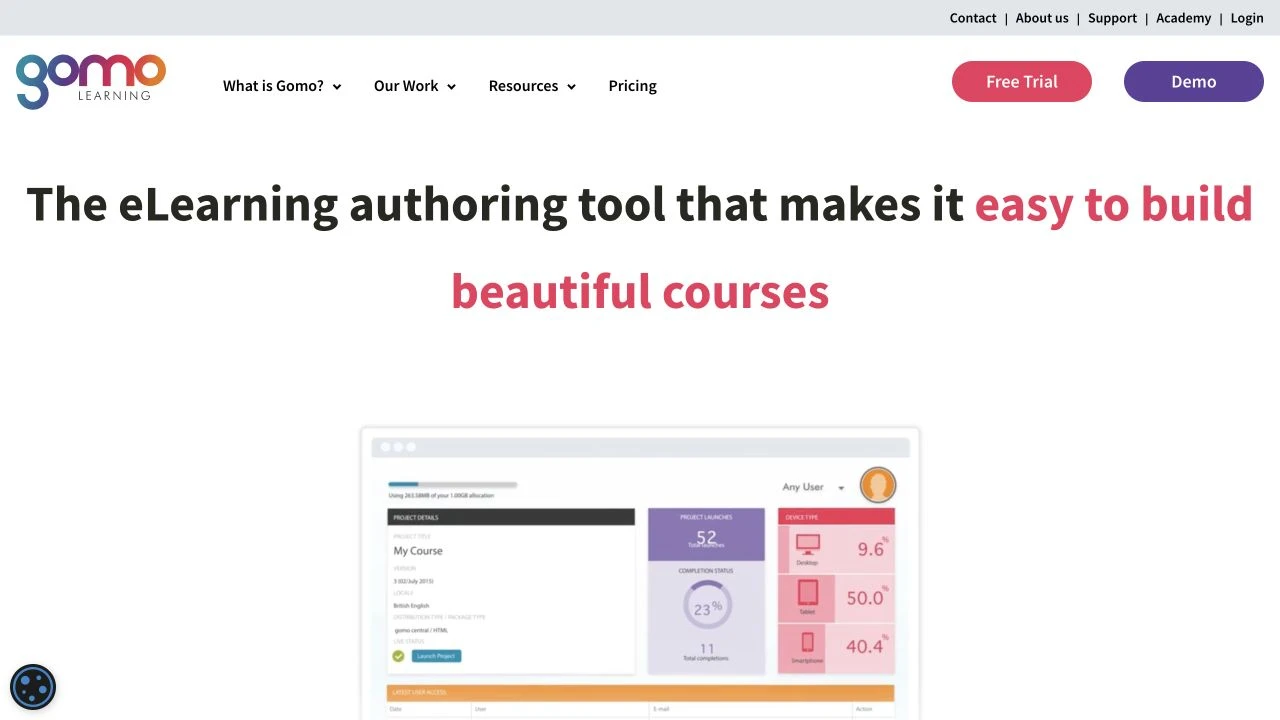
Gomo is a browser-based editor for courses that may need to reach several learning systems. Authors can build questions and conditional paths, then download a complete SCORM or xAPI package for each LMS. Those packages can run without Gomo Cloud, although media hosted outside the package still needs a connection to its provider.
For courses that need regular updates, Gomo’s Live Delivery lets each LMS launch centrally hosted content, so a correction can reach those installations without a replacement package being uploaded to every system. Learners still need access to Gomo’s delivery service to open that hosted course.
Several authors can work on different topics in a course. Topic locking reserves a topic for the person editing it, so colleagues do not overwrite those changes. Reviewers can leave comments and tasks for those authors to resolve. Gomo prices this setup by quote under a minimum 12-month contract, so the authoring team and chosen delivery method both need to be covered in the offer.
7. Camtasia
Camtasia starts with a screen recording and gives you a timeline for turning it into a lesson. You can remove pauses and bring narration, footage, and visual emphasis together so learners can follow the process being demonstrated. This suits a software walkthrough where the teaching depends on showing each step clearly.
Questions and clickable hotspots can become part of that recording through Camtasia’s Smart Player. The Essentials individual plan includes those interactions, SCORM output, and watermark-free editing for approximately €158 a year. The cheaper Starter plan adds a watermark to exports, so the Essentials plan is the relevant option here for watermark-free video.
A standalone MP4 plays the recording without working quizzes or clickable hotspots. To keep those interactions, you need the Smart Player publication, including its supporting files, rather than the video file alone. That publication can also be packaged for an LMS with SCORM reporting enabled. For practice where learners must operate a simulated interface themselves, Captivate or ActivePresenter offers a different kind of authoring workflow.
Teams also need to account for how the license will be used. Individual Camtasia licenses cannot be reassigned, so organizations that need to move seats between employees should compare business licensing. The Essentials plan already includes Screencast hosting, comments, and review for up to 25 videos. The Pro plan removes that video-count limit.
8. Mindsmith
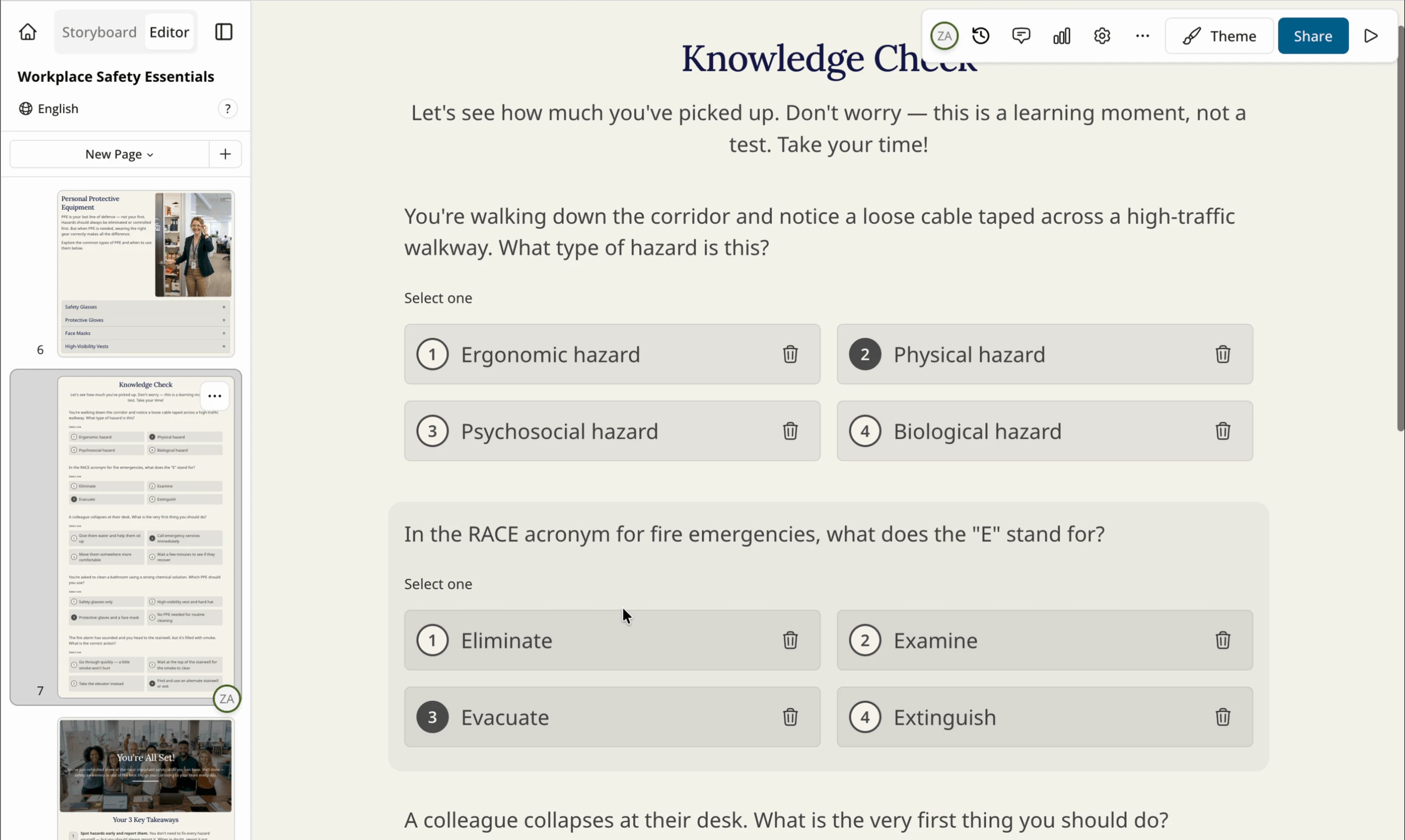
Mindsmith combines AI-assisted lesson creation with an editor for branching Experiences. Authors can develop the explanation and build scenes in which learners choose a response and receive feedback. A video tile can hold an uploaded demonstration, an embed, or a screen or camera recording made while building the lesson, with questions added around that material.
The free plan allows unlimited content creation and sharing by link, embed, or SCORM, with Mindsmith branding and a one-time allocation of AI credits. The Professional plan adds monthly AI credits, scenario generation, and branding removal for approximately €412 per author per year. If several people need to edit together, the Business plan adds live collaboration at approximately €687 per author per year.
Publishing affects how the course is maintained. A dynamic SCORM package loads the lesson from Mindsmith, while a static package bundles supported content for hosting in the LMS. That independent copy omits activities that need a live service, such as AI Conversation tiles, so a scenario built around those conversations still needs dynamic delivery. Mindsmith lists xAPI on the Enterprise plan, but its export documentation describes it as experimental and does not guarantee access for every Enterprise account. Teams that require xAPI should confirm access for their account before choosing the plan.
9. Coursebox
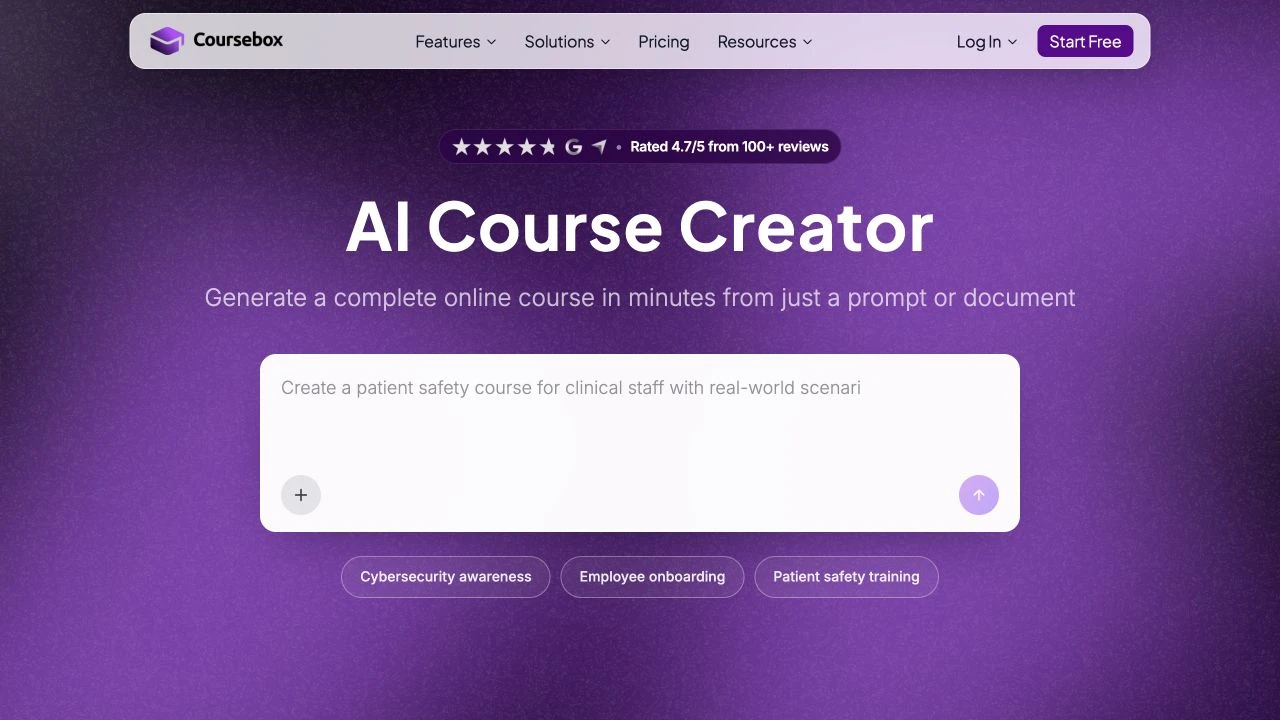
Coursebox turns source material into a course draft, with tools for generating assessments and lesson videos. Authors can edit the questions, branching choices, and feedback before learners work through them. Coursebox also delivers the course, allowing a team to create and distribute training in the same service. The free plan provides a starting point for short material, with three AI-generated mini courses of up to five pages each.
Taking that course into an existing LMS changes the subscription you need. The Creator plan includes PDF, HTML, and dynamic SCORM export for €300 a year with one administrator. With dynamic SCORM, the LMS launches content hosted by Coursebox, so an active subscription remains part of delivering the lesson.
The Pro plan adds self-hosted SCORM for €900 a year, also with one administrator. That export keeps working after the subscription ends, but leaves behind features that need Coursebox’s live service, including the AI tutor and short-answer questions. It also needs to be exported again after a course update. The Pro plan is therefore the starting point for an independent LMS copy, provided the lesson can work without those activities. Additional editors require paid administrator seats beyond the one included in the plan.
10. Kotobee Author
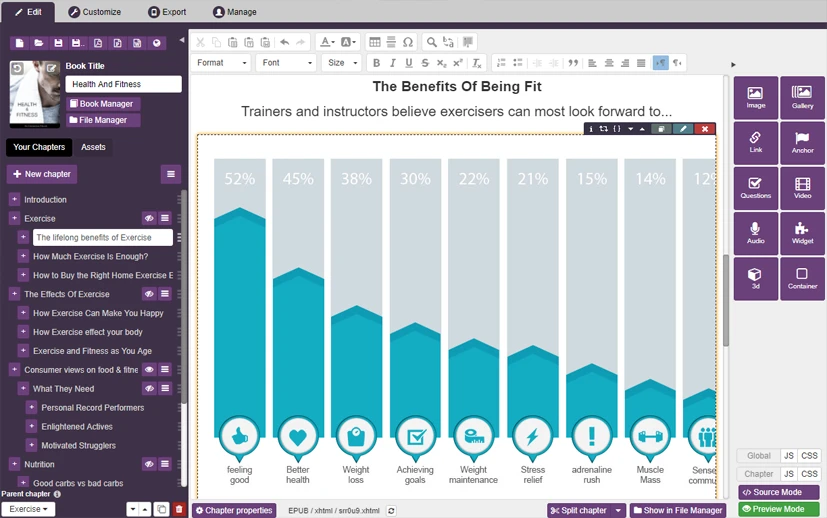
Kotobee Author organizes learning material as an interactive ebook. Chapters give the course its structure, with media and questions added where learners need them. This works well for a handbook that people read and return to, because the material can be distributed as an ebook or on the web without being reorganized around slides.
The free edition lets you begin building interactive ebooks. When the book needs to become a SCORM course for an LMS, the Premium plan is the relevant option at approximately €264 per user as a one-time purchase, including a year of upgrades. The cheaper Basic plan does not include SCORM, so it is not the starting price for that publishing workflow.
Working with other authors adds a separate service. Kotobee Cloud lets invited users edit a shared ebook, and the documented xAPI support also depends on cloud ebooks or libraries. Those requirements extend beyond the desktop Author license.
11. ActivePresenter
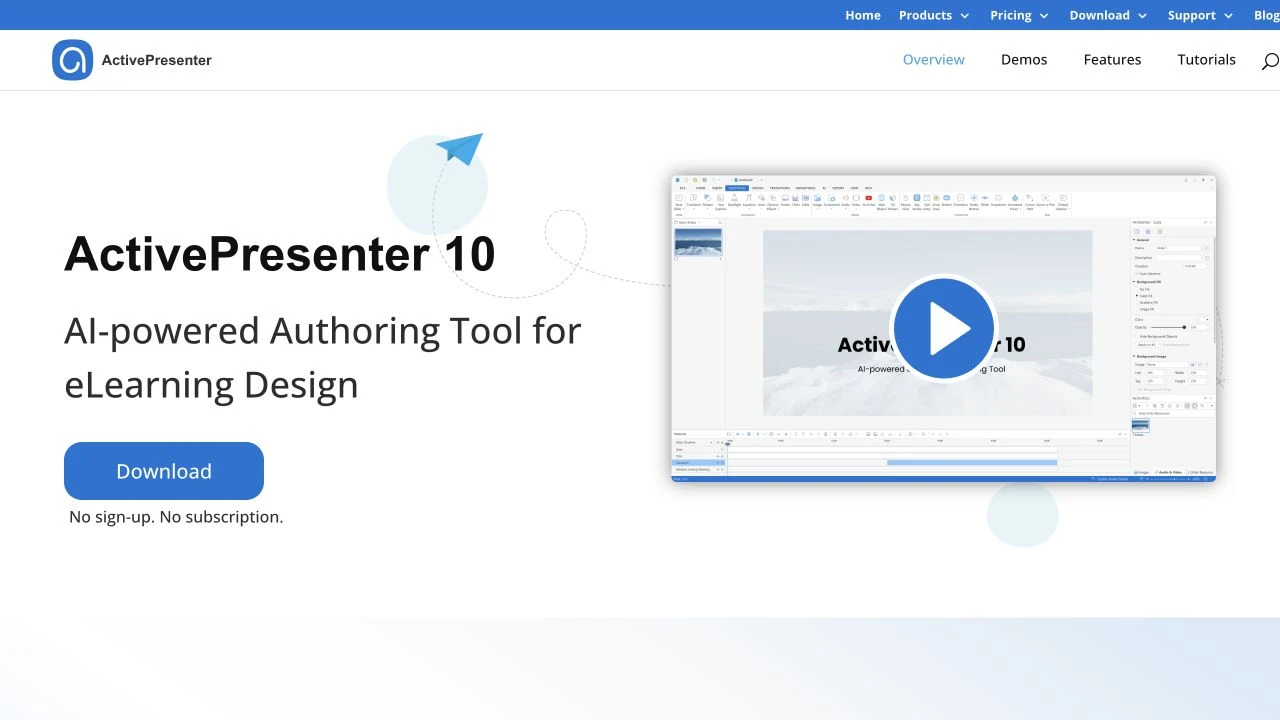
ActivePresenter brings screen recording, video editing, and interactive course authoring into one desktop application. A team explaining an expense form can create a demonstration for learners to watch and a practice version in which they enter details and submit the simulated form themselves. Interactive capture records those actions as steps for a simulation, while the scenario editor gives authors control over decision paths.
That combination is covered by the Pro plan, which includes SCORM, xAPI, and the full eLearning features for approximately €439 per machine as a perpetual license. The Standard plan covers recording and video editing, so it is not enough for the combined video-and-practice workflow. The free edition is for noncommercial use and applies restrictions and watermarks when premium functionality is used.
The Pro plan includes one year of major-version upgrades, with later major upgrades a separate cost. This gives an individual author a one-time licensing option, though a team also needs a way to coordinate edits. Colleagues can hand over project files, but live coediting is not listed, leaving them responsible for deciding who maintains the working copy.
12. Easygenerator
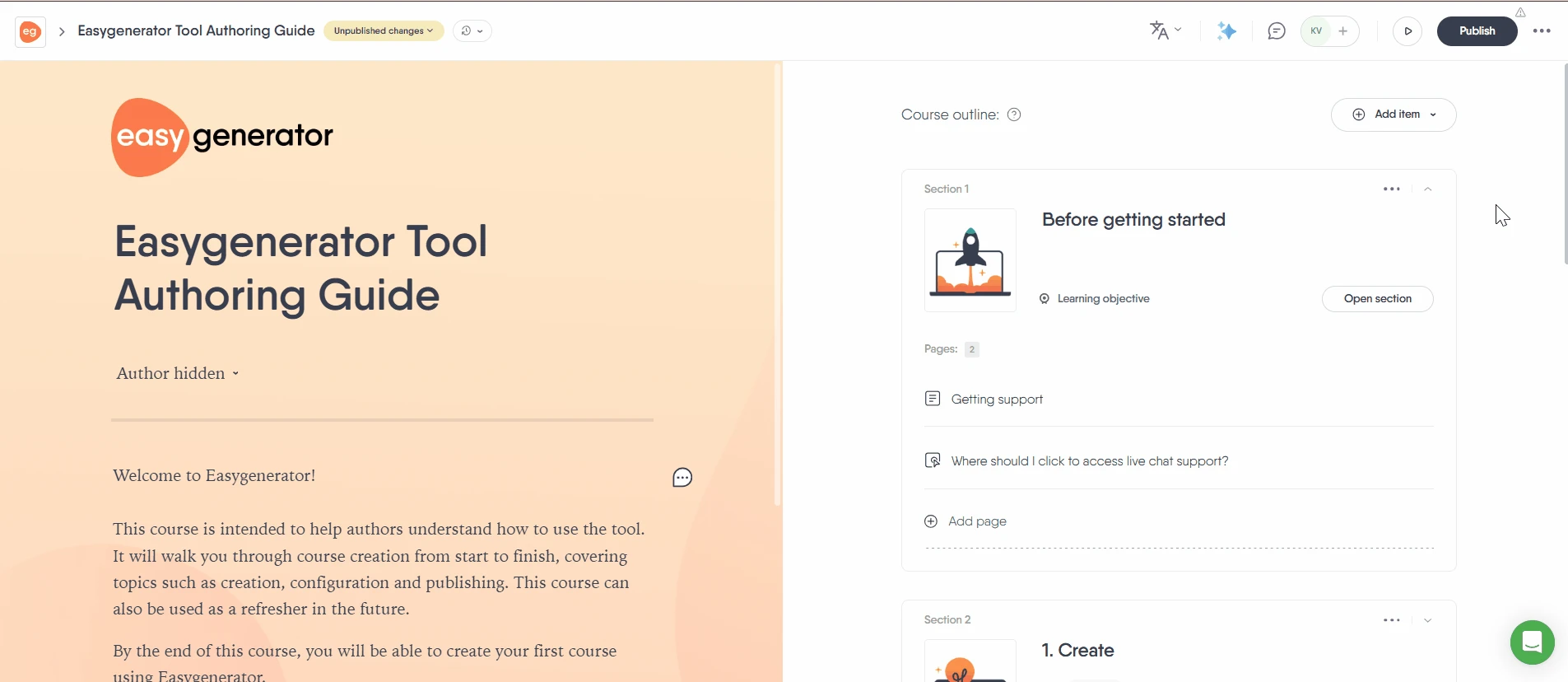
Easygenerator gives subject experts a browser editor for building lessons from text, images, audio, video, and assessments. They can arrange those blocks into a course without designing every page, then develop an explanation into a decision exercise using branching scenes. A customer-service lesson, for example, could ask how to respond to a customer and follow the learner’s choice with feedback before closing that path.
One author can build up to ten courses on the Pro plan for €1,299 a year. When several experts need to edit the material themselves, the Team plan includes coauthoring and unlimited reviewers for €6,495 a year, starting with five authors. That minimum matters for a smaller team: the shared editing workflow comes with a five-author subscription even if only two people will write the courses.
Once the lesson has been reviewed, paid plans support SCORM and xAPI export. With manual SCORM, you choose which media to include in the package, then upload it to the LMS. After a correction, you export and upload a replacement. With dynamic SCORM, Easygenerator hosts the course and media. Clicking Update course sends the revision through the existing LMS package without another upload. Dynamic updates are not available for xAPI exports.
How course videos reach your learners
An authoring tool may let you record and edit a demonstration, upload a finished clip, or embed a video hosted elsewhere. These capabilities do different jobs, so accepting video does not necessarily mean the editor can produce it. Export matters too: an MP4 preserves the recording, but working quizzes and learner choices need the editor’s interactive publication.
Where the video lives affects how you maintain it. Files included in a course package are delivered from the LMS that hosts it. An embedded player loads the recording from an external service, which the editor and LMS must support. Some authoring subscriptions already include hosted delivery and central updates, so a separate video host is not always necessary.
Separate hosting becomes useful when recordings exceed the LMS’s storage allowance or the same demonstration appears in several courses and is difficult to update in each copy. It adds another service and requires an internet connection to it. An embed alone also does not establish LMS tracking: viewing completion and scores depend on what the player and course can report.
Kinescope can host those recordings and provide a player to embed in compatible course platforms, with playback quality adapting to the learner’s connection. You can replace a demonstration while keeping its embed code, so existing lessons show the new recording. Your authoring tool and LMS continue to handle the lesson structure, questions, and learner progress.
Choosing a tool for the courses you create
The following scenarios narrow the comparison to an initial choice and the requirement that could change it.
- Turning existing slides into a course. Start with iSpring Suite if the authors use Windows and desktop PowerPoint. Choose Articulate 360 instead when keeping the slide deck matters less than adding custom interactions in Storyline or building lessons that rearrange for different screens in Rise.
- Building software practice. Start with Captivate when you want to create simulations alongside responsive lessons in one desktop editor. ActivePresenter Pro is the alternative when recording demonstrations and building practice exercises are the main tasks and you prefer a perpetual license. Authors sharing its project files still need to coordinate who edits the working copy.
- Creating courses with several subject experts. Easygenerator Team is a starting point for experts writing and editing browser-based lessons together, provided its five-author minimum fits the team. Try Lectora Online instead when that shared course also needs conditions and variables to carry learners’ earlier decisions into later exercises.
- Developing lessons with AI assistance. Start with Mindsmith for lessons and branching scenarios that you can share directly or publish to an LMS. Consider Coursebox when you also need a built-in learning platform with learner registration, certificates, and grading. If an independent LMS copy is essential, both have export restrictions to consider: Mindsmith’s static package omits AI Conversation tiles, while Coursebox requires Pro for self-hosted SCORM and leaves out its AI tutor and other live features. Our AI course creation tools comparison covers more options for planning, writing, and producing lessons.
- Making a handbook learners can revisit. Kotobee Author fits chapter-based material with media and questions embedded in the text. Premium provides SCORM export as a one-time purchase. A team that needs to edit the same ebook also needs Kotobee Cloud.
- Editing a recorded demonstration. Start with Camtasia for a lesson learners watch, with Smart Player if it needs questions or hotspots. Choose ActivePresenter Pro when you also need a simulation in which learners perform the steps themselves. For a demonstration that only needs playback, export an MP4 for use wherever the course accepts a finished video.
The strongest choice is the tool that handles the courses your team creates most often. A specialist editor may cover that work on its own, while a broader suite becomes useful when you regularly combine formats or need more people involved in production. Choose the plan that supports those recurring needs, with room for the ways your courses are likely to develop.
Add your finished videos to your course
Upload your recordings to Kinescope, then embed the player wherever your course platform supports it.