


















10 best assessment tools for teachers in 2026




See how your lessons are watched
Choosing an assessment tool starts with what you want to learn from students’ work. A quick check during a lesson can help you decide whether to move on or explain a topic again. A written assignment gives you more material to review, while an end-of-unit test may need a score you can record and return to later.
In this guide, we compare ten assessment tools for teachers, from simple forms and live quizzes to tools for reviewing written and visual work. We look at how each one handles the assessment, what results you can keep and when the free plan is enough.
What an assessment tool brings to the table
An assessment tool gives you a way to collect students’ work and use it to guide feedback, plan another lesson or record a grade. An answer key can handle a question with a fixed correct answer. An explanation or a drawing gives you different evidence to interpret, so the tool also needs to make that work easy to review. Its usefulness depends on what happens before and after a score is assigned:
-
The right response format. Imagine asking which is larger, 1/2 or 1/3, when both refer to the same whole. A multiple-choice question can check whether a student selects 1/2. Asking them to explain why gives you evidence of their reasoning, while a drawing may reveal how they understand the parts. A tool’s value depends partly on whether it can collect the kind of answer your question needs.
-
Following work during the lesson. Some tools show written responses and drawings while students are still working. That gives you a chance to respond to a misunderstanding before it carries into the next task. A tool that only shows completed answers supports a different kind of follow-up after submission.
-
Results you can act on. After an activity, a class average can hide a question that many students misunderstood. An item-level report shows which questions need attention, while individual responses help you decide who needs another explanation.
-
Joining activities and keeping records. A room code may be enough for students to join an informal check. Recording grades against named students can require school accounts, an LMS connection and a paid license. If you want to compare work across a term, how long the tool keeps those reports also matters.
AI grading tools for teachers: what they can assess
Written explanations introduce a challenge that an answer key may not resolve: a student can express a valid idea in unexpected words or show reasoning that is only partly correct. AI-assisted grading can compare that response with a rubric defining what earns credit, then suggest a score and feedback.
Those suggestions still need review. Comparing them with work you have already marked helps reveal unclear criteria or a response the AI has misread. You can clarify the rubric and correct the scores and feedback, while assessing answers manually when the same errors keep recurring. The teacher remains responsible for the grades and for following school rules on the use of student work.
Assessment tools for teachers compared
All ten tools offer a free starting point. The table compares what each one can assess, the reports it provides and how it connects to your school’s learning management system (LMS).
| Tool | Free plan / paid starting price | LMS integration | Automatic grading | Reports | Live mode |
|---|---|---|---|---|---|
| Google Forms | Free for standard Forms use | Classroom grade import with required assignment settings | Answer keys for supported question types | Question summaries and individual answers | Form only; no hosted session |
| Socrative | Free plan: 50 students/activity, 5 quizzes Essentials plan ≈€105.57/teacher/year (≈€8.80/month) | Grade transfer: confirm support with Socrative before choosing | Key-based grading on the Free plan | Free plan: 30-day history; Essentials plan: 90 days; file exports available | Room-based session |
| Formative | Free teacher tier Classroom plan ≈€219.06/teacher/year (≈€18.26/month) | Google Classroom: free roster sync; grade transfer paid, current tier unspecified; other LTI on the School & District plan | Free answer keys; Luna: eligible tier unspecified | Live responses and results by student/question | Teacher-paced activity |
| Wayground, formerly Quizizz | Free Basic plan School/District plans by quote | Basic plan: Classroom assignments; School/District plans: grade sync and other LMS connections | Basic plan: answer keys and AI grading with custom/generated rubrics | Basic plan: activity reports; broader tracking on school plans | Teacher-paced activity |
| Kahoot! | Go plan: 40 participants Bronze plan €44/teacher/year (≈€3.67/month) | EDU team: 25+ seats; support activation required | Correct-answer scoring; standard live points also depend on speed | Go plan: basic reports; Bronze plan: full difficulty insights | Hosted quiz game |
| Gimkit | Basic plan: rotating featured modes Pro plan ≈€13.19/account/month | Grade transfer: confirm support with Gimkit before choosing | Correct-answer scoring | Basic plan: class, student and question reports; PDF export | Hosted game |
| Nearpod | Silver plan: 40 joins/lesson, 300 MB Gold plan ≈€139.88/teacher/year (≈€11.66/month) | LTI on School/District plans; separate quote | Objective quizzes; other work needs review | Lesson, activity and student reports | Teacher-paced lesson |
| Mentimeter | Free plan: 50 participants/month Basic plan €132/presenter/year (€11/month), excluding tax | Campus plan: teacher-initiated grade sync; custom pricing | Quiz scoring; open responses need review | Free plan: live results; Basic plan: Excel/PDF export | Presentation with live responses |
| Poll Everywhere | Free plan: 40 responses/poll Lecture plan ≈€95.01/presenter/year (≈€7.92/month) | Campus-wide plan: LMS connection; custom pricing | Campus-wide plan: correct-answer grading | Free plan: live results and data export; Lecture plan: report entitlement unconfirmed | Live polls in a presentation |
| Padlet | Free plan: 3 active padlets Platinum plan €120/account/year (€10/month) | School plan: grade sync; separate license | Board posts assessed manually | Posts and feedback; School plan gradebook | Unpaced board collaboration |
Pricing comparison: September 30, 2026. Approximate prices use the ECB rate of €1 = US$1.1367; taxes may vary. Monthly equivalents are shown for comparison; annual subscriptions are billed yearly.
1. Google Forms
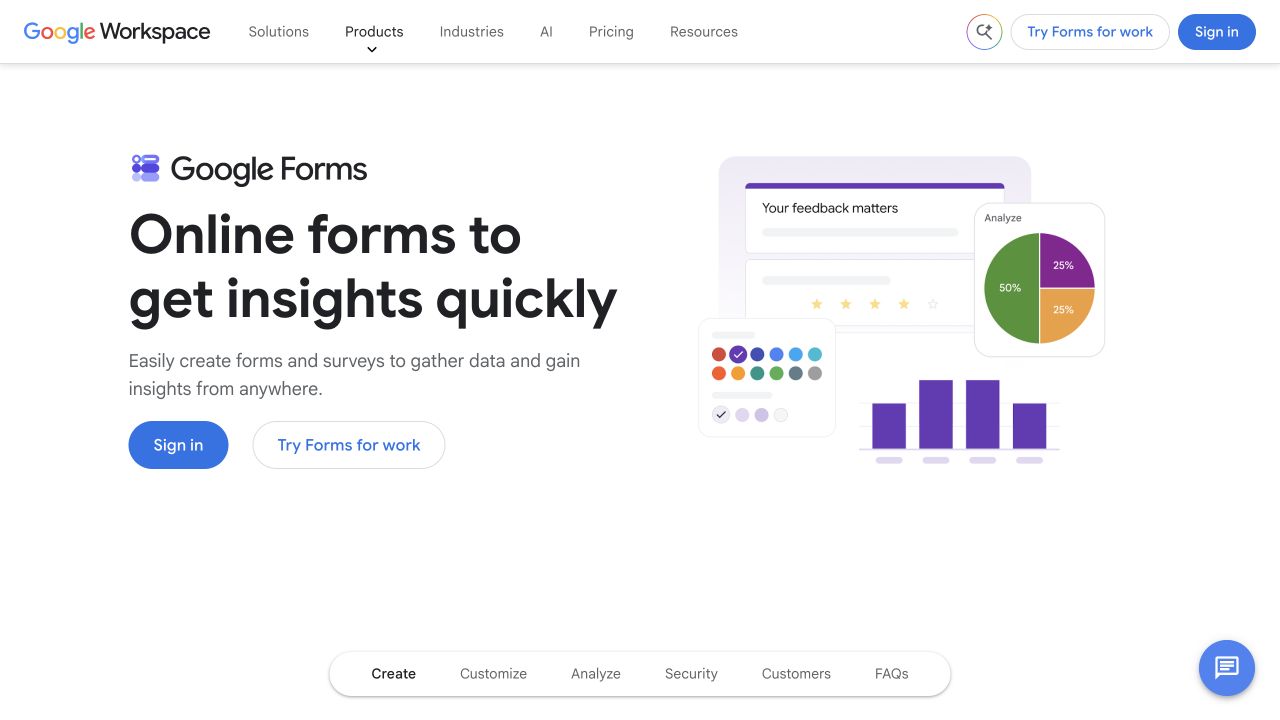
Google Forms lets you combine questions with an answer key and written responses that you mark yourself in one quiz. You set the correct answers and points for supported question types, including multiple choice and short answers, while leaving responses that need judgment for your review.
For the fractions example, the selection question can return a score automatically. The follow-up explanation needs a different approach: Forms does not provide an answer key for paragraph responses, so you read those answers and assign points yourself. You can delay releasing grades until that review is complete. The question summaries also show frequently missed questions, which helps you choose what to cover again.
Standard Forms use is free. If you teach through Google Classroom, quiz assignments can import grades, although the setup has conditions: the quiz must be the only attachment, responses must be limited to one per student, email collection must be enabled, and the teacher and students must belong to the same domain. A form shared as an ordinary link will not provide that grade-import workflow. Forms is particularly useful when your existing classroom setup already meets those conditions.
2. Socrative
Socrative gives the class a room to join for a quiz or short check. Students enter its code without creating individual accounts, while the teacher collects their answers and follows the results. The Free plan provides one room and five saved quizzes, which can cover a class working on the same activity.
The room arrangement matters more when groups need different tasks. Only one activity can run in a room at a time, so the Essentials plan expands the options by providing five rooms. It still allows 50 students per activity, just as the Free plan does; the extra rooms let you separate the work without increasing the size of any one group.
Those activities also leave a record for later lessons. The Free plan keeps reports for 30 days, while the Essentials plan extends the history to 90 days. The longer history becomes useful when you want to return to earlier work as the class moves through a topic.
3. Formative
Formative lets you inspect written responses and drawings during the lesson, alongside answers to objective questions. A drawing of the two fractions, for example, may show whether a student is comparing equal-sized wholes while they are still working toward an answer.
Because that work is visible during the lesson, you can respond to the reasoning while students are still working with the idea. The same responses remain available afterward, when you may want to look more closely at an explanation or assess it against several criteria. Written responses and drawings are available in the free teacher tier; paid plans add rubrics for that more detailed assessment.
Luna can apply a rubric to a written answer you select, returning a suggested grade, criteria and explanations for you to review. Each further response requires another request, and a generated rubric stays with the selected response unless you save it for reuse. Formative’s documentation does not specify eligible plans, so Luna access needs confirmation before choosing a subscription for AI grading.
4. Wayground, formerly Quizizz
Wayground combines objective questions and short written explanations in activities you can run live or assign for later. A student might first select the larger fraction, then explain the choice. Keeping both answers in the activity gives you more to assess than the selection alone.
For the written part, you can enable AI scoring for a question and set its rubric. The tool then applies that rubric as answers arrive, returning points and feedback for you to review. The Basic plan includes custom and AI-generated rubrics; uploading a rubric or choosing one from the standards library requires a paid plan. Each answer is limited to 3,000 characters, making this a workflow for short explanations rather than longer written submissions.
You can build up a collection of these activities on the Basic plan, whose documented storage allowance is 20 resources, with regional variation. It also supports assignments through Google Classroom. Sending the grades back to Classroom requires a School or District plan, so the subscription decision changes when the activity becomes part of the school’s recorded assessment.
5. Kahoot!
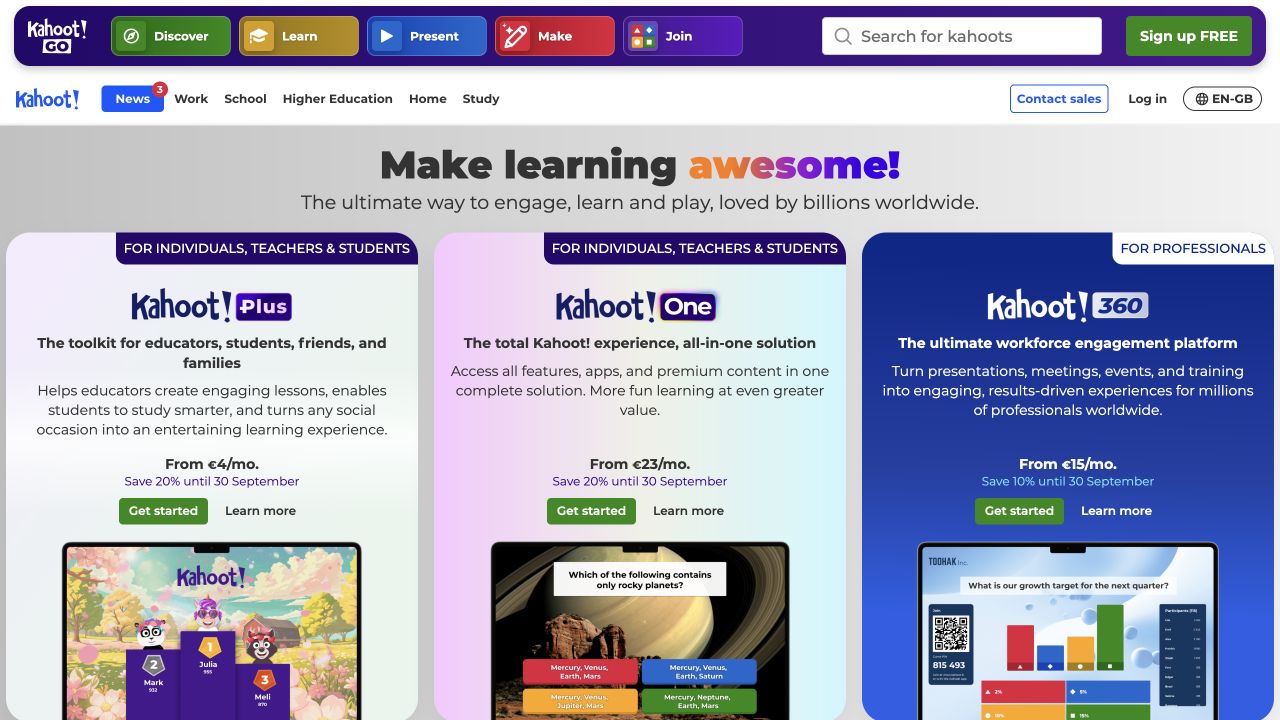
Kahoot! makes a quiz into a shared classroom event. The teacher hosts while students answer from their devices, with question results and rankings shaping the session. This gives everyone a common set of questions to work through, but the ranking needs interpretation before you use it as an assessment.
In the standard live game, speed affects the points earned for a correct answer. Two students can therefore get the same question right and receive different scores. The answer report lets you look at correctness separately. Accuracy mode, included from the Bronze plan, removes speed from scoring; assigned kahoots can also have their question timer disabled when students work independently.
The report becomes particularly relevant after the game, when you want to identify who needs help. The Go plan allows up to 40 participants and shows all participants and questions, but its difficulty insights are limited to three participants. The Bronze plan opens those insights for the whole group. That is a reason to consider the upgrade if you intend to use the quiz for individual follow-up.
6. Gimkit
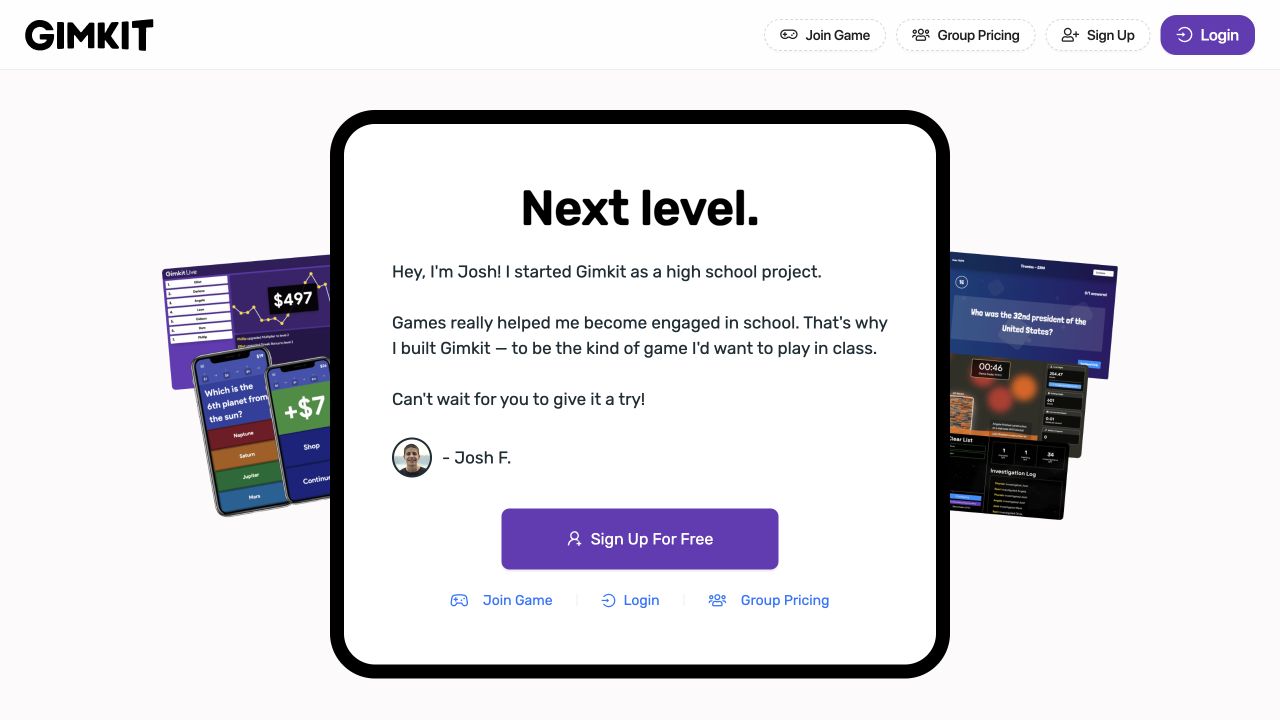
Gimkit is worth considering when students need repeated practice with a set of questions. Its Smart Repetition system brings back questions a student answered incorrectly more often, after they have seen the set once. Because that repetition follows each student’s answers, classmates can receive different patterns of practice within the same activity.
After the game, class and individual reports show which questions students answered correctly. A question breakdown and PDF export help you use those results to plan the next practice session. Vocabulary and calculation questions lend themselves to this kind of repeated practice because the answer key can check each attempt consistently.
You can use those reports on the Basic plan, which offers a rotating selection of live game modes. The Pro plan is needed when you want students to continue the practice as homework or use all modes.
7. Nearpod
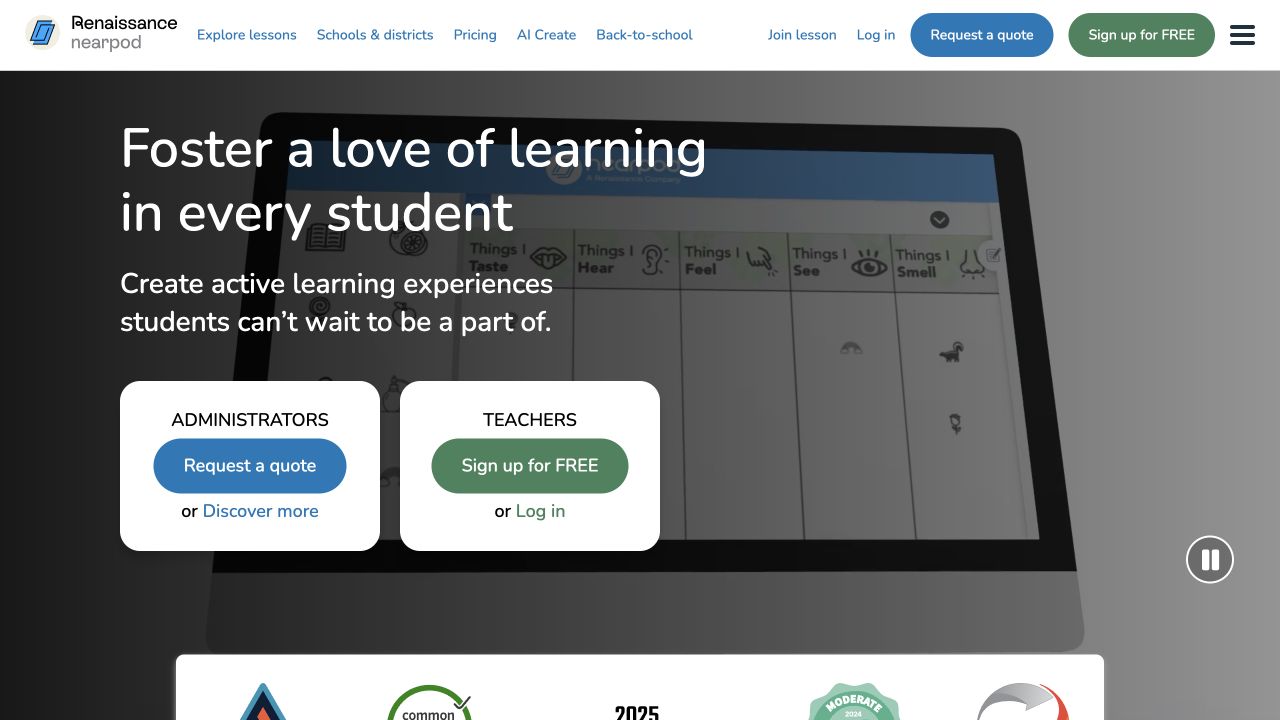
Nearpod lets you build the explanation and the assessment into one lesson. Slides and media lead into a quiz, written response or drawing, so planning the sequence includes deciding where students should apply what they have just seen. You can guide the class through it or let students work at their own pace.
Reports keep that lesson context: you can examine results by lesson, activity or student, with participation and submitted work available afterward. Objective quizzes can be scored automatically; drawings and explanations still need interpretation.
As you build a library of these lessons, storage becomes part of the decision. The Silver plan includes 300 MB and up to 40 student joins per lesson. The Gold plan raises those allowances to 1 GB and 75 joins, providing room for a larger collection or a larger group.
8. Mentimeter
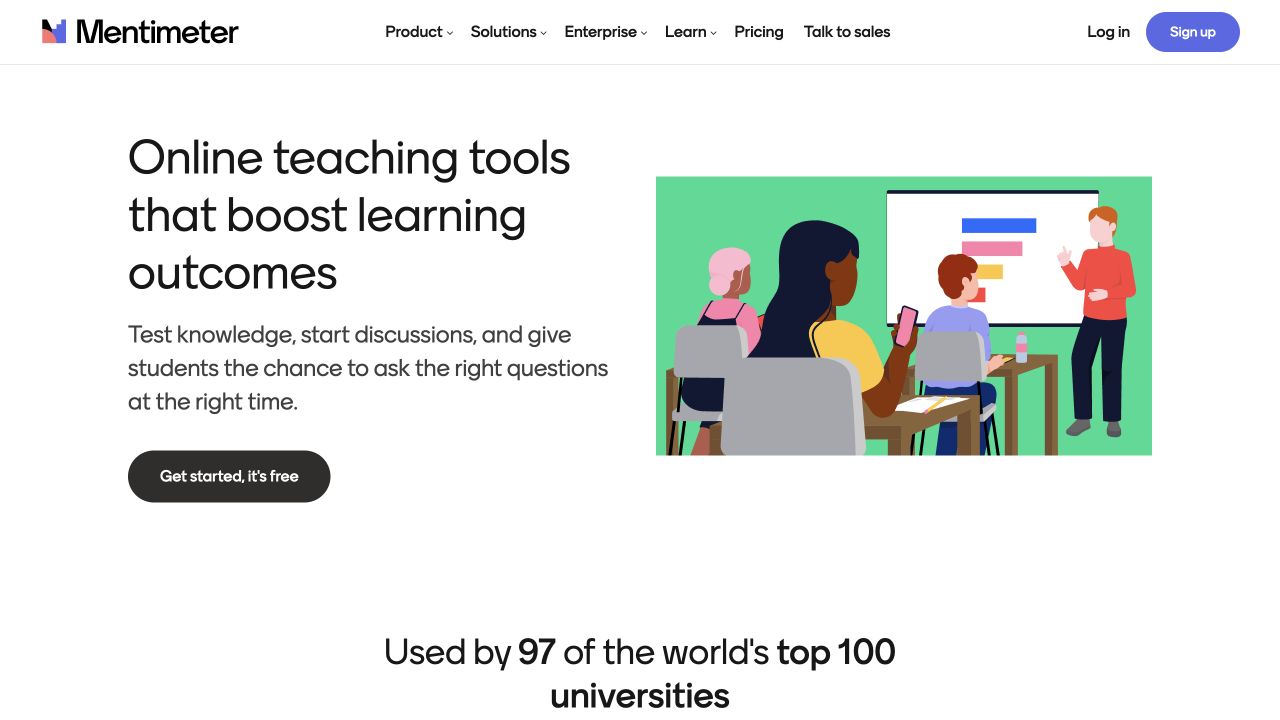
Mentimeter brings students’ responses into the presentation you build. A poll can show how the class divides between two answers; open responses provide examples to discuss before moving to the next slide. A quiz adds a correct-answer result within the same session.
How often you teach with that presentation affects the plan you need. The Free plan counts 50 participants across the month, so one lesson can use the allowance needed for the next. The session that reaches the limit can continue within an eight-hour window, but other presentations are blocked until the allowance resets or you upgrade. The Basic plan removes that monthly restriction and lets you import existing slides and export results to Excel or PDF.
Keeping those results for discussion is different from assigning a grade to a named student. LMS sessions on the Campus plan identify students when they join while logged in through the LMS, then let the teacher synchronize attendance, participation or quiz accuracy. You decide which result to record: being present, contributing an answer and answering correctly describe different parts of the lesson.
9. Poll Everywhere
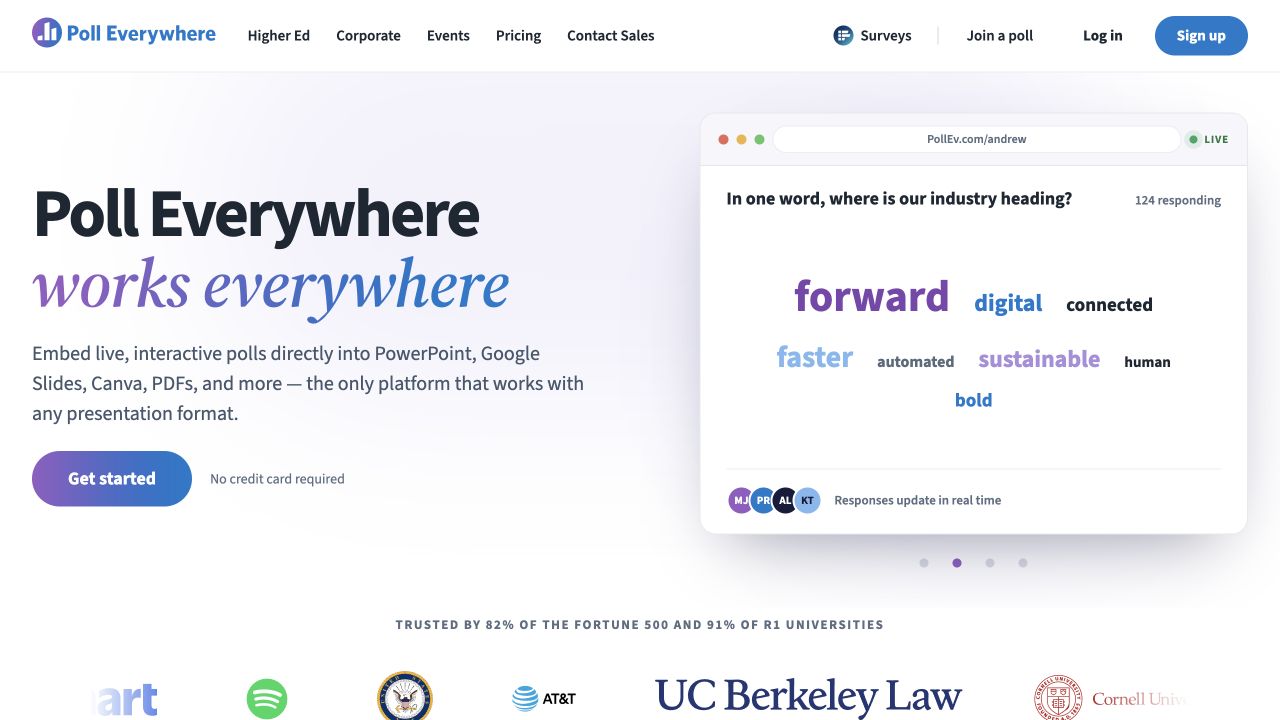
Poll Everywhere adds questions to an existing PowerPoint presentation, including on the free education plan. You can keep your prepared slides and introduce a poll where the explanation needs a response from the class. A split between two choices can then start a discussion before you reveal the answer.
That discussion may invite more than one contribution from each student, which matters for the free allowance. The Free plan accepts 40 responses per poll: if 20 students answer twice, the poll is full. The Lecture plan raises the cap to 700 responses, making the size of the activity a reason to upgrade.
The Free plan also includes data export, but a larger poll allowance does not settle which report you will get afterward. The Lecture plan’s price card promises reporting while the plan matrix places it on the Educator plan. If you are buying for a particular student report, a sample of the included output is worth requesting before payment. LMS integration and grading require the Campus-wide plan.
10. Padlet
Padlet collects work on a board that the class can examine together. Students contribute explanations or other material, then use comments and feedback to discuss it. With several approaches visible side by side, the submitted work becomes material for the next part of the lesson: students can compare how others reached an answer as well as explain their own.
The free account allows three active boards and uploads of up to 20 MB. That allowance matters if you want to keep earlier work visible while starting a new activity. The Platinum plan expands the board and upload allowances, but recording grades in an LMS requires the School plan; neither the Platinum plan nor the Classroom plan includes that connection.
On the School plan, logged-in students’ posts can be graded and the grades passed to the LMS. Teacher or peer judgment still provides the assessment of board-based work. The connection makes it possible to record that assessment against a student, while the board remains the place where the work and discussion are available.
Looking beyond the grade in video-based courses
When students struggle with an assignment in a video-based course, the related lesson is one place to look next. Your LMS may store their answers and grades without recording how much of an embedded video they watched. To review how students used that material, you may need viewing data from the service that hosts the video.
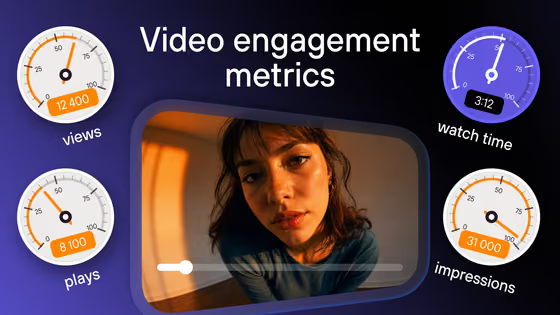
Kinescope shows views and average watch depth for your lessons, with reports you can export as CSV or XLSX to review alongside assessment results. If a topic has frequent errors and its video has low watch depth, you have a starting point for investigation: revisit the explanation and the wording of the assignment before deciding what to change. These overall patterns do not establish a cause or show that the students who watched less were the ones who made mistakes.
If you are also choosing where to manage the course and its assessments, see the LMS platforms in our eLearning software comparison.
How to choose the right assessment tool
Start with an assignment you already use and the result you need from it.
-
For a short quiz with an answer key. Google Forms is a useful starting point in a Google Classroom school. Socrative suits a live check that students join with a room code, with extra rooms available for groups working on different tasks.
-
For written or visual work. Formative lets you follow students’ responses during a lesson. Nearpod builds those checks into your slides and media, while Padlet collects submissions on a shared board for discussion. Choose according to where you want to manage the work: an assessment, a lesson sequence or a board.
-
For repeated practice. Gimkit’s Smart Repetition brings back questions each student missed more often. The Pro plan lets that practice continue as homework.
-
For a hosted quiz. Kahoot! and Wayground both support live and assigned quizzes, with no clear winner for objective questions in this comparison. Wayground’s Basic plan adds AI grading for written explanations. With either tool, check that your chosen plan gives you enough individual results to follow up with students.
-
For presentation polls. Poll Everywhere fits existing PowerPoint lessons, with up to 40 responses per poll on the Free plan. Mentimeter suits presentations built around interactive questions; its Free plan counts participants across the month. For regular classes, that difference in limits can affect when you need to upgrade.
Finally, try one complete activity before paying: join as a student, submit the kind of answer you expect, review the feedback, and check where the result ends up. If you need an LMS grade, include that transfer in the trial with your school administrator. The right choice is the one that gives you usable evidence and fits the way your class already works.
If those activities follow recorded lessons, read our guide to video hosting for online courses for the separate decision about where to store and embed the videos.
See how students watch your video lessons
Host and embed your course videos with Kinescope, then track views and average watch depth in one place.