





















Offline video with DRM for your course app

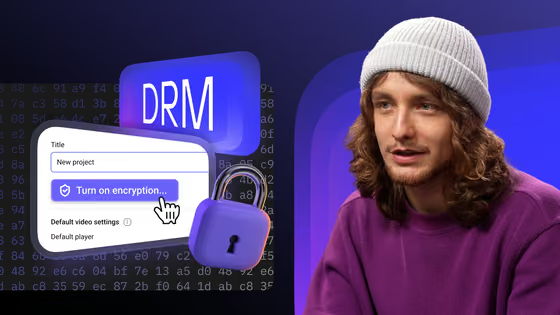
Students download lessons in your Android app and watch them with no signal. The video stays encrypted with Widevine and plays only inside your app on the phone that downloaded it.

How an offline download works
The app gets an offline licence
One quality, in the background
Plays offline, stays encrypted
What works on each platform


Add offline downloads to your app
Code from the SDK documentation. Swap in your video IDs.
-
Add the Android SDK
The player, offline downloads and Widevine come in one dependency from Maven Central.
implementation 'io.kinescope:kotlin-kinescope-player:0.1.20' -
Start the download pipeline
Call it once at app start; it also registers the background download service.
DownloadVideoOffline.initialize(context) -
Get the licence and save the video
The SDK reads the Widevine data from the stream, requests the offline licence and downloads the segments with its
keySetId.drmHelper.attachToPlayer(exoPlayer, videoData) { data, pssh -> drmConfigurator.downloadOfflineLicense( context, data, pssh, ) { keySetId -> val request = DownloadRequest .Builder(contentId, manifestUri) .setMimeType(MimeTypes.APPLICATION_M3U8) .setKeySetId(keySetId) .build() DownloadVideoOffline.startDownload(context, request) } } -
Or do the same from Flutter
On Android the Flutter plugin uses the native SDK: list qualities, download one, play it offline.
final downloads = KinescopeOfflineDownload.instance;
final qualities = await downloads.listDownloadQualities('yourVideoId');
final info = await downloads.downloadVideo(
  'yourVideoId',
  videoHeightPx: qualities.first.height,
);

KinescopeOfflinePlayer(contentId: info.contentId);
Documentation
DRM is included in the plan
Widevine and FairPlay come with every paid plan, and Kinescope runs the licence servers. Your app adds offline downloads with the SDK.
- Paid plans from €10 a month
- No per-licence fee
- 100 minutes of storage and 200 GB of traffic a month free
FAQ
Can’t find the answer you need? Check out our Help Center.