




















7 best tools for cohort-based courses: classes, coaching, and video




One place for all your course videos and live sessions
A cohort-based course needs more than a way to get students into the same video call. Depending on how the program works, you might also need a place for assignments, interactive workshop activities, coaching notes, and lessons students can watch between sessions.
Zoom and Miro Engage cover live teaching and collaboration, while Maven and Circle help organize the learning experience. HypeScribe and Notion handle coaching records, and Kinescope hosts prerecorded lessons and replays, with Speak available for live meetings. Here’s how these seven tools compare and which combinations make sense for different courses.
Best cohort-based course tools at a glance
| Tool | Best fit | Pricing | What to know |
|---|---|---|---|
| Zoom | Instructor-led lessons and group discussions | Free plan; Pro plan $16.99/user/mo | Free plan meetings have a 40-minute limit |
| Miro Engage | Collaborative exercises, polls, and quizzes | Business plan: $25/member/mo, or $20/member/mo billed yearly | Up to 50 participants per session; eligible Education plans also available |
| Maven | Structured programs with recurring live sessions | 10% of course sales + payment fees | Requires a separate Zoom account |
| Circle | Courses with ongoing discussion, peer feedback, and live sessions | Plans from $89/mo with annual billing | Built-in live rooms and streams; capacity and hour limits vary by plan |
| HypeScribe | Transcripts, summaries, and coaching action items | Starter plan $6.99/mo; Pro plan with meeting notetaker $7.99/mo | Usage allowances depend on plan |
| Notion | Shared learning workspaces and coaching records | AI Meeting Notes: Business plan from $20/member/mo | AI Meeting Notes requires the Business or Enterprise plan |
| Kinescope | Prerecorded lessons, replays, and live classes through Speak | Free video hosting plan; Super plan from €10/mo, with usage-based billing. Speak meetings are currently free. | Speak supports up to 100 participants per meeting; recording storage and delivery follow video hosting rates |
Tools for live lessons and interactive workshops
1. Zoom: live classes and coaching calls
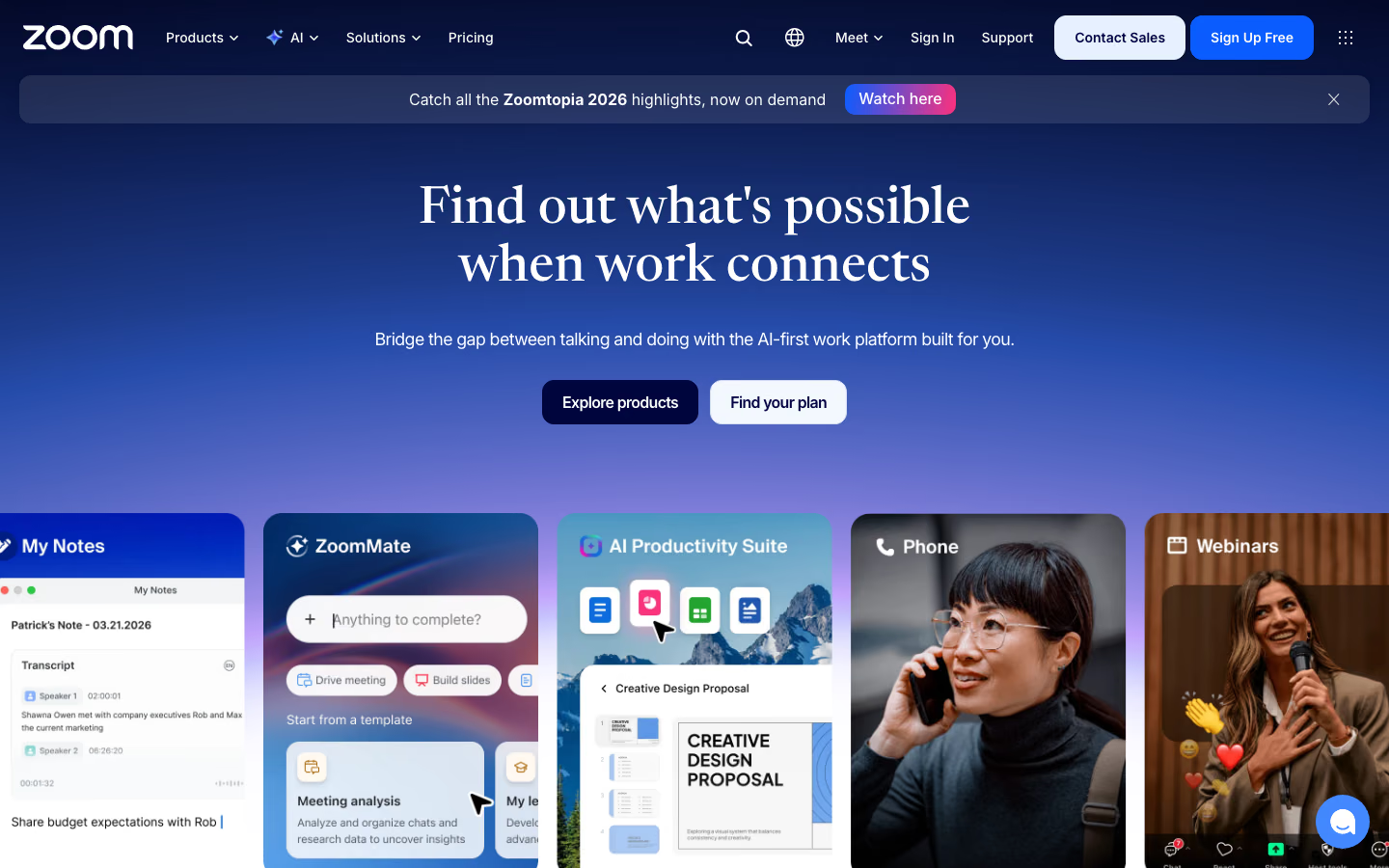
Zoom works well for cohort courses built around scheduled lessons, office hours, and coaching calls. You can present material, discuss assignments, and use breakout rooms for smaller group exercises. In a course centered on prerecorded lessons, the same meetings can focus on questions, project reviews, and individual feedback instead of delivering the main content.
That makes Zoom a practical starting point when you already have a website or workspace for course materials. The limitation is that meetings don’t organize the rest of the learning experience. Students still need somewhere to find assignments, upcoming sessions, and lesson videos.
Recordings help students revisit discussions or catch up on missed classes, although cloud recording and some interactive features depend on the subscription. Zoom’s free plan also limits group meetings to 40 minutes, so longer lessons require a different plan or meeting arrangement.
If you’re organizing presenter-led events for a business audience rather than an ongoing course, our comparison of B2B webinar tools covers platforms built around registration, audience engagement, and replays.
2. Miro Engage: interactive workshop activities
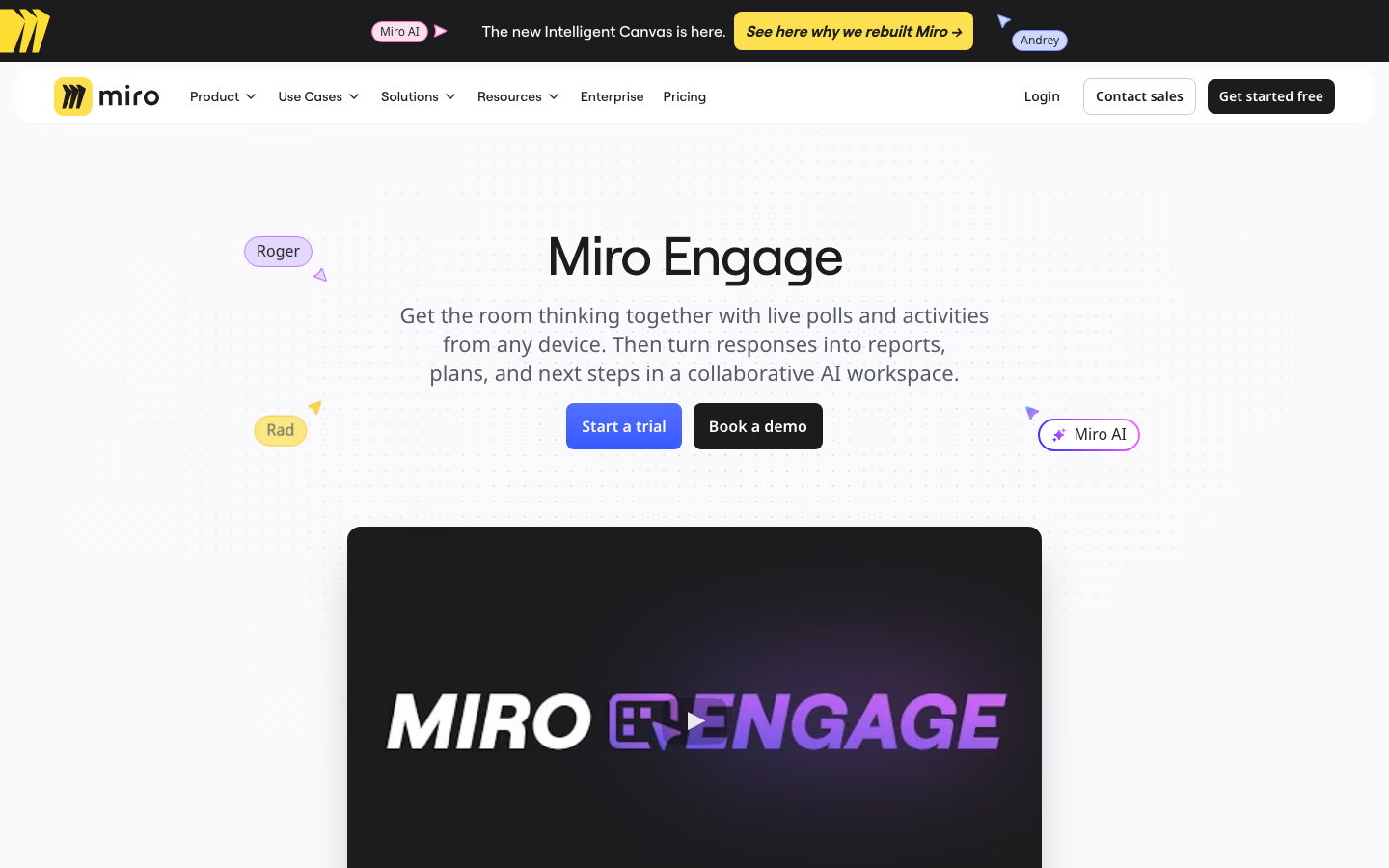
Miro Engage adds a collaborative layer to workshops where students need to contribute ideas, compare answers, or work through a problem together. Rather than relying entirely on verbal discussion, you can collect responses through polls, rankings, quizzes, word clouds, and open-ended questions.
Students join an activity through a QR code or session code without creating a Miro account. Their responses appear on a shared canvas, where you can use them to guide the next part of the workshop.
For example, students might rank several approaches to a problem before discussing why they made their choices. Because the results remain on the canvas, the group can refer to them while working through an exercise.
Miro Engage doesn’t replace a meeting tool, though. It runs alongside Zoom or another platform: the meeting provides space for conversation, while the canvas holds the activities and their results, so students can move between discussion and hands-on work.
Engage is available on the Miro Business plan, which costs $25 per member per month, or $20 per member per month with annual billing. Sessions support up to 50 participants, and eligible Education and Enterprise plans also provide access.
Platforms for managing cohort-based courses
For a multiweek program, students need a reliable place to follow their progress, find materials, and stay connected with the rest of the group.
3. Maven: structured live course delivery
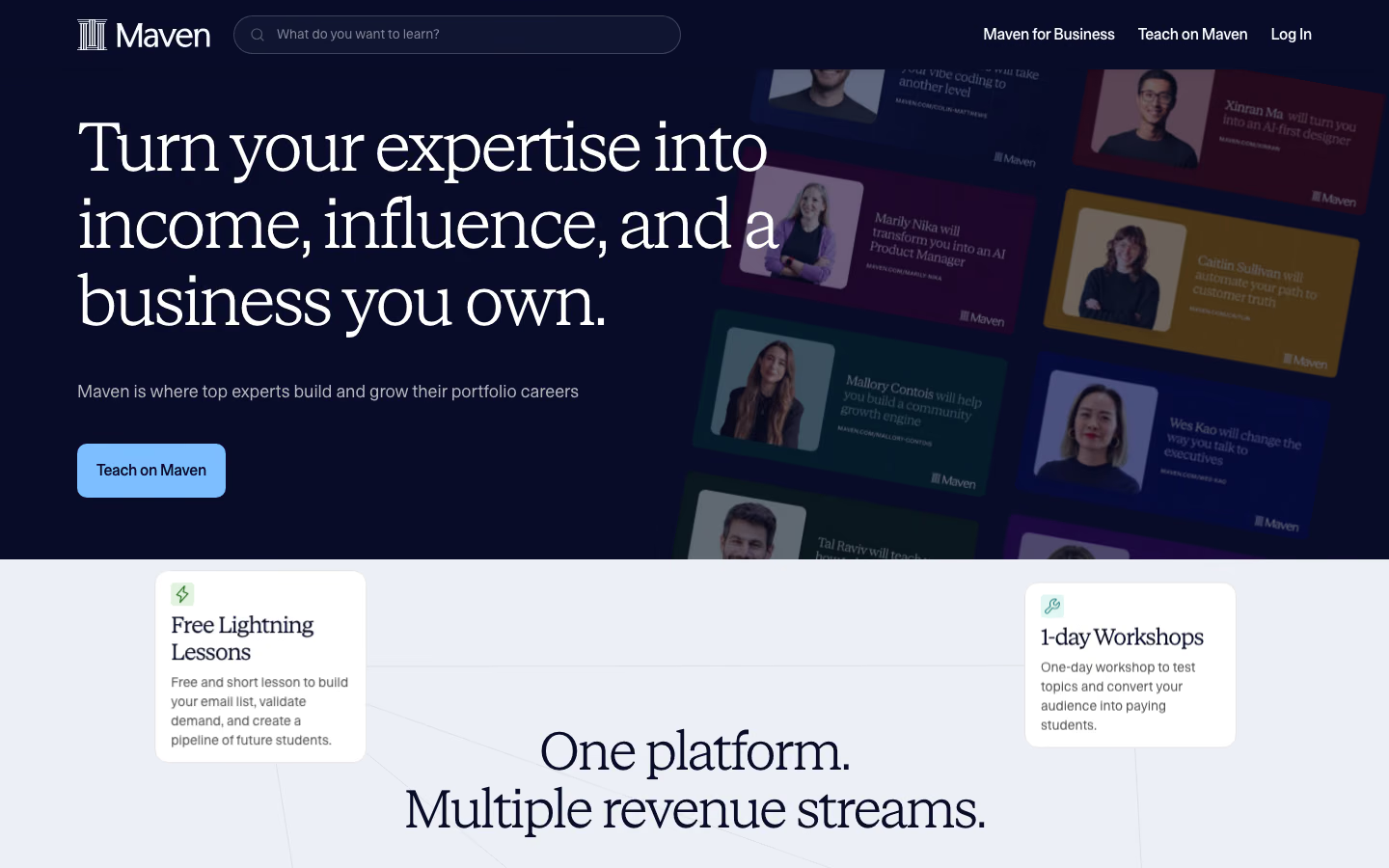
Maven helps you turn lessons, workshops, and assignments into a structured cohort-based course. Instead of managing schedules, meeting links, and materials separately, you can bring these elements together in one course environment.
Students move through the program from one activity to the next, checking upcoming events, opening lesson materials, and finding assignments before the next workshop. This works well when everyone follows the same curriculum over several weeks, since you don’t have to coordinate each step through separate messages and documents.
Live teaching fits into that structure through Maven’s Zoom integration. You can create meeting links for course events and make eligible recordings available alongside the related materials afterward. Students who miss a session can then catch up in the context of the lesson rather than searching for a recording elsewhere.
Because Zoom hosts the meetings, you need a separate Zoom account. Automatic recording through Maven’s supported integration also requires the Zoom Pro plan and the appropriate recording configuration.
Maven works best when the course follows a defined sequence of activities and deadlines. If students spend more time exchanging ideas and feedback between those activities, a platform built around an ongoing community offers a different approach.
4. Circle: community-based courses with built-in live sessions
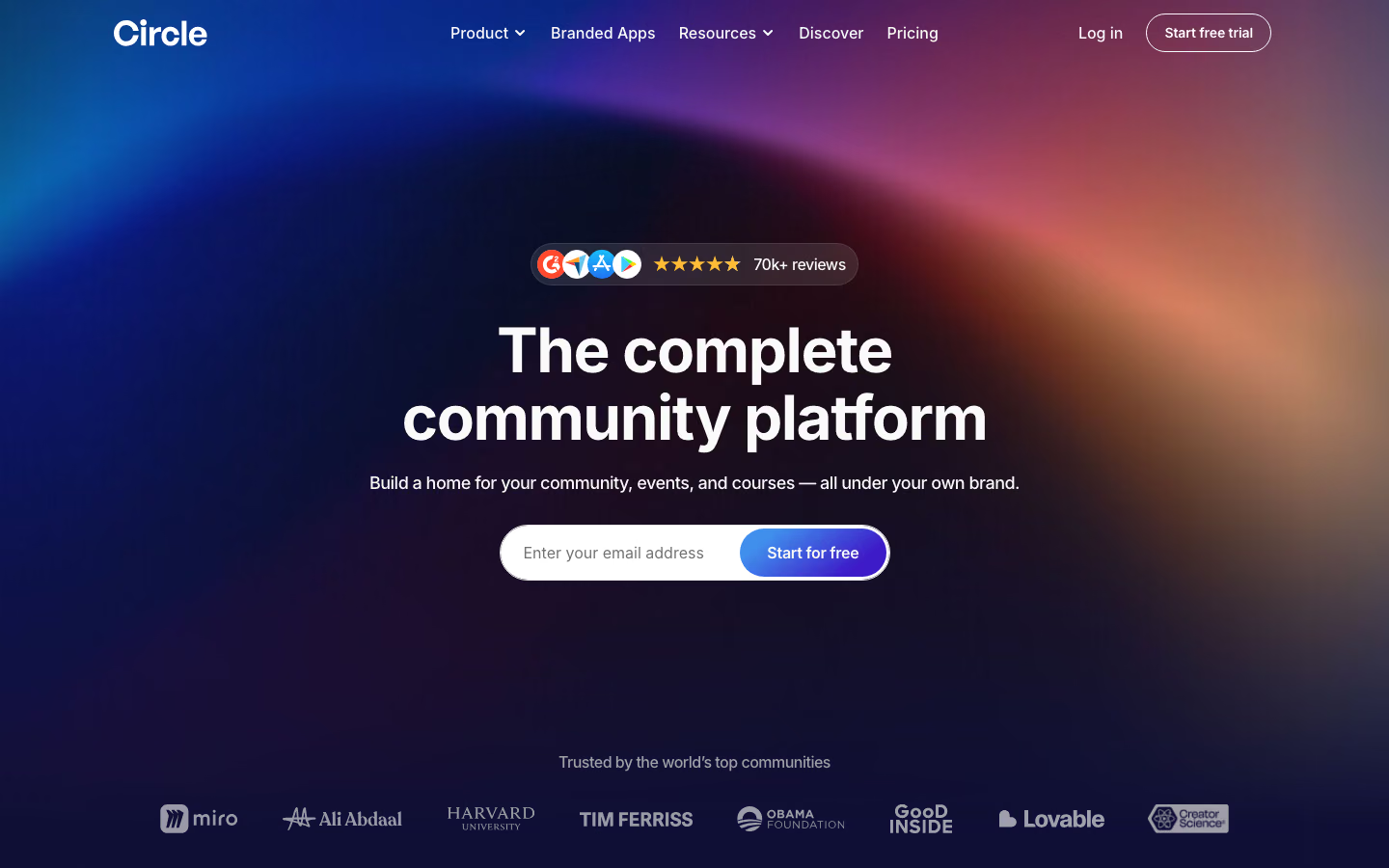
Circle brings course content, discussions, and live events into a shared community, giving students a place to continue learning together between scheduled classes.
They can post assignments, ask questions, and discuss one another’s work throughout the week. When an issue needs more detailed discussion, you can bring the group together in Circle’s native live rooms, which support interactive sessions and breakout rooms. Live streams are also available for larger, presenter-led events.
Keeping these activities in one environment means the conversation doesn’t have to end when a class finishes. Students can return to the community, continue a discussion, and access recordings or related materials without moving to a separate meeting platform.
Because Circle includes its own live rooms and streams, you don’t always need Zoom. The limits of those features still matter, though. On the Professional plan, live rooms support up to 15 participants and streams up to 100 attendees, with 10 live hours included.
For a course built around peer feedback and ongoing participation, that combination of community and live teaching can be more useful than a schedule-centered environment. Larger cohorts or programs with frequent live sessions should check whether the available capacity and hours fit their teaching format.
Tools for coaching notes and student follow-ups
Coaching conversations often move between a student’s questions, feedback on their work, and decisions about what to improve next. Without a record of those decisions, it’s easy to lose track of what was agreed. Accessible notes help both sides return to the feedback as work progresses.
5. HypeScribe: transcripts and AI coaching summaries
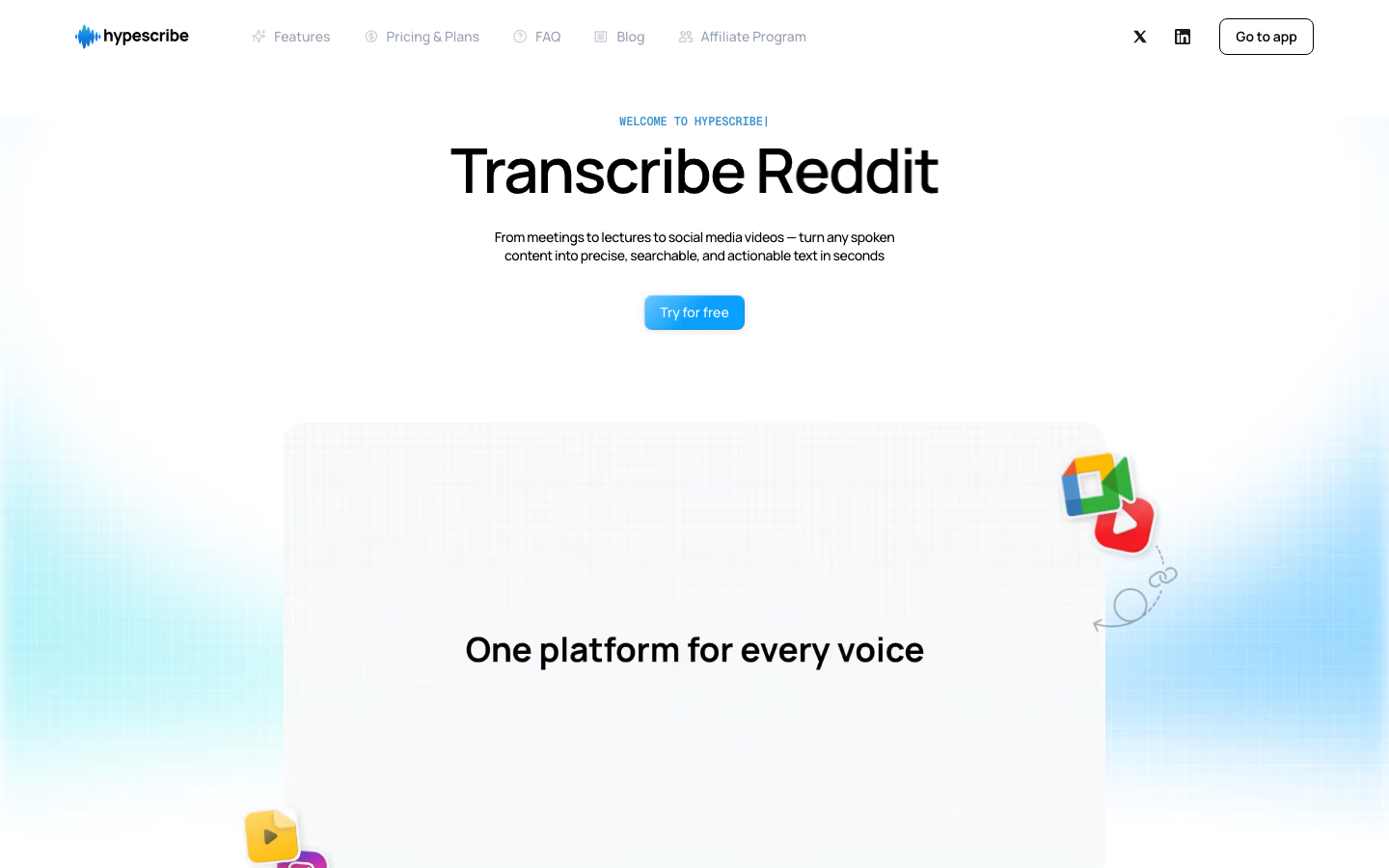
HypeScribe helps you document coaching conversations without dividing your attention between listening and taking notes. You can upload an existing audio or video recording or use HypeScribe’s meeting notetaker for supported calls.
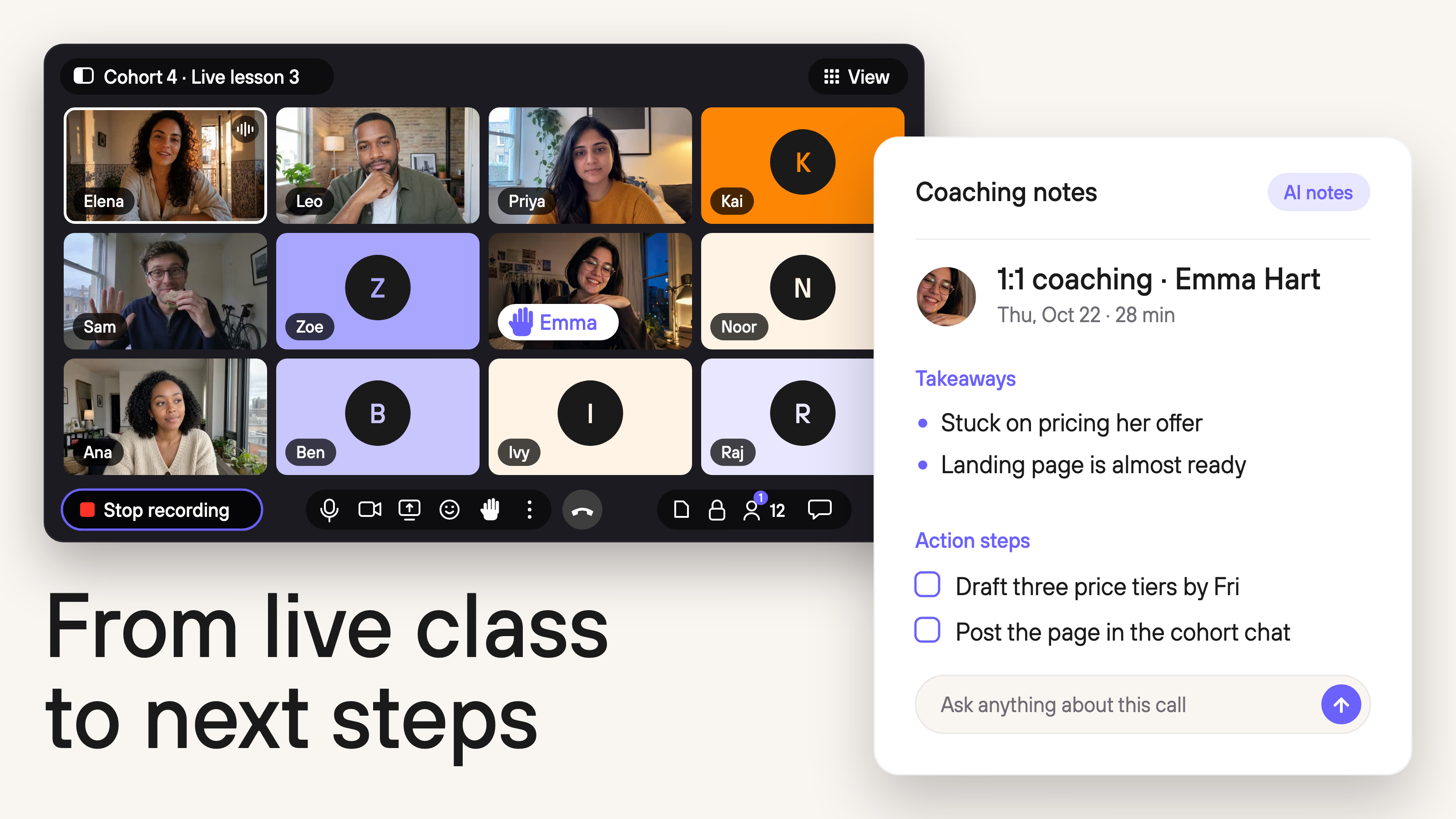
The service produces a searchable transcript, a summary, and action items. The transcript preserves the details of the conversation, while the summary and action items identify what the student needs to do next.
After a project review, for instance, you can check the generated notes, confirm which revisions were agreed on, and prepare a follow-up. When the student returns for another session, the same record provides context for discussing their progress.
If coaching records are managed elsewhere, HypeScribe supports exports and integrations, including Notion. This allows you to capture conversations from different sources and keep the resulting feedback alongside assignments and student records.
The subscription level depends on how those conversations need to be captured. The Starter plan supports file uploads but doesn’t include the meeting notetaker, while the Pro and Ultra plans cover 10 and 30 captured meetings per month, respectively. File transcription has a separate token allowance, so consider both meeting frequency and recorded-file usage.
6. Notion: course materials and AI meeting notes
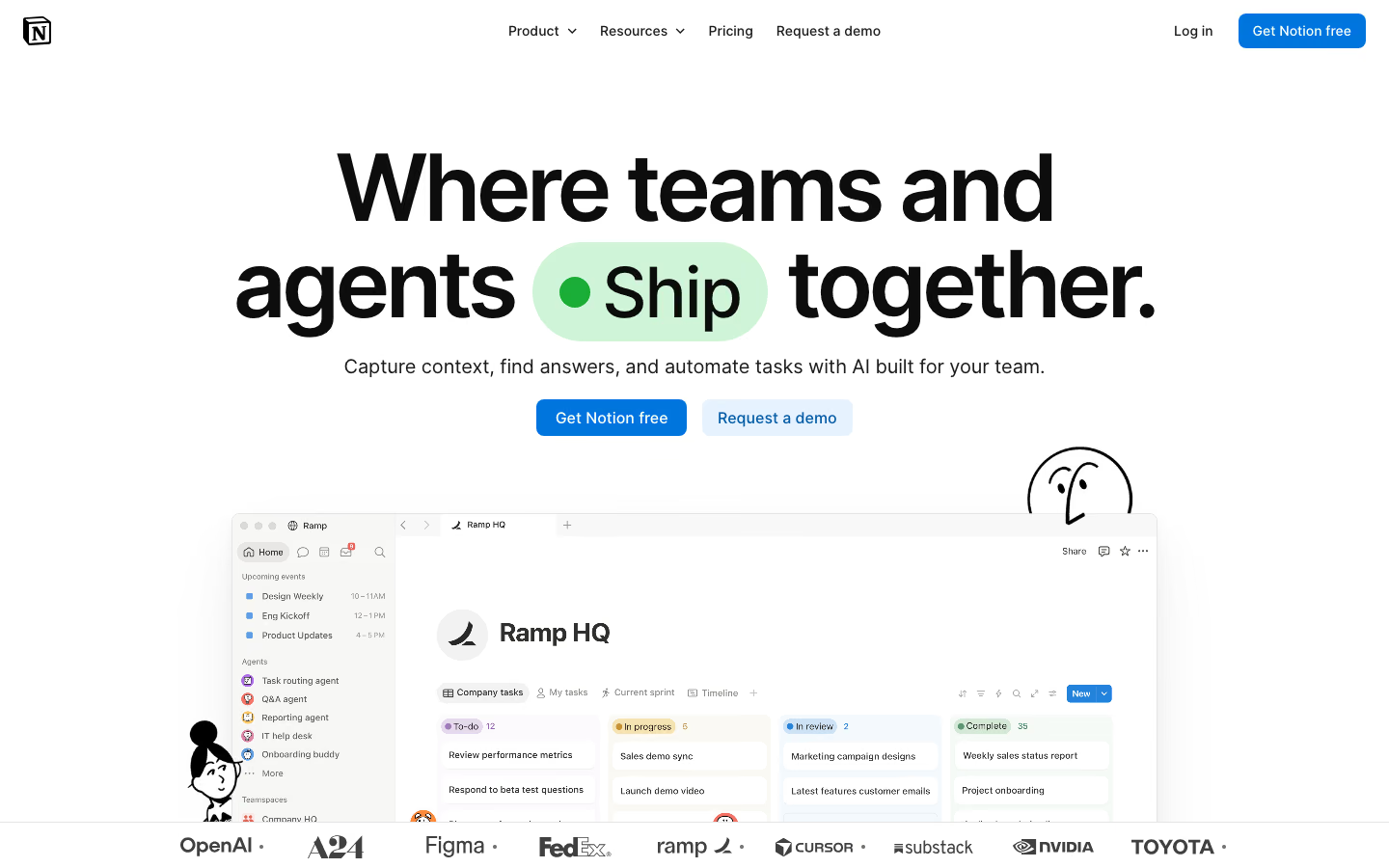
Notion approaches coaching documentation from the workspace side. You can keep lesson materials, assignments, project updates, and individual feedback together, making it easier to see how a student’s work develops across the course.
For example, a student’s page might contain their current assignment and feedback from an earlier coaching call. When the next meeting takes place, you can add notes to that same workspace rather than creating another record elsewhere.
Notion’s AI Meeting Notes feature supports this workflow by generating transcripts, summaries, and action items. It can also process existing audio recordings, bringing information from a conversation into the workspace where you already manage the student’s progress.
The capture method matters, however. Notion’s desktop app can record system audio and microphone input, while browser capture is more limited for remote calls. AI Meeting Notes also requires an eligible Business or Enterprise plan.
If your course materials and feedback already live in Notion, these features can cover note-taking without a dedicated transcription service. Generated notes still need reviewing before they’re shared, and individual student records should be accessible only to the appropriate people.
Video hosting for course lessons and replays
Not every cohort-based course is taught primarily through live sessions. Students can work through prerecorded lessons at their own pace, then meet with the instructor to discuss assignments, ask questions, or receive feedback.
In that format, video lessons form part of the curriculum, while recordings of live sessions provide an additional resource. Both need reliable playback and a place where students can access them. Built-in video hosting often covers the needs of a single course, but a separate host gives creators more flexibility over how their library is managed.
7. Kinescope: video lessons, replays, and live meetings with Speak
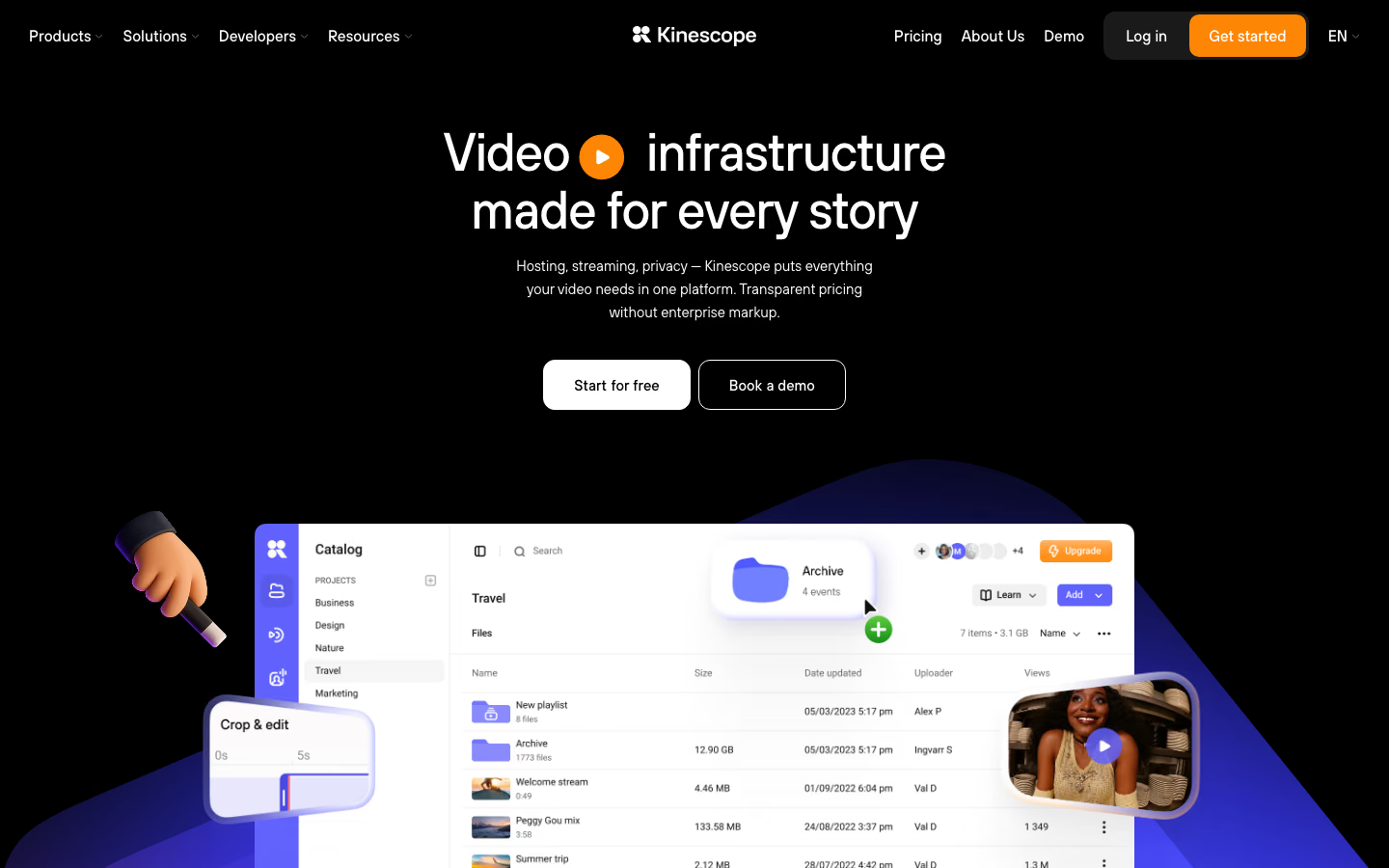
Kinescope lets course creators host prerecorded lessons and session replays independently of the platform used to organize their courses. Videos can be kept in a library and embedded into learning pages, allowing students to watch them alongside their assignments and other materials.
This setup is useful when the same lessons are taught to several cohorts. Instead of uploading a new copy for each program, you can reuse existing videos and update them when the curriculum changes. Kinescope also allows a video to be replaced without changing its embed code, so the updated lesson appears wherever the original was published.
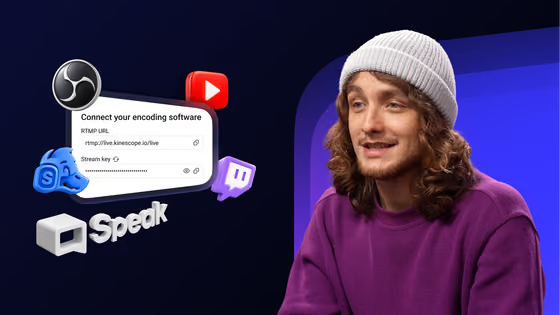
A course built around prerecorded lessons can still include live classes, office hours, or individual coaching. Those meetings can be held through Kinescope Speak, a video meeting tool within the Kinescope ecosystem. Speak supports video calls, screen sharing, meeting recordings, and up to 100 participants in one meeting. Its rooms can also be embedded directly into course pages.
Speak meetings are currently free. Storing and delivering their recordings uses Kinescope’s video hosting infrastructure and is billed under the applicable hosting plan.
For paid courses, Kinescope also offers controls over video delivery, including domain restrictions and DRM on eligible paid plans. Its viewing analytics include engagement and retention data, helping you see how students watch individual lessons.
These capabilities complement a learning platform rather than replace it. Enrollment, assignments, progress tracking, and course-level permissions still need to be managed through the course website or another system.
How to build a tool stack for your cohort-based course
Choosing a tool stack starts with the course format and what you already use. Replacing a working system can introduce unnecessary complexity, while a specialist tool is worth adding when an existing service doesn’t handle a task well.
The following combinations offer starting points for different types of programs.
| Course setup | Starting combination | When another tool becomes useful |
|---|---|---|
| Small instructor-led cohort | Zoom + an existing course workspace | Add HypeScribe or Notion AI Meeting Notes when coaching follow-ups need systematic documentation |
| Scheduled workshop program | Maven + Zoom | Add Miro Engage when workshops depend on collaborative activities |
| Community-led program | Circle | Add Miro Engage for structured activities, HypeScribe for transcription, or Kinescope for independent video hosting and controls |
| Video-led course with coaching calls | Existing course environment + Kinescope, with Speak where suitable | Add another meeting platform if Speak doesn’t cover the course’s live-session requirements |
Build around the students’ main workspace
Before choosing new software, decide where students should go when they want to continue learning. That could be an existing website, a course platform, or a community.
If students can already find their materials, assignments, and feedback without difficulty, there’s little reason to replace that environment. A meeting or video tool can work alongside it.
A dedicated platform becomes more valuable when coordinating information across disconnected services takes too much time. At that point, the decision is less about the number of features and more about how students move through the course.
If you’re also choosing a platform for selling lessons, rather than only organizing a cohort, our guide to tools for solo course creators covers course platforms, storefronts, payments, and related services.
Add specialist tools where the workload justifies them
Once the main workspace is in place, consider which activities still require extra effort.
For coaching, that might be the time spent documenting calls, preparing follow-ups, or finding earlier feedback. Regular coaching sessions benefit from a consistent note-taking workflow. Before subscribing to another service, though, check whether your existing workspace or meeting software already provides what you need.
The same applies to interactive workshops. If students learn mainly through discussion, the meeting tool can handle it on its own. When exercises depend on collecting responses and working with them as a group, a shared activity space becomes more useful.
Consider how course videos will be used over time
Video needs change as a course develops. A single program often works well with the hosting included in its learning platform, especially if lessons aren’t reused elsewhere.
If you plan to teach the same material to future cohorts, update modules regularly, or publish lessons in several environments, an independent video library offers more flexibility.
Live meetings should be evaluated separately. The best tool for hosting prerecorded lessons isn’t necessarily the best fit for every class size or teaching format, and your course might already have suitable meeting software.
If your chosen tools already support a smooth learning experience, there’s little reason to replace them. If something gets in the way, that’s where an additional tool can make a difference.
Make your course videos easier to manage with Kinescope
Host lessons and replays, embed them in your learning platform, and explore Speak for live classes and coaching.

FAQ
Most use a meeting tool such as Zoom or Circle’s live rooms for classes, and a note-taker such as HypeScribe or Notion AI Meeting Notes for coaching follow-ups. Prerecorded lessons and replays usually live in a course platform or a separate video host such as Kinescope.
Zoom can handle live classes and coaching calls, especially for small groups. But you’ll still need to organize enrollment, assignments, course materials, and access to recordings or prerecorded lessons. An existing workspace can take the place of a dedicated LMS.
HypeScribe offers a dedicated transcription workflow for meeting capture, uploaded recordings, and exports. Notion works well when you’re already using an eligible plan for course materials and want meeting notes in the same workspace. The main considerations are capture methods, usage allowances, and where the notes need to be stored.
AI tools can prepare transcripts, summaries, and action items, but instructors should review the results before sharing individual feedback. Automated notes can miss context or misunderstand what the student agreed to do.
No. A course platform’s built-in video features often handle both prerecorded lessons and live-session replays. Separate hosting becomes useful when you want to manage videos independently, reuse them across courses, or apply additional playback and protection controls.
Not always. Maven uses Zoom for its integrated live sessions, while Circle provides native live rooms and streams. Compare meeting capacity, recording options, and live-hour limits with your course schedule before choosing a setup.
It depends on where students follow the course. Maven can attach eligible Zoom recordings to the related course materials, and Circle keeps recordings inside the community. If you want replays and prerecorded lessons in one library that you can embed on any page, a video host such as Kinescope can work alongside your course platform, and recordings from Kinescope Speak meetings are stored with the rest of your videos.