





















Stream key
The secret code that tells a streaming platform which live event your encoder is sending to. Together with the server URL, it is all OBS needs to go live.
A stream key is a unique code the platform issues for your channel or live event. The encoder sends it to the ingest server over RTMP, together with the server URL. Anyone who has the key can stream into your event, so keep it hidden and reset it if it leaks.
What is a stream key?
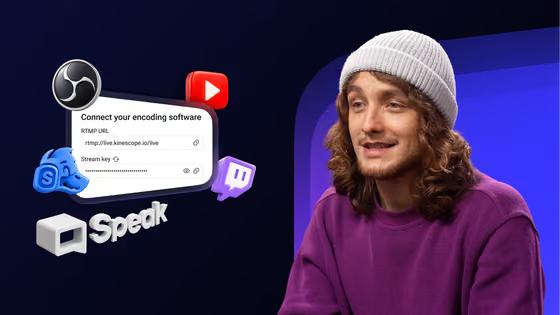
When an encoder such as OBS, vMix or Larix starts a live stream, it connects to the platform’s ingest server over RTMPRTMPThe protocol encoders such as OBS and vMix use to send a live signal to the platform. Viewers then watch over HLS.Open definition →. One server receives streams from many people at once, so the encoder also sends a code that says whose stream this is. That code is the stream key.
The platform checks the key, matches the signal to your channel or event and starts delivering it to viewers, usually over HLSHLS (HTTP Live Streaming)Apple’s adaptive streaming protocol. Uses .m3u8 manifests and segmented delivery; supported on every browser, device and smart TV.Open definition →. Twitch also calls it an authorization key, because the key alone gives the encoder permission to stream.
Server URL and stream key
| Server URL | Stream key | |
|---|---|---|
| Also called | RTMP URL, ingest URL, server | Authorization key |
| What it identifies | The ingest server | Your channel or event |
| Shared with others? | Yes, the same for many users | No, unique to you |
| Example format | rtmp://rtmp-eu.kinescope.io | A long random string |
Some mobile apps, such as Larix, take both in one merged link. Kinescope shows that link as “Copy merged link” next to the key.
Where to find your stream key
| Platform | Where the key is |
|---|---|
| YouTube | YouTube Studio → Create → Go live → Stream tab |
| Twitch | Creator Dashboard → Settings → Stream |
| Kinescope | Live → your event → Settings tab, or the “Connect your encoding software” card in Studio |
Twitch’s mobile app streams without a key. A key is needed only when you stream from an encoder.
How to use a stream key in OBS
Open the live event on your platform and copy the server URL and the stream key.
In OBS Studio go to File → Settings → Stream and choose Service: Custom.
Server URL into Server, the key into Stream key. Click Apply and OK.
Click Start Streaming and check in the platform that the event is live and the picture is right.
Keep the key safe
Anyone with your key can send their own video into your event, and your viewers will see it. Treat the key like a password:
- Do not post it in chats, tickets or screenshots, and hide it before you share your screen.
- Give the key only to the person who runs the encoder. On Twitch, extra broadcasters get their own guest key instead.
- Reset the key if it was shown on stream or sent to the wrong person. The old key stops working, and you paste the new one into the encoder.
Further reading
- Kinescope: connecting the stream — RTMP URL, stream key and ingest servers.
- YouTube Help: live stream with an encoder
- Twitch Stream Key FAQ